 RANGER
 CompTIA A+ Core 1 (220-1201) · chapter 11 of 15
Week 11: The troubleshooting playbook
In this chapter Objectives 5.1
Objective 5.1
Troubleshooting methodology (background, not tested on 220-1201)
The six steps
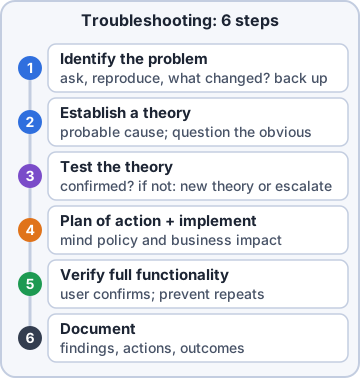
Background, not tested on 220-1201: the V15 objectives print this 6-step methodology but say it is not a formal objective. Help desks still work every ticket this way, and scenario questions reward its logic. Learn the steps in order and in CompTIA's words:
- 1. Identify the problem: gather info from the user, identify user changes, back up if needed, ask about environmental/infrastructure changes
- 2. Establish a theory of probable cause (question the obvious); research if needed
- 3. Test the theory to determine the cause; if not confirmed, new theory or escalate
The six steps, continued
Once the cause is confirmed, the fix and the paperwork follow. Always consider corporate policies, procedures and impacts before implementing changes.
- 4. Establish a plan of action to resolve the problem and implement the solution (vendor instructions)
- 5. Verify full system functionality and, if applicable, implement preventive measures
- 6. Document findings, actions and outcomes
Exam tip Not scored as its own objective on 220-1201, but it is how the job works. Back up before changes (step 1). Documenting is always LAST.
Using the steps well
Step 1: ask open questions, reproduce the issue, check logs, and ask "what changed?" Step 2: start with the simple and obvious (power, cables, settings). Step 3: test one thing at a time; if the theory fails, form a new one or escalate. Step 4: plan around business impact (change window, backups, approvals). Step 5: have the user confirm it works. Step 6: write it in the ticket so others can learn.
Exam tip Trap: "implement the fix" before testing the theory, or "document" before verifying. Both are wrong order.
Objective 5.1
Motherboard, RAM, CPU and power symptoms
POST beeps and blank screen
POST (power-on self-test) checks CPU, RAM and video before booting. POST beeps are codes: one short beep is usually OK; patterns (e.g. repeating long beeps) point to RAM or video. Codes differ by firmware vendor: look them up in the board manual. Many boards use debug LEDs or a 2-digit code display instead. Blank screen with fans running: check monitor power and input, the cable, the GPU seating and power, then reseat RAM.
Exam tip Never memorize one vendor's beep chart as universal. The exam answer is "check the manufacturer's documentation".
Proprietary crash screens
Each OS has its own crash screen. Windows: the blue (or black) stop error screen with a stop code (e.g. MEMORY_MANAGEMENT, WHEA_UNCORRECTABLE_ERROR). macOS: a kernel panic restart with a "your computer restarted because of a problem" message; the spinning wait cursor is a hang. Note the code, check Event Viewer/logs, and test RAM, drivers and recent hardware changes.
Exam tip MEMORY_MANAGEMENT stop codes after a RAM upgrade? Run a memory diagnostic, reseat or remove the new module.
Check yourself 1A PC powers on and its fans spin, but the screen stays blank and it gives a pattern of beeps. How should you find out what the beeps mean?
- Use a universal beep code chart
- Run Windows Memory Diagnostic
- Read the stop code on the crash screen
- Check the board maker's manual
Show the answer
Answer: D. Check the board maker's manual
POST beep codes differ by firmware vendor. Look up the pattern in the motherboard maker's documentation (or read the board's debug LEDs or code display).
No power and burning smell
No power (no lights, no fans): check the outlet with another device, the power cord, the PSU switch and input voltage selector, then the front-panel power button header and the 24-pin plug. Test the PSU with a PSU tester or multimeter. Burning smell: power off and unplug at once. Look for scorched parts, a failing PSU or melted connectors. Do not power on again until the bad part is replaced.
Exam tip Burning smell = safety first: disconnect power before anything else.
Overheating, random shutdowns, unusual noise
Overheating: dust-clogged heat sinks and filters, failed fans, dried thermal paste, blocked vents. The CPU throttles (slows) and finally the system shuts off. Random shutdown: overheating, a failing or undersized PSU, or loose power cables. Unusual noise: grinding or rattling fans (bad bearing), clicking HDD, coil whine; find it with the case open (safely) and replace the part.
Exam tip Shuts down only under heavy load? Check temperatures, then PSU wattage.
Sluggish performance and application crashes
Sluggish performance at the hardware level: thermal throttling, too little RAM (constant paging to disk), a failing HDD, single-channel memory, or a power plan set to battery saver. Check Task Manager for CPU/RAM/disk at 100%. Application crashes across many apps suggest bad RAM or overheating; one app crashing suggests that app or its driver.
Exam tip Random crashes in many apps + recent RAM change = test memory first.
Swollen capacitors and wrong date/time
Swollen capacitors on the motherboard (bulging or leaking tops) cause random reboots and instability. The fix is to replace the board (or PSU if they are inside it). Inaccurate system date/time that resets after power-off means a dead CMOS battery (CR2032 coin cell). Wrong time also breaks logins and HTTPS certificates.
Exam tip Clock resets to a date years ago after unplugging = replace the CMOS battery.
Check yourself 2Background (not tested on 220-1201): a technician has confirmed the theory that a PC's failed fan caused overheating. Following CompTIA's methodology, what is NEXT?
- Document the findings and actions in the ticket
- Establish a plan of action and replace the fan
- Verify full system functionality
- Gather more symptoms and information from the user
Show the answer
Answer: B. Establish a plan of action and replace the fan
After the theory is confirmed (step 3), step 4 is to establish a plan of action and implement the solution.
Practice questions
Answer in your head, then open the answer. Ranger's Help Desk has 436 questions like these for A+ Core 1, with mock exams.
Question 1A desktop powers on, shows no video and beeps in a repeating pattern. Based on the exhibit, what should the technician do FIRST?
- Replace the video card
- Replace the CMOS battery
- Reflash the BIOS from USB
- Reseat the memory modules
Show the answer
Answer: D. Reseat the memory modules
Beep codes differ by firmware vendor, so match the pattern to the board's manual. Here 1 long and 3 short points to memory, and reseating is the quickest test.
Question 2A user hears a series of beeps when a PC starts, then nothing appears on screen. The technician does not recognize the pattern. What should the technician do?
- Look up the pattern in the vendor's documentation
- Clear CMOS and then reinstall the operating system
- Assume the beeps mean the CPU has failed
- Replace the power supply right away as a precaution
Show the answer
Answer: A. Look up the pattern in the vendor's documentation
POST beep codes are vendor-specific. The manual or vendor site explains what the pattern means.
Question 3A desktop with a two-digit POST code display stops at the code shown in the exhibit and never shows video. What should the technician check?
- Whether the CMOS battery is below 3V
- Whether memory is installed and fully seated
- Whether the boot order lists the SSD
- Whether the monitor is set to the right input
Show the answer
Answer: B. Whether memory is installed and fully seated
POST code displays (debug LEDs) report where startup stopped. The manual lists this code as a memory detection failure.
Question 4After a user installs a new memory module, the PC powers on with fans spinning, but there is no video and no beep. What should the technician try FIRST?
- Replace the power supply with a higher-wattage unit
- Run Windows Memory Diagnostic from the Start menu
- Reseat the new module and confirm its type
- Install the latest video driver
Show the answer
Answer: C. Reseat the new module and confirm its type
A module that is not fully seated or the wrong type commonly stops POST. Reseat it and confirm it is the right DDR generation.
Question 5A Windows PC randomly shows a blue screen with the stop code MEMORY_MANAGEMENT. Which tool should the technician run NEXT?
- Print Management
- Event Viewer's Application log only
- Disk Defragmenter
- Windows Memory Diagnostic
Show the answer
Answer: D. Windows Memory Diagnostic
A proprietary crash screen with a memory stop code points to RAM. Windows Memory Diagnostic (mdsched.exe) tests it at boot.
CompTIA, A+, Network+, Security+ and Linux+ are trademarks of CompTIA, Inc. Ranger Gamez is not affiliated with or endorsed by CompTIA. The practice questions are written to the published exam objectives; they are not real exam questions.