 RANGER
CompTIA Tech+ (FC0-U71) · chapter 16 of 18
The day the laptop died
In this chapter Objectives 5.4
Objective 5.4
Backups: what to save and how to get it back
File backups vs. system backups
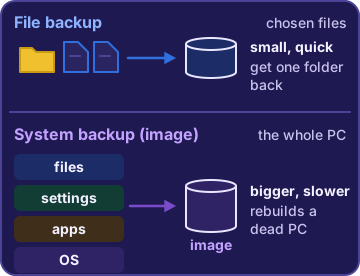
A file backup copies chosen files and folders: documents, photos, the pick list. It's small and quick, and great for getting back one deleted folder. A system backup, often called an image, copies the whole computer: the operating system, apps, settings and files. It's bigger and slower, but it rebuilds a dead PC just as it was. Many offices use both: a system backup now and then, and file backups every day.
You: So a file backup alone can't bring back Windows?
Sam: Right. It brings back your stuff, not the computer.
Restoring data
Restoring means copying data back from a backup. A backup you've never restored is a hope, not a plan, so test restores regularly: restore a few files to a test folder and open them. When you restore, bring back only what you need. If you're not sure which copy is right, restore to a different folder first so you don't overwrite newer, good work.
Exam tip 'Backup completed' only proves the copy ran. A test restore proves you can get the data back.
Check yourself 1Theo deleted a folder of product photos by mistake this morning. Last night's file backup has the folder. What should Sam do?
- Restore the whole PC from last week's system backup image
- Tell Theo the photos are gone for good
- Restore just that folder from last night's file backup
- Buy a new drive
Show the answer
Answer: C. Restore just that folder from last night's file backup
Restoring only the missing folder from the newest file backup gets the photos back without touching anything else on the PC.
Objective 5.4
Where backups live
Stored locally
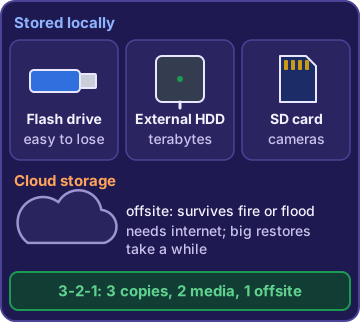
Local backups sit on a device you can hold, and need no internet to make or restore:
- Flash drive: a small USB stick, handy for a few files and easy to lose
- External hard drive: lots of space, often terabytes, for big backups; unplug it and lock it away
- Secure Digital (SD) card: a small memory card used in cameras, tablets and some laptops
Exam tip A local backup sitting next to the PC can be lost in the same fire, flood or theft.
Cloud storage
Cloud storage keeps the backup on a provider's servers, reached over the internet. It's offsite, so it survives a disaster at the office, and it can run automatically. The trade-offs: it needs an internet connection, a big restore can take a while, and the data should be encrypted. A common rule of thumb is 3-2-1: three copies of your data, on two kinds of media, with one copy offsite.
Sam: Desk drawer plus cloud. Now one copy survives even if the warehouse floods.
Rosa: The warehouse has never flooded.
Priya: Yet.
Go deeper
More on the objectives in this chapter, in the same exam-ready detail.
Objective 5.4 · Data; Location
Backups that really work
File backups vs. system backups
A file backup copies the files and folders you choose, like Documents. A system backup captures the whole computer: operating system, apps, settings and files, so it can be rebuilt as it was. When a PC's drive dies, only a system backup brings back Windows and the apps. Restore that first, then restore newer documents from the file backups.
Restoring data
Restoring means copying data back from a backup. Restore only what you need: one deleted folder from last night's file backup is quick and leaves everything else alone. If today's file has good changes mixed with bad ones, restore the old copy to a different folder and compare, so you don't overwrite the good work. And test: a 'Backup completed' message only says the job ran. Restoring sample files to a test folder proves the backup works.
Exam tip A backup you've never test-restored is a guess, not a backup.
Where backups live
Backups live in one of two kinds of place. Stored locally means media you hold (no internet needed, can be locked in a safe). Cloud storage is the other kind:
- Flash drive: tiny, fits a key ring, for small backups.
- External hard drive: several terabytes on a cable; unplug it and lock it away.
- Secure Digital (SD) card: a small memory card for cameras, phones and card readers.
- Cloud storage (not local): a provider's servers over the internet. The copy is automatically offsite.
Exam tip A backup drive sitting next to the server can burn, flood or be stolen with it. Keep at least one copy offsite.
Practice questions
Answer in your head, then open the answer. Ranger’s First Byte has 455 questions like these for Tech+, with mock exams.
Question 1What does a file backup save?
- The whole system, including the operating system and apps
- Copies of chosen files and folders
- Only the computer's settings
- A live mirror that copies deletions right away
Show the answer
Answer: B. Copies of chosen files and folders
A file backup copies the files and folders you choose, like Documents, so you can restore them if they are lost or damaged. A system backup goes further and saves the operating system, apps and settings too.
Question 2Which small, removable memory card is common in cameras and some laptops and can hold a backup copy of photos?
- USB flash drive
- External hard drive
- Secure Digital (SD) card
- Cloud storage
Show the answer
Answer: C. Secure Digital (SD) card
A Secure Digital (SD) card is a small flash memory card used in cameras, phones and card readers; it can hold a local backup copy. A USB flash drive also uses flash memory, but it plugs into a USB port instead of a card slot.
Question 3Which backup location keeps a copy on a provider's servers, reached over the internet, away from the office?
- Cloud storage
- External hard drive
- USB flash drive
- SD card
Show the answer
Answer: A. Cloud storage
Cloud storage keeps backup copies on a provider's servers in its data centers, reached over the internet, so the copy is offsite. Flash drives, SD cards and external hard drives are local storage you keep on site.
Question 4Sam wants to rebuild a warehouse PC exactly as it was, with Windows, apps, settings and files, if its drive ever dies. Which backup should he make?
- A file backup of the Documents folder
- A sync folder linked to cloud storage
- A copy of the desktop files on a flash drive
- A system backup
Show the answer
Answer: D. A system backup
A system backup captures the whole system: operating system, apps, settings and files, so the PC can be rebuilt as it was. File backups and copies of chosen folders only bring back those files.
Question 5Theo deleted a folder of product photos by mistake this morning. Last night's file backup includes that folder. What is the quickest way to get the photos back?
- Restore just that folder from last night's file backup
- Restore the whole PC from a system backup
- Look in the sync folder on his other laptop
- Make a new backup right away so the photos are kept safe
Show the answer
Answer: A. Restore just that folder from last night's file backup
Restoring data means copying it back from a backup. Restoring only the deleted folder from last night's file backup is quick and leaves everything else alone. A full system restore would take longer and could overwrite today's work.
CompTIA, Tech+, A+, Network+, Security+ and Linux+ are trademarks of CompTIA, Inc. Ranger Gamez is not affiliated with or endorsed by CompTIA. The practice questions are written to the published exam objectives; they are not real exam questions.