 RANGER
CompTIA Tech+ (FC0-U71) · chapter 18 of 18
Safe devices, secret data and the interview
In this chapter Objectives 6.2, 6.4
Objective 6.2
Security awareness and safe devices
Social engineering and phishing
Social engineering tricks people instead of computers into giving up access or information, like a caller pretending to be IT. Phishing is social engineering by email, text or message that pretends to come from someone you trust. Warning signs: urgency or threats ('your pay stops today'), a generic greeting, a sender address that's slightly off (kibb1e.com), and links or attachments you didn't expect. Check by contacting the sender at a number or site you already know.
Malicious or compromised content
Malicious content is built to do harm: a program dressed up as a document, like the scan-guide.pdf.exe Priya grabbed a few weeks ago, a fake 'Your PC has 5 viruses! Call now!' pop-up, or a USB drive left in the parking lot as bait. Compromised content is normally safe content that attackers have tampered with, like a real website that's been hacked to spread malware. Don't open what you didn't expect, never plug in found drives, and report it to IT.
Rosa: I found a flash drive labeled 'Payroll 2026' by the dock.
Priya: And you handed it to me without plugging it in. Gold star.
Securing phones and workstations
Every phone and workstation needs these protections:
- Authentication: a strong sign-in or screen lock that turns on after a short idle time
- Anti-malware: turned on and kept up to date
- Firewall: turned on, blocking connections nobody asked for; allow just one app when needed
- Patching/updating: install security updates; schedule restarts instead of turning updates off
- Physical device security: a cable lock ties a laptop to a desk, and a USB lock blocks open USB ports
Check yourself 1Rosa asks Sam to turn off updates on her PC because the restarts interrupt her. What should Sam do?
- Turn updates off, since the restarts waste her time
- Uninstall the anti-malware so the PC runs faster
- Keep updates on and schedule restarts after her shift
- Unplug the PC from the network so it doesn't need updates
Show the answer
Answer: C. Keep updates on and schedule restarts after her shift
Updates patch security holes, so they stay on. Scheduling restarts outside work hours solves Rosa's real problem without leaving the PC exposed.
Objective 6.2
Software the right way
Licenses
A software license sets the rules for using an app. Open source software's source code is public: anyone may view, change and share it, following its license. Proprietary software's code is private and owned by a company. A subscription is paid monthly or yearly and stops when payments stop. A one-time purchase is paid once, up front. A perpetual license never expires, so you keep using that version for good. Product keys and serial numbers prove you bought a license; one key usually covers one install.
Where software comes from
Get software only from legitimate sources. Research first: is this really the publisher's site, spelled right, with good reviews? For drivers and firmware, use the original equipment manufacturer (OEM) website, the device maker's own site, not a third-party download site full of ads and bundled extras. On phones, use the official app store. Software piracy, using or sharing software without a valid license, like a cracked copy, is illegal and often hides malware.
Sam: Label printer driver? The printer maker's site. Not 'free-drivers-now dot something.'
Removing software
Remove software that's unwanted, like a toolbar that rode in with another download; unnecessary, like a trial nobody uses or an app nobody needs anymore; or malicious, like anything that shows ads, changes settings or spies. Fewer apps means fewer things to patch and fewer ways in. For malicious software, uninstall it, remove any browser extensions it added, then run an anti-malware scan.
Check yourself 2Mr. Barkley compares two offers for an inventory app. Offer A: pay every month and access stops if payments stop. Offer B: pay once and keep using that version with no end date. What is Offer A?
- Open source
- A subscription
- A perpetual license
- A product key
Show the answer
Answer: B. A subscription
A subscription is paid again and again, and access ends when payments stop. Offer B, paid once and kept for good, is a perpetual license.
Objective 6.2
Safe browsing
Valid and invalid certificates
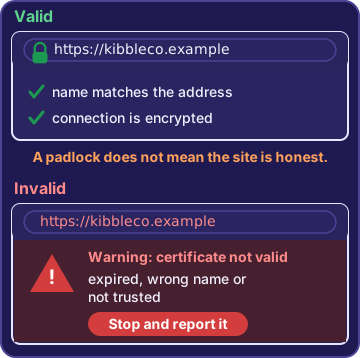
A website's certificate proves its identity. A valid certificate means the site's name matches its address and the connection is encrypted, and the browser shows HTTPS and a padlock. An invalid certificate, expired, issued for a different name or not trusted, gets a full-page warning. Don't click past it: stop and report it. A padlock only means the connection is private, not that the site is honest. Scam sites can have one too.
Privacy while you browse
Safe browsing also means watching what you share:
- Social networking sites: check privacy settings, and don't overshare where you work, live or travel
- Email: don't send PII or passwords in a plain email; double-check the recipient
- File sharing: share with named people, not 'anyone with the link', and remove access when it's done
- Instant messaging: no passwords or card numbers in chat
- AI: don't paste customer data or company secrets into public AI tools; they may keep and review what you type
Theo: I learned the AI one the hard way. Customer list, public chatbot. Priya had words.
Priya: Kind words. Mostly.
Objective 6.4
Encryption
Plain text vs. cipher text
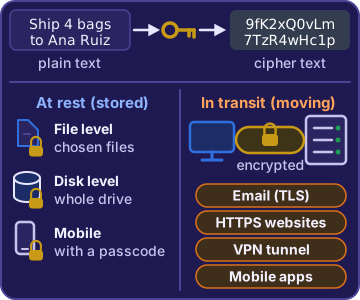
Encryption scrambles data with a key so only someone with the right key can read it. Readable data is plain text. Scrambled data is cipher text. Without the key, cipher text is just noise.
Plain text:  Ship 4 bags to Ana Ruiz
Cipher text: 9fK2xQ0vLm7TzR4wHc1pYe8u
Data at rest
Data at rest is stored data. File-level encryption protects chosen files or folders, like the payroll spreadsheet on a shared PC. Disk-level encryption, or full-disk encryption, protects the entire drive, so a stolen laptop's drive is unreadable even if someone pulls it out. Mobile device encryption protects a phone's storage; it's built in on modern phones, but it only keeps a lost phone's data safe once a passcode is set. A sign-in password alone doesn't encrypt anything.
Data in transit
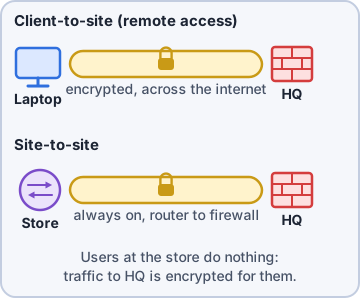
Data in transit is data moving across a network. Email is protected in transit by encrypted TLS connections between mail servers. HTTPS encrypts the traffic between a browser and a website. A VPN, or virtual private network, builds an encrypted tunnel from your device to the company network, which is great on public Wi-Fi. Mobile applications should send data, like sign-ins, only over encrypted connections.
Exam tip HTTPS protects the trip, not the stored database. Data at rest and data in transit each need their own protection.
Check yourself 3A laptop with customer files is stolen from a car. It has a strong sign-in password but no disk encryption. Are the files safe?
- Yes, because the strong sign-in password also protects the files
- Yes, as long as the laptop stays off
- No; HTTPS only covers the files while online
- No; the drive can be pulled out and read in another computer
Show the answer
Answer: D. No; the drive can be pulled out and read in another computer
A sign-in password only guards the operating system. Without disk-level encryption, the files on the drive are plain text to anyone who reads the drive elsewhere.
Objective 6.4
Before the big day: the exam
CompTIA Tech+ at a glance
Your apprenticeship covered the CompTIA Tech+ exam, FC0-U71. It has up to 70 questions, all multiple choice, in 60 minutes, and you pass with 650 on a scale of 100 to 900. Its six domains: IT concepts and terminology, infrastructure, applications and software, software development concepts, data and database fundamentals, and security.
- Read the last line of each question first: what is it really asking?
- Watch for deciding words like BEST, FIRST and MOST
- Rule out answers that are the right tool for a different job
- About 50 seconds a question: mark tough ones and come back
Maya: Pass Tech+ and the help desk job leads straight to A+. One step at a time.
Go deeper
More on the objectives in this chapter, in the same exam-ready detail.
Objective 6.2 · Security awareness; Securing devices (mobile/workstation)
Securing devices and spotting tricks
Social engineering and phishing
Social engineering tricks people instead of computers. Phishing is a fake message that pretends to be from someone you trust so you'll click a link or give up information. Warning signs:
- A lookalike sender, like kibb1e.com with a 1 for the l
- Urgent threats: 'Your pay stops today!'
- A generic greeting: 'Hi employee'
- A link asking for your password or card details
Exam tip Not sure a message is real? Contact the sender with a phone number or website you already know. Never use the link in the message.
Malicious or compromised content
Harmful content comes in many disguises:
- A pop-up that says 'Your PC has 5 viruses! Call now.' Real security warnings never ask you to call a number.
- A USB drive labeled 'Payroll 2026' found in the parking lot. Hand it to IT unplugged.
- A file named Invoice.pdf.exe, which is really a program.
- A 'free coupon' app that adds ads and changes your home page.
Four software defenses
Secure every phone and workstation:
- Authentication: a strong sign-in and a screen lock that turns on after a short idle time.
- Anti-malware: on and up to date, to find and stop harmful software.
- Firewall: on, with a rule that allows just the one app that needs it. Never turn it off to 'make an app work.'
- Patching/updating: updates fix security holes attackers already know about. Keep them on and schedule the restarts.
Physical device security
Some threats are just someone walking up to the device. A cable lock loops a steel cable around something solid and locks into the laptop's security slot, so it can't be carried off. A USB lock physically blocks a USB port, so visitors can't plug unknown flash drives into the front desk PC. A cable lock ties the device down but leaves its ports open, so the two solve different problems.
Objective 6.2 · Device use best practices
Licenses, safe sources and removing software
Open source vs. proprietary
Open-source software lets anyone see, change and share its source code, but always under a license whose terms must be followed, like keeping copyright notices. It's permission with conditions, not 'no rules.' Proprietary software keeps its code private, and the maker limits what you may do with it.
How you pay: subscription, one-time, perpetual
Three ways to pay for software:
- Subscription: pay monthly or yearly and always get the newest version. Stop paying and the app stops working.
- One-time purchase: pay once up front instead of on a schedule. It usually comes with a perpetual license.
- Perpetual license: pay once and keep using the version you bought, with no end date. Newer versions may cost extra.
Exam tip A product key or serial number activates or identifies a licensed copy. One license and one key for five PCs isn't enough: buy licenses for all five.
Getting software from the right place
Research and validate a source before you download. Go to the official publisher's site, not a search ad, because fake download sites buy ads. For drivers, use the original equipment manufacturer (OEM) website. Third-party download sites can serve outdated files bundled with extras, or tampered ones. For phone apps, use the official application store, which checks apps. A link in a text can lead to a fake copy.
Exam tip Software piracy: a 'cracked' copy that runs without a key breaks the license and often hides malware.
Removing software
Clean up three kinds:
- Unwanted: you didn't mean to install it, like a toolbar bundled with a free program.
- Unnecessary: you don't use it, like an old trial. Less software means less to update and less to attack.
- Malicious: built to do harm. Remove the app and any extension it added, then run an anti-malware scan. Disabling it leaves the code behind.
Objective 6.2 · Safe browsing practices
Safe browsing: certificates and privacy
Valid certificates
A website's certificate is its digital ID. A valid certificate proves the site really is the address you typed and lets the browser set up an encrypted HTTPS connection, shown by the padlock. It does not prove the site is honest. Scam sites can get valid certificates too, so a padlock on a page asking for your card PIN to 'claim a prize' means nothing.
Exam tip Padlock = encrypted connection to that address. It is not a trust badge for the company.
Invalid certificates
An invalid certificate means the browser can't confirm the site or protect the connection. The browser shows a full-page warning. Causes include an expired certificate, a certificate for a different site, a wrong clock on the PC, or an attacker in the middle. Even on a site you use every week, stop and report it to IT. Clicking past the warning is exactly what an attacker hopes for.
Privacy considerations
Think before you share:
- Social networking sites: public posts can be seen and saved by anyone.
- Email: messages can be forwarded, saved and printed by anyone who gets them.
- File sharing: open links can spread far past the person you sent them to.
- Instant messaging: chat history stays searchable and can be screenshotted.
- AI: text pasted into a public AI tool has left the company. The service may keep it or have people review it, even after you delete the chat.
Exam tip Never paste customer data, passwords or company secrets into a public AI tool.
Objective 6.4 · Plain text vs. cipher text; Data at rest; Data in transit
Encryption: data at rest and in transit
Plain text vs. cipher text
Plain text is readable data. Encryption uses a key to turn it into cipher text, which looks like scrambled characters and can't be read without the right key. Compressed data looks scrambled too, but anyone can uncompress it. Cipher text needs the key.
Plain:  Ship 40 bags to Store 2
Cipher: 9f3Kx!q7ZbR2@mW8vL0e#Tp4
Data at rest
Data at rest is stored data: files on a drive, photos on a phone. Three ways to protect it:
- File level: encrypt chosen files, so other users of a shared PC can't open the payroll sheet.
- Disk level: encrypt the whole drive, so everything is safe if a laptop is stolen.
- Mobile device: phone encryption, unlocked by the passcode, keeps a lost phone's data unreadable.
Exam tip A sign-in password alone doesn't protect data at rest: a thief can pull the drive and read it in another computer.
Data in transit
Data in transit is data moving across a network. Protect each kind:
- Email: an encrypted (TLS) connection between mail servers. End-to-end encryption goes further: only the recipient can read it.
- HTTPS: encrypts traffic between a browser and a web server.
- VPN: an encrypted tunnel from a laptop on public Wi-Fi to the company network.
- Mobile application: apps should send sign-ins and data over an encrypted connection such as HTTPS.
Exam tip HTTPS protects the trip, not the database stored on the server. Stored data needs its own at-rest encryption.
Pick the protection
First ask: is the data sitting still or moving? Then match:
- Stolen laptop full of customer files: disk-level encryption.
- Only the payroll sheet on a shared PC: file-level encryption.
- Lost warehouse phone: mobile device encryption with a passcode.
- Working from coffee shop Wi-Fi: the company VPN.
- Shoppers' passwords on the way to the web store: HTTPS.
- Email between two companies' mail servers: TLS on the mail connection.
Exam tip Private browsing isn't encryption. It only stops the browser saving history on that device.
Practice questions
Answer in your head, then open the answer. Ranger’s First Byte has 455 questions like these for Tech+, with mock exams.
Question 1An email that looks like it is from Kibble & Co.'s bank asks Rosa to click a link and confirm her account password. What kind of attack is this?
- Software piracy
- A firewall rule
- Phishing
- Shoulder surfing
Show the answer
Answer: C. Phishing
Phishing is a fake message that pretends to come from someone you trust to trick you into giving up information or clicking a link. Shoulder surfing is also social engineering, but it means watching someone type in person, not sending a fake email.
Question 2Rosa forwards this email to Priya. Which three details are warning signs of phishing? Choose three.
- It is signed by a team name
- It threatens that her pay will stop today
- It greets her as "Hi employee" instead of by name
- The sender's domain uses a 1 in place of the letter l
- It has a subject line
Show the answer
Answers: B. It threatens that her pay will stop today, C. It greets her as "Hi employee" instead of by name, D. The sender's domain uses a 1 in place of the letter l
A lookalike domain (kibb1e with a 1), an urgent threat and a generic greeting are classic phishing signs. A subject line and a team sign-off appear on real emails too, so they prove nothing.
Question 3Rosa gets a text that says it is from her bank, with a link to "unlock your account now." She is not sure it is real. What should she do?
- Tap the link to see if the page looks like the bank's site
- Contact the bank using a phone number or website she knows is real
- Reply to the text and ask who sent it
- Forward the link to coworkers so they can check it
Show the answer
Answer: B. Contact the bank using a phone number or website she knows is real
The safe step is to check with the bank through a contact method she already trusts, not anything in the message. Tapping the link "just to look" is the trap: fake pages are built to look real and may steal what she types or install malware.
Question 4While Rosa browses, a page pops up: "WARNING! Your PC has 5 viruses! Call this number now for help." What is this most likely?
- A scam meant to trick her into calling
- A real alert from her PC's anti-malware
- A certificate warning from the browser
- A message from the Windows firewall
Show the answer
Answer: A. A scam meant to trick her into calling
Fake virus pop-ups that tell you to call a number are tech support scams. It may look like a real anti-malware alert, but real security warnings never ask you to call a phone number.
Question 5Rosa finds a USB flash drive labeled "Payroll 2026" in the parking lot. What should she do?
- Plug it into a warehouse PC to find the owner
- Plug it into her home PC, which is not on the work network
- Plug it in, but only open the files that look safe
- Give it to IT without plugging it into anything
Show the answer
Answer: D. Give it to IT without plugging it into anything
An unknown USB drive can carry malware, and a tempting label is a common trick, so it goes to IT unplugged. Plugging it in to find the owner is the trap; that is exactly how this kind of attack works.
CompTIA, Tech+, A+, Network+, Security+ and Linux+ are trademarks of CompTIA, Inc. Ranger Gamez is not affiliated with or endorsed by CompTIA. The practice questions are written to the published exam objectives; they are not real exam questions.