 RANGER
CompTIA Tech+ (FC0-U71) · chapter 9 of 18
What the OS really does
In this chapter Objectives 3.1, 3.2
Objective 3.2
The OS in the middle
The go-between for apps and hardware
The operating system (OS), like Windows, macOS or Linux, is the interface between applications and hardware. Apps never talk to the CPU, memory or drives directly. When an app saves a file, it asks the OS, the OS passes the request to the drive's driver, and the driver talks to the hardware. That way every app works on every computer, without knowing which drive is inside.
Spreadsheet app   "save this"
      |
Operating system  file system
      |
Driver            drive's driver
      |
Hardware          SSD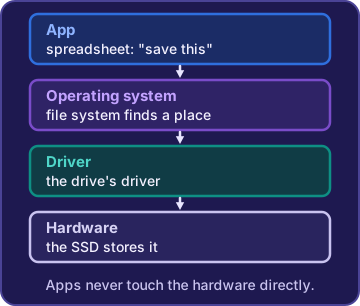
Sam: The app says "save." The OS handles the how.
Managing disks, tasks and apps
The OS has several jobs. Disk management prepares and organizes storage: setting up new drives, creating and formatting volumes, giving them drive letters. Task and process management shares the CPU among running programs, so music plays while a spreadsheet recalculates. Application management covers installing, updating, repairing and removing apps.
Sam: New drive doesn't show up in File Explorer? It needs to be set up and formatted in Disk Management first.
Managing devices and access
Device management detects hardware, loads the right drivers and keeps them updated, so a new scanner works when you plug it in. Access control decides who can sign in and what each user may open: separate accounts, passwords, and permissions on files and folders. When a temp worker shares the warehouse PC, his own standard account keeps him out of Payroll.
Rosa: Can the temp just use my login?
Sam: Then he gets everything you can reach. His own account, please.
OS types
Operating systems come in types, set by the device's job, not the brand:
- Mobile device: Android and iOS, for phones and tablets.
- Desktop/workstation: Windows, macOS and Linux, for one person running many apps.
- Server: like Windows Server or a Linux server, built to serve many clients day and night.
- Embedded: a built-in OS for a fixed-purpose device, like a self-checkout kiosk, a digital sign or a smart thermostat.
Exam tip A Windows edition locked to one job on a kiosk is still embedded. The job decides the type.
Check yourself 1A new hire starts in the warehouse office. Sam creates her own account so she signs in with her own password and sees only her team's folders. Which OS job is this?
- Disk management
- Device management
- Application management
- Access control
Show the answer
Answer: D. Access control
Deciding who can sign in and what each user may open is access control.
Check yourself 2The digital sign at the loading dock runs a built-in OS that only shows the truck schedule, all day. Which OS type is it?
- Embedded
- Desktop/workstation
- Server
- Mobile device
Show the answer
Answer: A. Embedded
An embedded OS runs a fixed-purpose device, like a sign or a kiosk. A desktop OS is built for a person running many apps.
Objective 3.1
Files and file systems
File system types
A file system is how a drive organizes files and folders. Windows uses NTFS. FAT32 is old and works almost everywhere, but no single file can be bigger than 4 GB. exFAT works on both Windows and macOS and handles big files, so it's good for USB drives you share. Linux often uses ext4, and Macs use APFS.
Rosa: My 6 GB training video won't copy to the USB drive.
Sam: That drive is FAT32. Format it as exFAT and it'll fit.
Types and extensions
A file extension is the part of the name after the last period. It tells the OS the file type, so it knows which app opens it: .docx is a word-processor document, .xlsx a spreadsheet, .pdf a PDF, .txt plain text, .csv a comma-separated data file, .jpg and .png pictures, .mp4 video, .zip a compressed folder and .exe a program. Changing the extension changes only the name, not the format inside.
Exam tip Need a real PDF? Save or export as PDF. Renaming the extension doesn't convert anything.
Compression and encryption
File systems can do two handy things. Compression makes files take up less space, and apps still get every byte back when they open them. Encryption scrambles the contents so only someone with the right key can read them, which protects a laptop that gets stolen. Compression saves space; it doesn't keep anything private.
Priya: Customer records on a field laptop? Encrypt them. Compressing them just makes smaller files a thief can read.
Folders, paths and naming rules
Files live in folders (also called directories), and folders can hold other folders. A path shows the way: C:\Invoices\2026\October\inv-1001.pdf means the file is in October, inside 2026, inside Invoices, on drive C:. Windows has naming restrictions: a file name can't use < > : " / \ | ? or *. Slashes are saved for paths, so a name like Orders 10/28/2026.csv fails. Spaces, hyphens and underscores are fine.
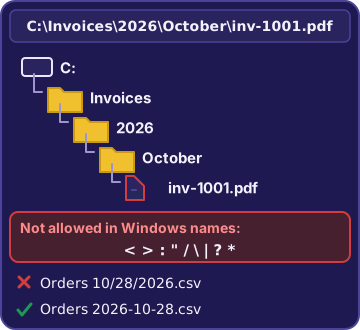
Exam tip Dates in file names? Use 2026-10-28, not 10/28/2026.
Objective 3.1
Who can do what to a file
Permissions, attributes and properties
Permissions decide which users and groups may read, change or fully control a file or folder, so only HR can open Payroll. In NTFS, Modify and Full control are permissions. File attributes are simple flags on the file itself: Read-only lets anyone open it but not save changes, and Hidden keeps it out of normal folder views. A file's properties window shows its type, size, location, dates, attributes and permissions.
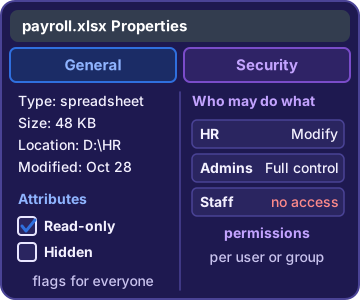
Rosa: I can open the price list but I can't save it.
Sam: Check its properties. I bet it's marked Read-only.
Exam tip Permissions = who can do what. Attributes = a flag for everyone (Read-only, Hidden). Hidden is not security.
Check yourself 3Only HR should be able to open the Payroll folder on the shared drive. What should Sam change on the folder?
- Its file extension
- Its permissions
- Its Hidden attribute
- Its compression setting
Show the answer
Answer: B. Its permissions
Permissions decide which users and groups can open a folder, so Sam grants HR access and removes everyone else. Hidden only keeps it out of normal views.
Objective 3.1
Behind the scenes
Processes, services and drivers
A process is a program that's running right now: every open app, plus many background helpers. A service is a background program that can start when the computer boots and keep running even when nobody is signed in, like the print spooler that handles print jobs. A driver is the software that lets the OS talk to one kind of device. A basic driver may print, but the maker's driver often adds the model's special features.
Sam: The label sizes vanished after the new printer went in?
You: Windows used a basic driver. Install the maker's driver for that model.
System apps and utilities
Every OS comes with system applications and utilities. Task Manager shows running apps and processes with their CPU and memory use, and can end a frozen task. Device Manager lists hardware and its drivers. Disk Management sets up drives and volumes. File Explorer browses files and folders. Settings and Control Panel change how the system works.
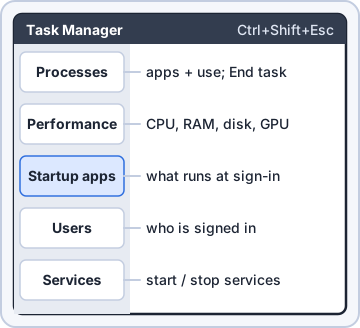
You: finds the frozen app in Task Manager End task. It's gone.
Rosa: And restarted. You're a lifesaver.
GUI or command line
A graphical user interface (GUI) uses windows, icons, menus and a mouse or touch. A console or command-line interface (CLI) uses typed text commands and shows text back: typing dir on Windows or ls on Linux lists the files in a folder. Both control the same OS. The GUI is easier to learn, and the command line is faster for repeat jobs and scripts.
Sam: types dir There's every file in the folder. No clicking.
Ranger: paws at the keyboard and types ggggggggg
Check yourself 4Which two statements describe a service in an operating system? Choose two.
- It can start by itself when the computer boots
- It translates between the OS and one device
- It can keep running when no user is signed in
- It is a file's Read-only flag
- It is a typed text command
Show the answer
Answers: A. It can start by itself when the computer boots, C. It can keep running when no user is signed in
A service is a background program that can start at boot and run with nobody signed in, like the print spooler. Talking to one device is a driver's job.
Go deeper
More on the objectives in this chapter, in the same exam-ready detail.
Objective 3.1 · Filesystem characteristics; File management; System applications and utilities; Services; Processes…
The parts of an operating system
Filesystem features: compression and encryption
The filesystem is how the OS organizes files on a drive. Two of its features sound alike but do different jobs. Compression makes files take less space and keeps every byte, so apps open them normally. Good for old shipping logs. Encryption scrambles the contents so only someone with the right key can read them. Good for a laptop that might be stolen. Compressing a folder doesn't make it private.
Exam tip Smaller = compression. Unreadable without the key = encryption.
File types and extensions
The letters after the last period in a file name are its extension: pickorders.xlsx is a spreadsheet, report.pdf is a PDF document, setup.exe is a program. The extension tells the OS which app opens the file. Renaming report.docx to report.pdf changes only the name, not what's inside. To get a real PDF, save or export it from the app. Watch for tricks like Invoice.pdf.exe: the last extension wins, so it's a program.
Exam tip Common extensions: .docx (document), .xlsx (spreadsheet), .jpg/.png (picture), .mp4 (video), .zip (compressed), .exe (Windows program).
Folders, paths and naming rules
Folders (also called directories) hold files and other folders. A path lists them from the top down, and each backslash steps into the next folder. The last folder before the file name holds the file:
- Windows does not allow these in a name: < > : " / \ | ? *
- So 'Orders 10/28/2026.csv' fails: slashes are path separators.
- Spaces, hyphens, underscores and parentheses are fine.
C:\Invoices\2026\October\inv-5001.pdf
^ October holds the fileExam tip Who may open a file is set by permissions, covered in the next lesson.
Utilities, services, processes and drivers
Four pieces run behind the scenes:
- System applications and utilities: built-in tools, like Task Manager, Disk Management and File Explorer.
- Services: background programs that can start at boot and keep running with no one signed in, like the print spooler.
- Processes: programs running right now. Task Manager lists them with their CPU and memory use and can end a stuck one.
- Drivers: software that lets the OS talk to one piece of hardware. A basic driver may print but miss model features; the maker's driver adds them.
Command line vs. GUI
There are two main ways to use an OS. A command-line interface (CLI), or console, is where you type text commands, like dir to list a folder, and read text replies. A graphical user interface (GUI) uses windows, icons and menus with a mouse or touch. Both reach the same files and settings. The GUI also shows file attributes and properties: right-click a file and pick Properties to see its size, type, dates and attributes.
Objective 3.1 · File management: Permissions; Interfaces: File attributes and properties
File attributes vs. permissions
Attributes: simple flags on a file
A file attribute is a simple on/off flag that applies to everyone who uses the file:
- Read-only: you can open the file but not save changes to it.
- Hidden: kept out of normal folder views. Anyone who shows hidden items can still see and open it.
- Archive: marks a file that changed since the last backup.
inventory.xlsx  Properties
Type:   Spreadsheet (.xlsx)
Size:   48 KB
Attributes: [x] Read-only  [ ] Hidden
Exam tip Rosa can open the file but can't save it? Check the Read-only attribute.
Permissions: who may do what
Permissions decide which users and groups may read, change or fully control a file or folder. On Windows NTFS drives you'll see permissions like Read, Write, Modify and Full control. Linux and macOS use read, write and execute. To keep everyone except the payroll team out of the Payroll folder, Sam grants the payroll group access and removes everyone else. Hiding the folder would not do it.
Exam tip Read-only is an attribute, not a permission, even though it sounds like one. Modify and Full control are permissions.
Filesystem types
Different filesystems suit different drives:
- NTFS: the main Windows filesystem, with permissions, compression and encryption.
- FAT32: an older format that works almost everywhere, but no single file can be over 4 GB.
- exFAT: for flash drives shared between Windows and macOS, with no 4 GB file limit.
- Apple File System (APFS) is the macOS filesystem, and ext4 is a common Linux one.
Exam tip A 6 GB video on a USB drive for both a Mac and a Windows PC: format it exFAT.
Objective 3.2 · Purpose of operating systems; OS types
What an operating system is for
The middleman between apps and hardware
The operating system manages the hardware and gives apps a simple way to use it. When the web store saves an order, the app doesn't control the SSD itself. It asks the OS, the OS passes the request to the drive's driver, and the driver talks to the drive. That way, apps don't need to know how each device works. Writing letters, totaling sales and showing web pages are jobs for apps that run on top of the OS.
Five management jobs
The OS keeps the computer organized:
- Disk management: set up drives. A new disk shows Not Initialized and Unallocated until you initialize it and create and format a volume.
- Task and process management: share the CPU so music, a download and a spreadsheet all keep moving.
- Application management: install, update, repair and remove apps.
- Device management: detect hardware and load the right drivers (Device Manager).
- Access control: decide who can sign in and what each user may open.
Access control in practice
A temp worker will share the warehouse PC. Letting him use Rosa's sign-in gives him everything she can reach, and putting a password on one spreadsheet protects only that file. The OS way is better: give him his own standard account, and set folder permissions so Payroll stays closed to him. Every person signs in as themselves.
Four OS types
The OS type depends on the device's role, not the brand:
- Mobile device: Android and iOS, built for touch, batteries and app stores.
- Desktop/workstation: Windows, macOS and Linux, for one person running many apps.
- Server: built to serve many network clients for long periods, with roles and remote management.
- Embedded: built into a fixed-purpose device like a digital sign, kiosk or card reader. A Windows edition locked to one checkout app is still embedded.
Practice questions
Answer in your head, then open the answer. Ranger’s First Byte has 455 questions like these for Tech+, with mock exams.
Question 1Sam turns on file system compression for a folder of old shipping logs on an NTFS drive. What does that do to the files?
- They take up less disk space and keep all their data
- They are scrambled so only Sam's account can read them
- Their images lose some quality so the files shrink
- They are hidden from normal folder listings
Show the answer
Answer: A. They take up less disk space and keep all their data
NTFS compression is lossless: the files use less disk space, and apps still see every byte when they open them. Scrambling files so only one account can read them is encryption, a different feature.
Question 2Priya wants the files on a sales laptop to be unreadable to anyone who steals it and does not have the user's key. Which file system feature does that?
- Compression
- The Hidden attribute
- The Read-only attribute
- Encryption
Show the answer
Answer: D. Encryption
Encryption scrambles file contents so only someone with the right key can read them, which protects a stolen laptop. Compression only makes files smaller; anyone who can reach them can still open them.
Question 3Rosa's file is named pickorders.xlsx. What does the xlsx part tell Windows?
- The file type, so it knows which app opens it
- Who is allowed to open the file
- The folder the file is saved in
- How large the file is
Show the answer
Answer: A. The file type, so it knows which app opens it
The part after the last period is the file extension. It tells Windows the file type, here a spreadsheet, so it picks an app to open it. It does not say who may open the file; that is set by permissions.
Question 4Which character is NOT allowed in a Windows file name?
- _
- (
- ?
- -
Show the answer
Answer: C. ?
Windows reserves a few characters in file names, including < > : " / \ | ? and *. The question mark is one of them. Hyphens, underscores and parentheses are allowed.
Question 5Kibble & Co. buys a new barcode scanner. Which type of software lets the operating system talk to it?
- A file attribute
- A system service
- A spreadsheet app
- A device driver
Show the answer
Answer: D. A device driver
A driver is the software that lets the OS and a device communicate; it knows how to talk to that hardware. A service is a background program, but it does not translate between the OS and a device.
CompTIA, Tech+, A+, Network+, Security+ and Linux+ are trademarks of CompTIA, Inc. Ranger Gamez is not affiliated with or endorsed by CompTIA. The practice questions are written to the published exam objectives; they are not real exam questions.