 RANGER
 Microsoft 365 Certified: Endpoint Administrator (MD-102) · chapter 1 of 12
Week 1: Every device needs an identity
In this chapter Objectives 1.1
Objective 1.1
Three ways a device meets Microsoft Entra ID
Why a device needs an identity
Microsoft Entra ID (the cloud directory behind Microsoft 365) already knows your users. Giving the device an object there too unlocks a lot: sign-in policies can check which device someone uses, users get single sign-on to cloud apps, and later Intune can hang compliance, BitLocker keys and local admin passwords on that object. No device identity, no device-based rules.
Dev: Users prove who they are. Device identity proves what they're holding.
Registered, joined, hybrid joined
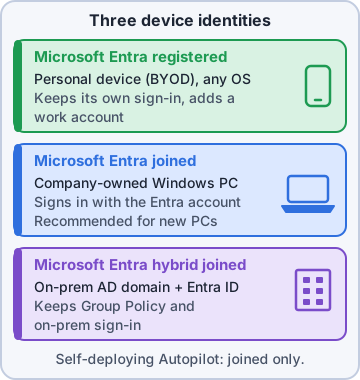
Microsoft Entra registered: a personal device (BYOD). The owner keeps signing in with their own account and just adds a work account. Microsoft Entra joined: a company Windows device. Users sign in to Windows with their work account, and no on-premises domain is needed. Microsoft Entra hybrid joined: a PC joined to on-premises Active Directory that is also synced into Entra ID, for companies that still rely on the domain.
Exam tip Trap: "registered" is for devices the company does NOT own. A brand-new company laptop should be joined, not registered.
Choosing the join type
Ask two questions: who owns the device, and does it still need the old domain? Personal phone or home PC: registered. New company Windows PC with cloud apps: joined (Microsoft's recommended default). Existing domain PC that still needs Group Policy or on-premises sign-in: hybrid joined, which needs Microsoft Entra Connect to sync the computer object.
Device                 Join type
Rosa's own iPhone      Entra registered
New warehouse laptop   Entra joined
Old finance PC (GPO)   Entra hybrid joined
Sam's home PC          Entra registered
Exam tip Entra registered works on Windows, macOS, iOS/iPadOS and Android. Joined and hybrid joined are for Windows devices.
Objective 1.1
Joining and registering devices
Joining a Windows device
Two ways. During setup (OOBE), choose the work or school option and sign in with a work account. On a running PC: Settings > Accounts > Access work or school > Connect, then pick Join this device to Microsoft Entra ID. Whoever is allowed is set in the Microsoft Entra admin center under Devices > Device settings: Users may join devices to Microsoft Entra ID can be All, Selected or None.
Exam tip Mass rollouts use Windows Autopilot instead of hand-joining. That's month two.
Registering a personal device
On Windows, the owner opens Access work or school > Connect and signs in, without choosing the join option. On iPhone or Android, signing in to a work app through a broker app (Microsoft Authenticator, or Company Portal on Android) registers the device. Registration alone is not management: Intune enrollment is a separate step, although Windows can enroll automatically when it joins or registers.
Exam tip Registered = Entra knows the device. Enrolled = Intune manages the device. The exam loves to swap them.
Proof on the device: dsregcmd /status
On Windows, dsregcmd /status shows the device's join state. AzureAdJoined YES means Entra joined. DomainJoined YES plus AzureAdJoined YES means hybrid joined. WorkplaceJoined YES on a device that isn't joined means registered.
C:\> dsregcmd /status
+-------------------------------------+
| Device State                        |
+-------------------------------------+
     AzureAdJoined : YES
  EnterpriseJoined : NO
      DomainJoined : NO
       DeviceName : KC-LT-0143
Exam tip Older tools and attributes still say AzureAD. The deviceTrustType values are AzureAD (joined), ServerAD (hybrid) and Workplace (registered).
Who becomes local admin on a joined PC
When a device is Entra joined, Windows adds the Global Administrator role and the Microsoft Entra Joined Device Local Administrator role to the local Administrators group. By default the user who joins the device also becomes a local admin, which an Entra device setting can turn off. Autopilot can make users standard users instead.
Exam tip Kibble's goal: users run as standard users. Local admin control comes back in week 3 with LAPS and local group policies.
Objective 1.1
Groups for devices
Assigned vs dynamic groups
Intune targets policies and apps at Microsoft Entra groups. An assigned group has members you add by hand. A dynamic group has a membership rule, and Entra adds or removes members automatically as their properties change. A dynamic group holds either users or devices, never both. Dynamic membership needs a Microsoft Entra ID P1 license, and updates aren't instant.
Writing device rules
Device rules start with device. and compare a property. Useful ones: deviceOSType, deviceOwnership (Company or Personal), deviceTrustType, enrollmentProfileName (Autopilot, Apple ADE or Android profile name) and devicePhysicalIds for Autopilot tags. Combine with -and / -or.
All company Windows devices:
(device.deviceOSType -eq "Windows") -and
(device.deviceOwnership -eq "Company")

All Autopilot devices:
(device.devicePhysicalIds -any
  (_ -startsWith "[ZTDId]"))

Autopilot group tag WH:
(device.devicePhysicalIds -any
  (_ -eq "[OrderID]:WH"))
Exam tip The Autopilot group tag shows up in Entra as [OrderID]. Match it exactly, or the group stays empty.
Planning Kibble's groups
Plan groups around how you'll target. Device groups suit settings that should follow the hardware: kiosks, scanners, Wi-Fi. User groups suit things that follow the person, like email apps. Name groups so anyone can read them, and keep one purpose per group.
- KC-Dev-Windows-All: dynamic, all company Windows PCs
- KC-Dev-Autopilot-WH: dynamic, group tag WH (warehouse)
- KC-Usr-Store-Staff: assigned, store employees
- KC-Dev-Pilot: assigned, ten test devices for new policies
Exam tip Dynamic groups take time to update. When a new device must get policy during setup, Autopilot device preparation uses an assigned group instead (month two).
Check yourself 1Sam wants to read work email on his personal Windows laptop at home. Kibble doesn't own the laptop and won't manage the whole device. What should the laptop become in Microsoft Entra ID?
- Microsoft Entra joined
- Microsoft Entra hybrid joined
- Microsoft Entra registered
- Added to an assigned device group
Show the answer
Answer: C. Microsoft Entra registered
A personal device that only needs a work account added should be Microsoft Entra registered. The owner keeps their own sign-in, and Entra still knows the device. Joined is for company-owned PCs.
Check yourself 2Dev writes a dynamic group rule to hold every warehouse Autopilot device. The devices were imported with the group tag WH. Which rule matches them?
- (device.devicePhysicalIds -any (_ -eq "[OrderID]:WH"))
- (device.enrollmentProfileName -eq "WH")
- (device.deviceOwnership -eq "WH")
- (user.department -eq "WH")
Show the answer
Answer: A. (device.devicePhysicalIds -any (_ -eq "[OrderID]:WH"))
Autopilot stores the group tag in devicePhysicalIds as [OrderID]:<tag>, so -any with _ -eq "[OrderID]:WH" matches those devices. enrollmentProfileName matches a profile name, not a tag.
Practice questions
Answer in your head, then open the answer. Ranger's Desktop Duty has 374 questions like these for MD-102, with mock exams.
Question 1Kibble & Co. is buying new Windows 11 Pro laptops for its office staff. The company has no on-premises Active Directory, users sign in with their kibbleco.example work accounts, and the laptops must be managed by Intune. Which device identity should the laptops get?
- Microsoft Entra joined
- Microsoft Entra registered
- Microsoft Entra hybrid joined
- Joined to a Microsoft Entra Domain Services managed domain
Show the answer
Answer: A. Microsoft Entra joined
Organization-owned Windows devices with no on-premises AD dependency should be Microsoft Entra joined: users sign in with work accounts, get SSO, and the device can auto-enroll in Intune. Registered is the BYOD identity, and hybrid join needs on-premises AD.
Question 2Warehouse supervisors at Kibble & Co. use their own Android phones to open Teams and Outlook. The phones are personal, and the company only needs the phones to have a device identity for Conditional Access. Which device identity type fits these phones?
- Active Directory domain joined
- Microsoft Entra hybrid joined
- Microsoft Entra joined
- Microsoft Entra registered
Show the answer
Answer: D. Microsoft Entra registered
Microsoft Entra registration (workplace join) is meant for personal and mobile devices: the user keeps their own account on the device and adds a work account. Joined and hybrid joined identities are for organization-owned Windows computers.
Question 3Kibble & Co. has 300 Windows 11 Enterprise PCs joined to the on-premises domain kibbleco.example. They must keep receiving Group Policy and reaching file servers, but they also need a cloud device identity for Conditional Access. The PCs must not be reset. What should you configure?
- Windows Autopilot user-driven Microsoft Entra join
- A bulk enrollment provisioning package that Entra joins the PCs
- Microsoft Entra hybrid join through Microsoft Entra Connect
- Enterprise State Roaming for all users
Show the answer
Answer: C. Microsoft Entra hybrid join through Microsoft Entra Connect
Hybrid join keeps the existing AD domain membership and registers the computer object in Microsoft Entra ID (synced by Microsoft Entra Connect or Cloud Sync), so the device gets a cloud identity without a reset. Entra join or Autopilot would remove the on-premises domain dependency the company still needs.
Question 4A Kibble & Co. sales rep wants to connect a personal Windows 11 Home laptop. In Settings > Accounts > Access work or school, the option to join the device to Microsoft Entra ID doesn't appear. What is the best way to give this laptop a work identity?
- Set Users may join devices to Microsoft Entra to All
- Add the work account so the laptop is Entra registered
- Assign the user a Microsoft Entra ID P1 license
- Raise the maximum number of devices per user in Device settings
Show the answer
Answer: B. Add the work account so the laptop is Entra registered
Microsoft Entra join supports Windows 10/11 editions except Home. A Home laptop can still be Microsoft Entra registered by adding a work or school account, which is the right identity for a personal device anyway.
Question 5Kibble & Co. set the Microsoft Entra device setting Maximum number of devices per user to 5. Priya, a help desk lead, now gets an error when she registers a sixth phone with the Microsoft Authenticator app. She doesn't use the old phones anymore. What should you do first?
- Set the Entra maximum number of devices per user to Unlimited
- Delete Priya's stale device objects in the Microsoft Entra admin center
- Raise the Intune device limit restriction to 15
- Add Priya to the Microsoft Entra Joined Device Local Administrator role
Show the answer
Answer: B. Delete Priya's stale device objects in the Microsoft Entra admin center
The Maximum number of devices per user setting counts Entra joined and registered devices. When a user hits it, they can't add more until existing device objects are removed, so cleaning up the unused phones fixes it without loosening the limit for everyone.
Microsoft, Azure, Intune and Windows are trademarks of the Microsoft group of companies. Ranger Gamez is not affiliated with or endorsed by Microsoft. The practice questions are written to the published exam objectives; they are not real exam questions.