 RANGER
 Microsoft 365 Certified: Endpoint Administrator (MD-102) · chapter 2 of 12
Week 2: Getting devices through the door
In this chapter Objectives 1.2
Objective 1.2
Enrollment settings and restrictions
Where enrollment lives
In the Microsoft Intune admin center, enrollment sits under Devices > Enrollment (Device onboarding), with a tab per platform: Windows, Apple, Android. Before any device can enroll, the tenant needs the right connections: Apple needs an MDM push certificate, Android Enterprise needs Managed Google Play, and Windows needs automatic enrollment turned on.
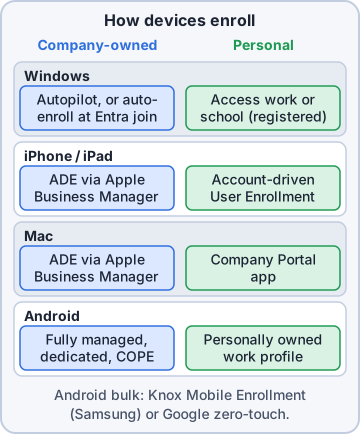
Dev: Think of it as one front door per platform, each with its own key.
Device platform restrictions
A device platform restriction decides what may enroll: which platforms, minimum and maximum OS versions, Android manufacturers, and whether personally owned devices are allowed. Intune ships a default restriction that applies to everyone. You add stricter ones for groups and order them by priority; the highest-priority policy assigned to the user wins.
Exam tip Enrollment restrictions are not security controls. A hostile device can lie about itself. Use compliance and Conditional Access for real enforcement.
Device limit restrictions
A device limit restriction caps how many devices one user can enroll, from 1 to 15. Hit the cap and enrollment fails with DeviceCapReached. Fix it by deleting stale device records or raising the limit for that group. A device enrollment manager (DEM) account can enroll many shared devices without the per-user cap.
Exam tip "User can't enroll a fourth phone" plus "device cap" in the stem: check the device limit restriction first.
Corporate vs personal
Intune marks a device corporate when it arrives through a corporate channel: Windows Autopilot, Apple Automated Device Enrollment, Android Enterprise corporate profiles, Knox Mobile Enrollment, or a DEM account. For anything else, upload corporate device identifiers (serial numbers or IMEIs) ahead of time. Everything else is personal.
Exam tip Block personal Windows enrollment and a hand-joined PC fails with 80180014, unless it came through Autopilot or a corporate identifier.
Objective 1.2
Automatic enrollment for Windows
MDM user scope
In the Microsoft Entra admin center, open Mobility (MDM and MAM) and select Microsoft Intune. MDM user scope decides whose Windows devices enroll automatically when they join or register: None, Some (pick groups) or All. With it set, a user who joins a PC at OOBE or adds a work account gets the device enrolled with no extra clicks. It needs Microsoft Entra ID P1.
Mobility (MDM and MAM) > Microsoft Intune
MDM user scope   Some
  Groups         KC-Usr-All-Staff
MAM user scope   None
Exam tip Users report "auto MDM enroll failed"? Check whether they're in the MDM user scope group and licensed for Intune.
Other Windows enrollment paths
Besides join-time enrollment: Windows Autopilot (month two), Group Policy auto-enrollment for hybrid joined PCs, Configuration Manager co-management, provisioning packages for bulk setup, and users adding a work account on personal PCs. A user can also enroll from the Company Portal app.
- Entra join + MDM scope: new company PCs set up by hand
- GPO auto-enroll: existing domain PCs that are hybrid joined
- Autopilot: new hardware straight from the vendor
- Register + MDM scope: personal PCs, if personal enrollment is allowed
Objective 1.2
Enrolling Apple devices
Personal iPhones and Macs
Every Apple enrollment needs an Apple MDM push certificate in Intune (renew it yearly with the same Apple Account). For personal iPhones and iPads, use account-driven User Enrollment (iOS/iPadOS 15+): the user signs in under Settings > General > VPN & Device Management, and Intune manages only a separate work area. Device enrollment through Company Portal or the web is the other personal option. Personal Macs enroll by installing Company Portal.
Exam tip User Enrollment protects privacy: IT can't wipe the whole phone or see personal apps. Fewer settings are available, so pair it with app protection.
Company devices: Apple Business Manager
Company iPhones, iPads and Macs use Automated Device Enrollment (ADE) through Apple Business Manager (ABM). Download Intune's public key, create an MDM server in ABM, upload the server token (.p7m) to Intune, and assign devices by serial number in ABM. Then create an enrollment profile (user affinity, supervision, Setup Assistant screens). Out of the box, the device enrolls during Setup Assistant.
ABM: buy device -> assign to MDM server
Intune: token synced -> profile assigned
Device: power on -> Setup Assistant
  -> enrolls, supervised, corporate
Exam tip Renew the ADE token and the push certificate every year. If either expires, new enrollments stop. Watch Tenant status > Connector status.
Objective 1.2
Enrolling Android devices
Four Android Enterprise profiles
Personally owned work profile (BYOD): a separate work profile on the user's phone, enrolled through Company Portal. Corporate-owned work profile (COPE): company phone with personal use allowed. Fully managed (COBO): company phone for work only. Dedicated (COSU): kiosks and scanners locked to one or a few apps, often with no signed-in user. All need Managed Google Play connected first.
Exam tip Android device administrator is deprecated on devices with Google Mobile Services. Exam answers point to Android Enterprise.
Enrollment profiles and tokens
For the three corporate types, create an enrollment profile in Intune. It produces a token (also a QR code). At first boot, the device enrolls by QR code, by typing the token, by NFC, or by zero-touch provisioning. A dynamic device group on enrollmentProfileName then catches every device enrolled with that profile.
Exam tip Tokens expire. A device that can't enroll with "token invalid" usually needs a replaced token and a new QR code.
Zero-touch and Knox Mobile Enrollment
Bulk enrollment straight out of the box: with Google zero-touch enrollment, devices bought from an authorized reseller show up in the zero-touch portal. You create a configuration with Intune's token in the DPC extras JSON. With Samsung Knox Mobile Enrollment (KME), you build a profile in the Knox Admin Portal, choose Intune as the EMM, and paste the token into the custom JSON. Use Intune's Export token to get the JSON.
Exam tip Zero-touch = Google's portal, any participating maker. KME = Samsung's portal, Samsung devices only. Both just carry Intune's token.
Troubleshooting enrollment failures
Start with Devices > Monitor > Enrollment failures (or the user in Troubleshooting + support), then match the reason to the fix.
- Device cap reached: remove stale devices or raise the limit (max 15)
- Platform or personal device blocked: check restrictions and their priority
- Token expired or revoked: replace the token, reprint the QR code
- Not licensed or outside the MDM user scope: fix the license or group
- Apple push certificate or ADE token expired: renew, then retry
Exam tip If a Conditional Access policy requires compliant devices for all cloud apps, exclude the Microsoft Intune app so Android setup can authenticate during enrollment.
Check yourself 1Rosa's warehouse scanners must run only the picking app, with no personal use and no signed-in user. Which Android Enterprise enrollment type fits?
- Fully managed (COBO)
- Corporate-owned work profile (COPE)
- Personally owned work profile
- Dedicated (COSU)
Show the answer
Answer: D. Dedicated (COSU)
Dedicated devices are corporate kiosks or task devices locked to one or a few apps, often without a user. That's exactly a warehouse scanner.
Check yourself 2Kibble buys 10 iPads for the stores through Apple Business Manager. They must enroll at first power-on and be supervised. What should Dev configure?
- Account-driven User Enrollment for each store manager
- An ABM token and an Automated Device Enrollment profile
- A device limit restriction raised to 15 devices
- Corporate identifiers uploaded, then Company Portal on each iPad
Show the answer
Answer: B. An ABM token and an Automated Device Enrollment profile
Automated Device Enrollment ties devices bought through ABM to Intune. They enroll during Setup Assistant as supervised, corporate devices.
Go deeper
More on the objectives in this chapter, in the same exam-ready detail.
Objective 1.2 · Configure automatic enrollment for Windows
Automatic enrollment for Windows
What it means
With automatic enrollment, a Windows device enrolls in Intune by itself when a user joins it to Microsoft Entra ID (during setup or with Autopilot) or adds a work account. Nobody has to install an agent.
- Microsoft Entra ID > Mobility (MDM and WIP) > Microsoft Intune
- Set MDM user scope to All, or Some (pick a group)
- Leave MAM user scope None unless you use MAM
- Users need an Intune license and permission to join devices
Hybrid-joined and existing devices
Devices joined to on-premises AD and synced with Entra Connect (Microsoft Entra hybrid join) can enroll with the Group Policy setting Enable automatic MDM enrollment using default Microsoft Entra credentials. Co-management with Configuration Manager can also move devices into Intune.
Exam tip If MDM user scope is None, Entra join still works but the device never shows up in Intune: classic exam trap.
Checking it worked
On the device: Settings > Accounts > Access work or school shows the account with an Info button (that's the MDM connection). In Intune: Devices > All devices. Failed enrollments appear in the enrollment failures report.
Practice questions
Answer in your head, then open the answer. Ranger's Desktop Duty has 374 questions like these for MD-102, with mock exams.
Question 1New Kibble & Co. laptops are Microsoft Entra joined during the out-of-box experience but never show up in Intune. Which setting should Dev configure?
- MAM user scope in Windows Automatic Enrollment, set to All
- A device platform restriction that allows Windows (MDM)
- The Entra device setting Maximum number of devices per user
- MDM user scope in Automatic Enrollment, set to Some or All
Show the answer
Answer: D. MDM user scope in Automatic Enrollment, set to Some or All
Windows automatic enrollment (Devices > Enrollment > Windows > Automatic Enrollment) uses the MDM user scope. When it's set to Some or All for the user, Entra join also enrolls the device in Intune. With None, the device joins but isn't managed.
Question 2Refer to the exhibit. Rosa is in KC-All-Staff and KC-BYOD. She adds her work account to her personal Windows laptop, but the laptop doesn't enroll in Intune. Why?
- Personal Windows devices can never enroll in Intune
- The MDM user scope applies only to hybrid joined devices
- The user must first be given a Windows Enterprise license
- On personal devices, MAM user scope wins over MDM
Show the answer
Answer: D. On personal devices, MAM user scope wins over MDM
When a user is in both scopes, MDM wins on corporate-owned devices and MAM wins on personal (BYOD) devices. On her own laptop the device is only registered, and app-level management applies instead of MDM enrollment. (Newer admin center views label MAM user scope as WIP user scope.)
Question 3Dev can't see the Windows Automatic Enrollment settings for Microsoft Intune in the admin center. What does Kibble & Co. need?
- A Microsoft Defender for Endpoint P2 license
- A Microsoft Intune Suite license
- A Microsoft Entra ID P1 or P2 subscription
- Windows 11 Enterprise E5 licenses
Show the answer
Answer: C. A Microsoft Entra ID P1 or P2 subscription
Automatic MDM enrollment is a premium Microsoft Entra feature, available with Entra ID P1 or P2 (included in plans like Microsoft 365 E3/E5 and Business Premium). Without it, the admin center offers a trial link instead of the settings.
Question 4Kibble & Co. has 500 Microsoft Entra hybrid joined PCs that aren't enrolled in Intune. Dev wants them to enroll automatically without users doing anything. Which method should he use?
- A DNS CNAME record for EnterpriseEnrollment.kibbleco.example
- A GPO for automatic MDM enrollment with Entra credentials
- A Windows Autopilot user-driven deployment profile
- A device enrollment manager account
Show the answer
Answer: B. A GPO for automatic MDM enrollment with Entra credentials
Existing hybrid joined devices can be auto-enrolled with the Group Policy setting Enable automatic MDM enrollment using default Microsoft Entra credentials (user or device credential). The GPO route is valid only for hybrid joined devices.
Question 5Kibble & Co. has no Entra ID P1. When users enroll Windows devices with their work account, they're asked to type the MDM server address. How can Dev remove that prompt?
- Add an EnterpriseEnrollment CNAME record in DNS
- Enable Windows Hello for Business at enrollment
- Create an MX record that points kibbleco.example to Intune
- Upload an Apple MDM push certificate
Show the answer
Answer: A. Add an EnterpriseEnrollment CNAME record in DNS
An EnterpriseEnrollment CNAME pointing to EnterpriseEnrollment-s.manage.microsoft.com lets Windows discover the Intune enrollment server from the user's domain, which matters when automatic enrollment (Entra ID P1) isn't available.
Microsoft, Azure, Intune and Windows are trademarks of the Microsoft group of companies. Ranger Gamez is not affiliated with or endorsed by Microsoft. The practice questions are written to the published exam objectives; they are not real exam questions.