 RANGER
 Microsoft 365 Certified: Endpoint Administrator (MD-102) · chapter 11 of 12
Month 5: Apps for every paw
In this chapter Objectives 4.1, 4.2
Objective 4.1
Preparing apps for Intune
App types
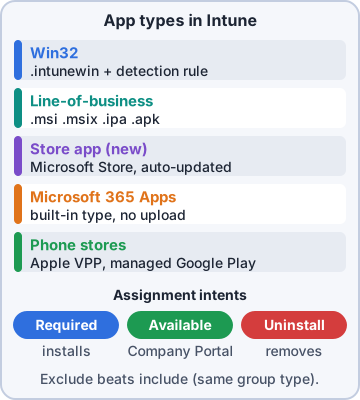
Microsoft Store app (new): Store apps installed through WinGet. Win32: any installer (EXE, MSI, scripts) wrapped as an .intunewin file. Line-of-business (LOB): a single MSI, MSIX/APPX, iOS .ipa or Android .apk. Microsoft 365 Apps and Microsoft Edge have their own app types. iOS store and Managed Google Play apps come from the stores. Enterprise App Catalog apps arrive prepackaged.
Exam tip Installer with extra files, custom switches, dependencies or detection needs = Win32. Single plain MSI with no extras = LOB is possible.
Packaging a Win32 app
Run the Microsoft Win32 Content Prep Tool (IntuneWinAppUtil.exe) against the setup folder to produce a .intunewin file. In Intune, set the install and uninstall commands, install behavior (System or User), return codes, requirements (OS, architecture, disk space), and a detection rule that proves the app is installed (MSI product code, file, registry or script).
IntuneWinAppUtil.exe -c C:\src\label
  -s labelsetup.exe -o C:\out

Install:   labelsetup.exe /S
Detection: file exists
  C:\Program Files\Kibble\Label\
  label.exe  version >= 4.2.0
Exam tip Return codes: 0 success, 3010 soft reboot, 1641 hard reboot, 1618 retry (another install running).
Dependencies, supersedence and assignments
A Win32 app can have dependencies (install the runtime first) and supersedence (replace or update an older version). Assign with an intent: Required (installs automatically), Available for enrolled devices (users install from Company Portal) or Uninstall. Use groups and filters like any policy.
Exam tip "Users choose when to install" = Available in Company Portal. "Must be on every PC" = Required.
Objective 4.1
Microsoft 365 Apps and store apps
Deploying Microsoft 365 Apps
Intune's Microsoft 365 Apps (Windows 10 and later) app type lets you pick apps, 64-bit, update channel (Current, Monthly Enterprise, Semi-Annual Enterprise) and languages with the configuration designer, or paste a configuration XML. The other route is the Office Deployment Tool (ODT): setup.exe plus your XML, wrapped as a Win32 app, which gives you detection rules and return codes.
<Configuration>
 <Add OfficeClientEdition="64"
  Channel="MonthlyEnterprise">
  <Product ID="O365ProPlusRetail">
   <Language ID="en-us" />
  </Product>
 </Add>
</Configuration>
Exam tip In classic Autopilot, Win32-wrapped ODT avoids the LOB-plus-Win32 collision. Block the ESP on it only if users truly need Office at first sign-in.
Policies for Microsoft 365 Apps
Office settings (macros, add-ins, privacy, save locations) can come from Intune: settings catalog with the Office ADMX settings, or Apps > Policies for Microsoft 365 apps, which uses the Cloud Policy service. The Microsoft 365 Apps admin center (config.office.com) adds cloud policy configurations, servicing profiles that manage update rollout, and inventory and security update status.
Exam tip Cloud Policy applies by user, even on unmanaged devices where the user signs in to Office. Intune device policies need enrolled devices.
Store apps for Apple and Android
Apple: buy licenses in Apple Business Manager > Apps and Books, download the location (VPP) token and upload it to Intune. Synced apps then assign with device licensing (no Apple Account needed) or user licensing. Android: connect Managed Google Play, approve apps in the embedded store, sync, and assign. Private apps and web links work there too.
Exam tip Renew the Apple VPP token yearly. An expired token is a classic cause of "app won't install" on iPads.
Quiet Time policies
Apps > Quiet Time > Policies mutes Outlook mail and Teams notifications on iOS/iPadOS and Android after work: a Date range (holidays), Days of the week (all day or certain hours), or Non-working time (Teams, using the Working Time integration). You can allow users to change the settings.
Exam tip "Stop work email buzzing staff's phones after hours" = Quiet Time policy, not an app protection policy.
Check yourself 1The label printer installer is an EXE with a config file and needs the Visual C++ runtime installed first. How should Dev deploy it?
- As a line-of-business app
- As a Microsoft Store app (new)
- As a Win32 app with the runtime as a dependency
- As a web link published in Company Portal for users
Show the answer
Answer: C. As a Win32 app with the runtime as a dependency
Win32 handles EXE installers with extra files, custom commands and detection, and supports dependencies so the runtime installs first.
Objective 4.2
App protection and app configuration
App protection policies
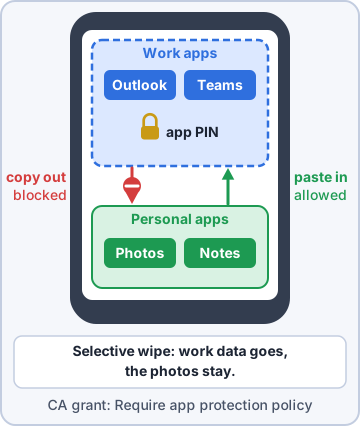
An app protection policy (APP) protects company data inside apps like Outlook, Teams, Edge and OneDrive, on enrolled or unenrolled (BYOD) devices. Data protection: block backup of org data, limit transfer to policy managed apps, restrict cut/copy/paste, encrypt org data, control saving and printing. Access requirements: app PIN or biometrics. Conditional launch: block or wipe on jailbroken or rooted devices, old OS or app versions, or too many PIN attempts.
Exam tip On Android, unenrolled devices need the Company Portal app installed (as a broker) for app protection to apply. No enrollment needed.
Targeting and selective wipe
Target an APP at user groups, for apps on all device types, or only unmanaged or managed devices. Microsoft's data protection framework suggests levels from basic to high. When someone leaves, app selective wipe removes only the org data from the protected apps, leaving the rest of the phone alone.
Exam tip APP applies per user and per app. That's why it works on phones Intune has never enrolled.
Conditional Access for app protection
To make sure only protected apps reach company data, create a Conditional Access policy for iOS and Android with the grant Require app protection policy. The older Require approved client app grant was retired on June 30, 2026: existing policies using it are read-only, and new policies should use only Require app protection policy.
Exam tip Native mail apps can't carry an app protection policy, so this grant blocks them and pushes users to Outlook.
App configuration policies
App configuration policies preset app settings. Managed devices: delivered through the MDM channel to enrolled iOS or Android Enterprise devices, for example Outlook account setup or allowed accounts. Managed apps: delivered through the app protection channel to apps with the Intune SDK, enrolled or not, for example Edge's home page or the Tunnel for MAM keys.
Exam tip Unenrolled phone + preset Edge settings = managed apps policy. Enrolled iPad + preset Outlook account = managed devices policy.
Check yourself 2Store staff use personal iPhones. Kibble must stop them pasting company email text into personal apps, without enrolling the phones. What should Dev deploy?
- An app protection policy for Outlook targeting the store staff
- A device configuration profile restricting copy and paste on iOS
- A compliance policy blocking jailbroken devices
- A Quiet Time policy for the store staff
Show the answer
Answer: A. An app protection policy for Outlook targeting the store staff
App protection policies work on unenrolled devices and can limit cut, copy and paste of org data to other policy managed apps.
Check yourself 3Kibble wants iPhones and Android phones to reach Exchange Online only from apps protected by Intune app protection. Which Conditional Access grant should a new policy use?
- Require approved client app
- Require device to be marked as compliant
- Require Microsoft Entra hybrid joined device
- Require app protection policy
Show the answer
Answer: D. Require app protection policy
Require app protection policy allows access only from apps with an Intune app protection policy applied, on enrolled or unenrolled devices.
Go deeper
More on the objectives in this chapter, in the same exam-ready detail.
Objective 4.1 · Prepare applications for deployment by using Intune
Getting apps ready before you assign them
Pick the right app type
Intune deploys many app types. Which one you choose decides how you prepare it.
- Win32 app: any .exe/.msi/.ps1 installer, wrapped into an .intunewin file with the Microsoft Win32 Content Prep Tool (IntuneWinAppUtil.exe)
- Line-of-business (LOB): a single .msi, .msix/.appx (Windows), .pkg (macOS), .ipa (iOS) or .apk uploaded as is
- Microsoft Store app (new): picked from the Store through the WinGet catalog, updated automatically
- Microsoft 365 Apps: built-in app type for Office
- Store apps for iOS/Android: from Apple Business Manager (VPP) or managed Google Play
- Web link / web clip: a shortcut to a web app
Preparing a Win32 app
Run IntuneWinAppUtil with the setup folder, the setup file and an output folder; upload the .intunewin; then fill in what Intune needs to manage it.
- Install and uninstall command lines (silent switches, for example msiexec /i app.msi /qn)
- Install behavior: System or User
- Requirements: OS version, architecture, disk space, or a custom script
- Detection rules: MSI product code, file/folder, registry key or a script that proves it installed
- Dependencies (install another app first) and supersedence (replace an older app)
- Return codes (for example 3010 = soft reboot)
Exam tip No detection rule = Intune can't tell the install worked, so it reports failure or keeps retrying.
Assigning it
Assign to groups as Required (installs automatically), Available for enrolled devices (shows in Company Portal) or Uninstall. Use filters to narrow a group (for example only Windows 11 devices). Test with a pilot group first.
Exam tip For most app types, Available goes to user groups only. Exceptions: Win32 apps (and apps for Android Enterprise fully managed/COPE devices) can be Available to user or device groups. Required can go to user or device groups.
Practice questions
Answer in your head, then open the answer. Ranger's Desktop Duty has 374 questions like these for MD-102, with mock exams.
Question 1Dev has the installer for Kibble's route-planning tool in C:\Pkg\RoutePlan with setup.exe and two support files. Which command turns the folder into a package Intune can upload as a Win32 app?
- setup.exe /download C:\Pkg\RoutePlan\config.xml
- IntuneWinAppUtil.exe -c C:\Pkg\RoutePlan -s setup.exe -o C:\Out
- Compress-Archive -Path C:\Pkg\RoutePlan -DestinationPath C:\Out\rp.zip
- msiexec /a setup.exe TARGETDIR=C:\Out
Show the answer
Answer: B. IntuneWinAppUtil.exe -c C:\Pkg\RoutePlan -s setup.exe -o C:\Out
The Microsoft Win32 Content Prep Tool (IntuneWinAppUtil.exe) takes -c for the setup folder, -s for the setup file and -o for the output folder, and creates the .intunewin file.
Question 2Dev's .intunewin for the label printer app is 1.4 GB instead of the expected 60 MB. He ran the prep tool from inside the setup folder, which also holds his old ISO images. What happened?
- It zipped every file in the setup folder
- Win32 packages are padded to a minimum size
- The tool always adds the .NET runtime to packages
- The -q switch disables compression
Show the answer
Answer: A. It zipped every file in the setup folder
The Win32 Content Prep Tool compresses all files and subfolders in the setup folder, so keep only the installer files there and keep the tool itself (and unrelated files) elsewhere.
Question 3Kibble's CAD vendor ships a 34 GB installer. Dev plans to deploy it as an Intune Win32 app. What should he expect?
- It must be converted to a line-of-business MSI first
- It uploads fine; Win32 apps have no size limit
- It's too large; Win32 apps are capped at 30 GB
- It must be split into two dependency apps of 17 GB
Show the answer
Answer: C. It's too large; Win32 apps are capped at 30 GB
Win32 apps are limited to 30 GB per app, Windows LOB apps (MSI, AppX, MSIX) to 8 GB and iOS LOB apps to 2 GB.
Question 4Dev uses a PowerShell script as the detection rule for Kibble's route-planning Win32 app. When does Intune treat the app as installed?
- Exit code 0 and output written to STDERR
- Exit code 3010, meaning installed but restart needed
- Exit code 1 and any output
- Exit code 0 and output written to STDOUT
Show the answer
Answer: D. Exit code 0 and output written to STDOUT
A custom detection script detects the app when it exits with 0 and writes something to STDOUT. A nonzero exit code, or any data on STDERR, means not installed.
Question 5Based on the exhibit of a Kibble Win32 app's return codes and restart setting, what happens after the installer exits with code 3010?
- The device restarts right away
- It succeeds and the user is told to restart
- The install is marked Failed
- Intune retries the install three times, 5 minutes apart
Show the answer
Answer: B. It succeeds and the user is told to restart
With Determine behavior based on return codes, a soft reboot code (3010) completes the install and notifies the user that a restart is needed, while a hard reboot code (1641) restarts the device right away.
Microsoft, Azure, Intune and Windows are trademarks of the Microsoft group of companies. Ranger Gamez is not affiliated with or endorsed by Microsoft. The practice questions are written to the published exam objectives; they are not real exam questions.