 RANGER
 Microsoft 365 Certified: Endpoint Administrator (MD-102) · chapter 8 of 12
Month 3: Hands off, help from here
In this chapter Objectives 2.4
Objective 2.4
Sync, restart, retire and wipe
Everyday actions
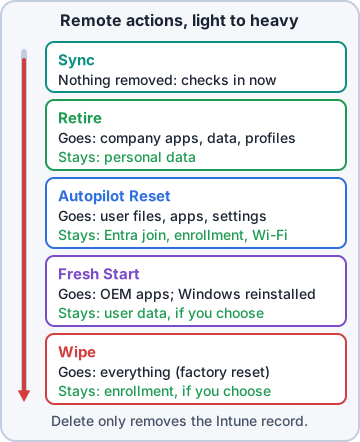
Open a device under Devices > All devices to see its actions. Sync makes the device check in now instead of at its next scheduled check-in, so new policies and apps arrive sooner. Restart reboots it remotely. Rename changes the device name. All are logged, and their status shows under Devices > Device actions.
Exam tip "User fixed the problem, now Intune should see it": Sync. Nothing gets deleted.
Retire vs wipe
Retire removes company data, managed apps, profiles and management, but leaves personal data. Use it for BYOD or when someone leaves and keeps their phone. Wipe factory-resets the device and erases everything: for lost or stolen corporate devices, or before reuse. On Windows, wipe can keep enrollment state and user account, or continue even if power is lost.
Exam tip Personal phone + employee leaving = Retire. Company laptop stolen = Wipe. Daily tenant limits: 500 wipes, 1,000 retires, 1,000 deletes.
Windows reset options
Autopilot Reset returns a Windows device to a business-ready state: it removes personal files, apps and settings but keeps the Entra join and Intune enrollment, ready for the next user. Fresh Start reinstalls Windows and removes OEM apps (it can keep user data). Delete removes the device record from Intune and sends a Retire (a Wipe on corporate Android).
Action           Keeps join  Keeps data
Retire           no          personal
Wipe             optional    no
Autopilot Reset  yes         no
Fresh Start      with data   optional
Bulk device actions
Need to act on many devices? Devices > All devices > Bulk device actions: pick the OS, the action (restart, sync, rename, retire, wipe, delete, Autopilot Reset, collect diagnostics) and up to 100 devices at once. Bulk wipe, retire and delete still count against the daily tenant limits. For larger jobs, script it with Microsoft Graph.
Exam tip Multi admin approval can protect wipe, retire and delete, including bulk ones.
Objective 2.4
Security actions and remote troubleshooting
Defender and key rotation actions
Update Windows Defender security intelligence tells Microsoft Defender Antivirus to fetch the newest definitions now. Quick scan and Full scan start a scan. BitLocker key rotation creates a new recovery password and escrows it to Entra ID. It needs the old key escrowed and recovery password rotation turned on in the BitLocker policy. Rotate local admin password makes LAPS set a new password immediately.
Exam tip A recovery key was read aloud, typed on a shared screen or emailed? Rotate it, so the exposed key stops working.
Device query with KQL
With Advanced Analytics, device query asks a device live questions in KQL (Kusto Query Language). Open the device, then Monitor > Device query. Entities include WindowsService, Process, EncryptableVolume, Certificate, LocalUserAccount, WindowsRegistry and WindowsEvent. Devices > Device query runs queries across many devices; Windows devices need a properties catalog policy to collect that inventory.
WindowsService
| where ServiceName == "WinDefend"
| project ServiceName, State, StartMode

EncryptableVolume
| project WindowsDriveLetter,
  ProtectionStatus, EncryptionPercentage
Collect diagnostics and the Troubleshoot pane
Collect diagnostics pulls logs, event logs and key registry data from a Windows device into a zip you download from the device's Device diagnostics page. For user-based troubleshooting, open Troubleshooting + support > Troubleshoot and pick the user. Tabs show their devices, groups, policies, apps, app protection, updates, enrollment restrictions and diagnostics.
Exam tip Ticket about one person ("Rosa's apps won't install"): start in Troubleshoot with Rosa's account. Ticket about one device: start on the device page.
Check yourself 1Rosa leaves Kibble and keeps her personal iPhone, which had Kibble email through Intune. Her photos must stay. Which action?
- Wipe
- Retire
- Autopilot Reset
- Fresh Start
Show the answer
Answer: B. Retire
Retire removes company apps, data and management but leaves personal data, which is right for a personal device leaving the company.
Check yourself 2A laptop from a departing store manager will go to the new manager. Kibble wants it to keep its Entra join and enrollment but lose the old user's files and apps. Which action?
- Retire
- Sync
- Wipe without keeping enrollment state
- Autopilot Reset
Show the answer
Answer: D. Autopilot Reset
Autopilot Reset removes personal files, apps and settings but keeps the device joined and enrolled, ready for its next user.
Go deeper
More on the objectives in this chapter, in the same exam-ready detail.
Objective 2.4 · Perform bulk remote actions
Bulk device actions
How to run one
In Devices > All devices, select Bulk device actions, pick the OS and the action, choose up to 100 devices, then review and create. Each device then gets the action like a normal remote action.
- Restart, Sync, Rename (with a naming pattern)
- Retire (remove company data) and Wipe (factory reset)
- Delete (remove the record from Intune)
- Autopilot Reset, Collect diagnostics, and others depending on the OS
Things to remember
Bulk actions respect RBAC and scope tags, and in tenants with Multi Admin Approval a bulk wipe/retire/delete can become an approval request. Use filters or groups to pick devices rather than clicking one by one, and check each device's action status afterwards.
Exam tip More than 100 devices: run several batches or use Microsoft Graph.
Objective 2.4 · Rotate BitLocker recovery keys
Rotating BitLocker recovery keys
Why rotate
A BitLocker recovery key (the 48-digit recovery password) unlocks a drive when BitLocker blocks startup. Once a help desk worker reads a key out to a user, it's no longer secret, so it should be rotated: BitLocker makes a new recovery password and escrows it.
How it works in Intune
Turn on client-driven recovery password rotation in the BitLocker policy (Endpoint security > Disk encryption). Then either Windows rotates the key automatically after it's used, or an admin runs the BitLocker key rotation device action on a device. The new key is backed up to Microsoft Entra ID and visible on the device's Recovery keys page.
- Device must be Entra-joined or hybrid-joined, with key escrow to Entra ID working
- Supported on current Windows 10/11 versions
- Rotation fails if the device can't back up the new key
Exam tip Users can see their own keys at the My Devices / account portal for self-service.
Objective 2.4 · Rotate local administrator passwords
Windows LAPS: rotating local admin passwords
The problem LAPS solves
If every PC has the same local Administrator password, one leak opens every PC. Windows LAPS (Local Administrator Password Solution, built into Windows) gives each device its own random local admin password, rotates it on a schedule, and backs it up to Microsoft Entra ID (or on-premises AD).
Setting it up in Intune
Create a Local admin password solution (Windows LAPS) policy under Endpoint security > Account protection: backup directory (Entra ID), password age (days), complexity, length, which account to manage, and what to do after the password is used (post-authentication actions such as reset the password and log off). Turn on LAPS in Entra ID device settings too.
- View a password: the device's Local admin password page in Intune (needs permission)
- Rotate now: the Rotate local admin password device action
- Every view is audited
Exam tip Password just got used for a support call and must change now: run Rotate local admin password, don't wait for the age to expire.
Practice questions
Answer in your head, then open the answer. Ranger's Desktop Duty has 374 questions like these for MD-102, with mock exams.
Question 1A Kibble & Co. employee is leaving and keeps her personal iPhone, which is enrolled in Intune. Company apps, email and profiles must be removed, but her photos must stay. Which action should Priya use?
- Retire
- Delete
- Remote lock
- Wipe
Show the answer
Answer: A. Retire
Retire removes Intune-managed apps, data, settings, Wi-Fi/VPN profiles, certificates and email profiles, unenrolls the device and leaves personal data. Wipe is a factory reset.
Question 2A Kibble & Co. corporate laptop was stolen with sensitive files on it. Which action restores it to factory settings and removes all data?
- Wipe
- Retire
- Autopilot Reset
- Fresh Start with Retain user data
Show the answer
Answer: A. Wipe
Wipe restores the device to factory settings and removes all personal and organization data, apps and configuration. It's the standard action for lost or stolen corporate devices.
Question 3A Kibble & Co. Windows laptop has a broken configuration. Dev wants to reset Windows to factory settings but keep the user's account and data, and keep the device enrolled. Which wipe option should he select?
- Wipe with no options selected
- Retire, then re-enroll
- Wipe device, and continue to wipe even if device loses power
- Wipe, but keep enrollment state and user account
Show the answer
Answer: D. Wipe, but keep enrollment state and user account
Wipe device, but keep enrollment state and associated user account (doWipePersistUserData) resets Windows while preserving user accounts and data, and keeps the device enrolled. MDM policies are removed and reapplied.
Question 4Dev is about to wipe a lost Kibble & Co. laptop and considers Wipe device, and continue to wipe even if device loses power. Which risk should he know about?
- The option works only on hybrid joined devices
- The device keeps its user data if power fails
- Some devices might not boot again afterward
- The device stays enrolled in Intune
Show the answer
Answer: C. Some devices might not boot again afterward
The continue-even-if-power-is-lost option (doWipeProtected) overwrites free space and resumes after power loss, but it can leave some devices unable to boot. Use it only on corporate devices where full data destruction is required.
Question 5Kibble & Co. bought laptops with lots of manufacturer apps. Dev wants to reinstall Windows without the OEM apps, keep the device Microsoft Entra joined and keep users' home folders. Which action and option fit?
- Wipe with Retain enrollment state
- Fresh Start, retaining user data
- Fresh Start without retaining user data
- Autopilot Reset
Show the answer
Answer: B. Fresh Start, retaining user data
Fresh Start reinstalls the latest Windows and removes OEM-installed apps. With Retain user data, the device stays Entra joined, re-enrolls when a user signs in, and keeps the user's home folder.
Microsoft, Azure, Intune and Windows are trademarks of the Microsoft group of companies. Ranger Gamez is not affiliated with or endorsed by Microsoft. The practice questions are written to the published exam objectives; they are not real exam questions.