 RANGER
 Microsoft 365 Certified: Endpoint Administrator (MD-102) · chapter 9 of 12
Month 4: Raise the shields
In this chapter Objectives 3.1
Objective 3.1
Antivirus and disk encryption
The Endpoint security node
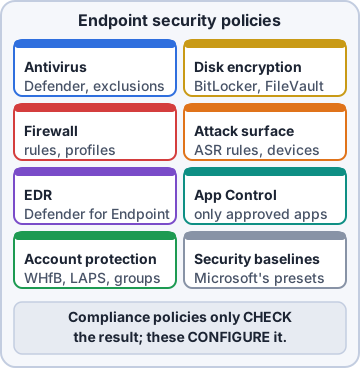
Endpoint security in the Intune admin center groups focused security policies: Antivirus, Disk encryption, Firewall, Endpoint detection and response, Attack surface reduction, Account protection, App Control for Business and Security baselines. Each policy holds only the settings for its job, which keeps security settings out of general configuration profiles.
Exam tip Same setting in a security policy and a configuration profile = conflict. Pick one home per setting.
Antivirus policies
Endpoint security > Antivirus for Windows has the Microsoft Defender Antivirus profile (real-time protection, cloud-delivered protection, sample submission, potentially unwanted apps, scan schedules, exclusions), Defender Update controls and Windows Security experience (what users see, plus tamper protection). macOS antivirus settings target Microsoft Defender for Endpoint on Mac. Reports show agent status and detected malware.
Exam tip Keep exclusions few and specific. Every excluded folder is a place malware can hide.
BitLocker and FileVault policies
Disk encryption profiles: BitLocker for Windows (require encryption, silent encryption for standard users, encryption methods, escrow the recovery key to Entra ID before encrypting, recovery password rotation) and FileVault for macOS (key escrowed to Intune). The Encryption report under Devices > Monitor shows encryption state and TPM readiness per device.
BitLocker - Windows
 Require device encryption     Enabled
 Allow standard user encryption Enabled
 Save recovery info to Entra ID Required
 Don't enable until key stored  Yes
 Recovery password rotation    Entra joined
Exam tip "Encrypt without bothering standard users" = silent encryption settings plus allow standard user encryption.
Recovery keys and self-service
Recovery keys escrowed to Entra ID appear on the device page (Recovery keys) in Intune and in Entra. Users can recover their own keys on another device through the Company Portal website or My Account (Devices > View BitLocker keys), unless the Entra setting restricting non-admin key recovery is turned on. Every key view is audited.
Exam tip Self-service recovery saves a help desk call at 7 a.m. Rotate the key after it's used.
Objective 3.1
Firewall, attack surface reduction and baselines
Firewall policies
Endpoint security > Firewall: the Windows Firewall profile turns the firewall on per network profile (domain, private, public) and sets default inbound and outbound behavior. Windows Firewall rules profiles add allow or block rules by app, port, protocol and remote address. macOS firewall settings are separate. Reusable settings groups hold IP ranges you use in many rules.
Exam tip Typical baseline: firewall on for all profiles, default inbound Block, then allow only what the store apps need.
Attack surface reduction rules
ASR rules block common attack behaviors: Office apps creating child processes, executable content from email, credential stealing from LSASS, obfuscated scripts, untrusted USB processes and more. Each rule is Block, Audit, Warn or Off. Start in Audit, review what would have been blocked, add precise exclusions, then switch to Block. ASR rules need Microsoft Defender Antivirus as the active antivirus.
Exam tip "See what a rule would block without breaking anything" = Audit mode.
Zero Trust thinking for endpoints
Zero Trust means verify explicitly, use least privilege, and assume breach. For endpoints: check device health before access (compliance plus Conditional Access), run users as standard users (EPM, LAPS), and shrink what an attacker can do after getting in (ASR rules, App Control, firewall). Then watch with EDR.
Dev: Assume someone is already inside. Then make every door after the first one locked.
Security baselines
Security baselines are Microsoft's preconfigured groups of recommended settings: Windows security baseline, Microsoft Defender for Endpoint baseline, Microsoft Edge, Microsoft 365 Apps and Windows 365. Deploy to a pilot group first, compare with existing policies to avoid conflicts, then widen. Baselines have versions: when a new one ships, update your profiles to it.
Exam tip Changing a single baseline setting is fine. Document why, because the baseline is your audit's reference point.
Objective 3.1
Defender for Endpoint and App Control for Business
Connecting Intune and Defender
Connect the services both ways: in the Microsoft Defender portal (Settings > Endpoints > Advanced features), turn on the Microsoft Intune connection. In Intune, Endpoint security > Microsoft Defender for Endpoint, turn on the connection for Windows devices. Then compliance policies can use Require the device to be at or under the machine risk score (Clear, Low, Medium, High).
Exam tip Risk score in a compliance policy + Conditional Access requiring compliance = a compromised device loses access to company data automatically.
Onboarding devices with an EDR policy
Create Endpoint security > Endpoint detection and response with the Defender for Endpoint client configuration package set to Auto from connector. Intune then pulls the onboarding package from Defender for you. Assign it to all Windows devices, and check the EDR onboarding status report until every device shows onboarded.
Exam tip Onboarding question on the exam: EDR policy with Auto from connector beats scripts and manual packages for Intune-managed devices.
Investigating and triaging
Alerts and incidents live in the Microsoft Defender portal. Triage: check severity, assign the incident, look at the device timeline and alert story, then respond: isolate device, run an antivirus scan, collect an investigation package, or restrict app execution. Classify the incident when done. Defender's vulnerability findings can become security tasks in Intune for admins to fix.
Exam tip Isolating keeps the device connected to Defender so you can still investigate, but cuts it off from everything else.
App Control for Business
App Control for Business (formerly Windows Defender Application Control) lets only trusted code run. In Endpoint security > App Control for Business, use built-in controls: trust Windows components and Store apps, optionally apps with good reputation, and apps from a managed installer (the Intune Management Extension can be set as one). Or upload your own XML policy. Start in audit mode.
Exam tip Managed installer = anything Intune installed is trusted automatically, so you don't list every app by hand.
Check yourself 1Kibble wants an ASR rule that blocks Office apps from creating child processes, without breaking the finance macros on day one. What's the right first step?
- Set the rule to Block for all devices at once
- Set the rule to Audit and review the events
- Add the whole Office folder as an ASR exclusion
- Turn off Microsoft Defender Antivirus during testing
Show the answer
Answer: B. Set the rule to Audit and review the events
Audit mode logs what the rule would block without blocking it. Review, add precise exclusions, then switch to Block.
Check yourself 2Dev wants every Intune-managed Windows device onboarded to Defender for Endpoint with the least manual work. What should he create?
- A PowerShell script that runs the onboarding package
- A security baseline for Microsoft Edge
- A firewall rule allowing the Defender service
- An EDR policy using Auto from connector
Show the answer
Answer: D. An EDR policy using Auto from connector
With the Intune and Defender connection on, an EDR policy set to Auto from connector fetches and deploys the onboarding package automatically.
Practice questions
Answer in your head, then open the answer. Ranger's Desktop Duty has 374 questions like these for MD-102, with mock exams.
Question 1Kibble & Co. wants Intune to stop local admins at the warehouse from turning off Microsoft Defender Antivirus real-time protection. In an endpoint security Antivirus policy for Windows, which profile holds the tamper protection setting?
- Defender Update controls
- Windows Security experience
- Endpoint detection and response
- Microsoft Defender Antivirus exclusions
Show the answer
Answer: B. Windows Security experience
Tamper protection is set in the Windows Security experience profile of an endpoint security Antivirus policy, and devices must be onboarded to Defender for Endpoint for it to apply. The exclusions and update-controls profiles manage other Defender areas.
Question 2A legacy label-printing app at the Kibble warehouse is slowed down by Defender scans of C:\LabelPro\Spool. Only the 12 warehouse PCs run it. What is the BEST way to exclude the folder with Intune?
- Add the folder to the tenant-wide Microsoft Defender Antivirus profile for all devices
- Turn off real-time protection on the warehouse group with a security baseline
- A Defender Antivirus exclusions profile assigned only to the warehouse device group
- Add the folder to ASR Only Per Rule Exclusions in an ASR rules profile
Show the answer
Answer: C. A Defender Antivirus exclusions profile assigned only to the warehouse device group
Exclusions reduce protection, so the Microsoft Defender Antivirus exclusions profile should be assigned only to the groups that need it. ASR per-rule exclusions don't affect antivirus scanning.
Question 3Dev wants a small pilot ring of Kibble laptops to receive new Defender platform and engine updates before the rest of the company, so problems are caught early. Which Antivirus policy profile should he configure for the pilot group?
- Windows Security experience
- Microsoft Defender Antivirus exclusions
- Update rings for Windows 10 and later
- Defender Update controls
Show the answer
Answer: D. Defender Update controls
The Defender Update controls profile sets the gradual-rollout channel for Defender platform and engine updates, so a pilot group can get them first. Update rings manage Windows updates, not Defender's own components.
Question 4Kibble wants BitLocker to turn on silently on new Entra-joined laptops with no prompts. In the endpoint security Disk encryption BitLocker profile, which TWO settings are required? (Choose two.)
- Allow Warning For Other Disk Encryption = Disabled
- Allow Standard User Encryption = Disabled
- Configure TPM startup PIN = Require startup PIN with TPM
- Require Device Encryption = Enabled
- Configure Recovery Password Rotation = Refresh off
Show the answer
Answers: A. Allow Warning For Other Disk Encryption = Disabled, D. Require Device Encryption = Enabled
Silent BitLocker needs Require Device Encryption enabled and the warning for other disk encryption disabled. A required startup PIN or key needs user interaction and stops silent enablement.
Question 5Silent BitLocker works on most Kibble laptops, but devices in the Finance group stay unencrypted and users see a prompt to set a PIN. Based on the exhibit, what is the MOST likely cause?
- The Defender for Endpoint baseline requires a TPM startup PIN
- The Finance laptops have no TPM
- WinRE is not configured on the Finance laptops
- The Disk encryption profile is assigned to users, not devices
Show the answer
Answer: A. The Defender for Endpoint baseline requires a TPM startup PIN
Silent enablement fails when any policy requires a TPM startup PIN or key, because that needs user input. Security baselines can turn these on, so review baseline settings for conflicts.
Microsoft, Azure, Intune and Windows are trademarks of the Microsoft group of companies. Ranger Gamez is not affiliated with or endorsed by Microsoft. The practice questions are written to the published exam objectives; they are not real exam questions.