 RANGER
 Apple Device Support · chapter 1 of 12
Week 1: Whose iPad is this?
In this chapter Objectives 1.1, 1.2, 1.3
Objective 1.1
Is it managed? Finding the MDM profile
What MDM is, and why it matters to you
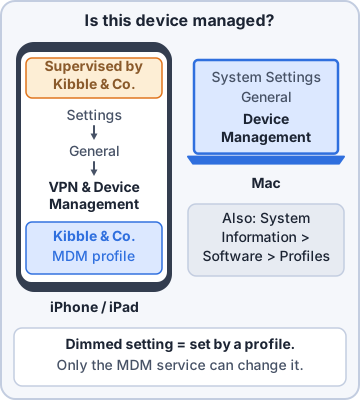
Mobile device management (MDM) is a server the company uses to send settings, apps and commands to Apple devices. A device joins it by installing an enrollment profile (the MDM profile). Other configuration profiles carry the settings: Wi-Fi, VPN, mail, certificates, restrictions. When a setting is dimmed and says it was configured by a profile, only the MDM admin can change it. So before you troubleshoot, find out who controls the device.
Exam tip A configuration profile alone does not mean MDM. Someone can install a Wi-Fi profile by hand. The enrollment (MDM) profile is what makes a device managed.
Where to look on iPhone and iPad
Open Settings > General > VPN & Device Management. A managed device lists its MDM profile under Device Management. Tap it to see what the organization installed: apps, restrictions, certificates, More Details. A supervised device also shows a line at the top of Settings, such as "This iPad is supervised and managed by Kibble & Co."
Settings > General
  > VPN & Device Management
DEVICE MANAGEMENT
  Kibble & Co. MDM     >
    Restrictions
    Apps
    More Details
Exam tip No profile under VPN & Device Management and no supervision line = not managed. Then you, not the MDM admin, can change its settings.
Where to look on a Mac
Choose Apple menu > System Settings > General > Device Management (macOS Ventura and later, including Tahoe 26). Double-click a profile for its settings. System Information > Software > Profiles shows the same list. In Terminal, profiles status -type enrollment answers in two lines whether the Mac is enrolled and how.
% profiles status -type enrollment
Enrolled via DEP: Yes
MDM enrollment: Yes (User Approved)
Sam: I run profiles status on every Mac that comes back from a repair. Takes two seconds.
Exam tip "DEP" is the old name for Automated Device Enrollment. "Yes" there means Apple Business assigned the Mac to the company's MDM.
Objective 1.2
What MDM can manage, restrict and see
Settings, restrictions, apps and commands
MDM can push payloads (Wi-Fi, VPN, email, certificates, passcode rules), set restrictions (no camera, no AirDrop, no App Store), install and remove managed apps, manage software updates, and send commands such as lock or erase. A restricted feature can vanish: when the camera is not allowed, the Camera app disappears from the Home Screen.
- Tap the profile > Restrictions to read what is blocked
- Dimmed settings with a profile message are locked by MDM
- MDM cannot turn on camera or microphone access for an app; the user grants that
Supervision unlocks more control
A supervised device is one the organization owns, usually set up through Automated Device Enrollment (ADE). Supervision allows extra restrictions and features: block AirDrop or the App Store, install apps silently, filter web content, manage updates without the user, and keep the user from removing management. An unsupervised device gets fewer restrictions.
Exam tip Exam pattern: "which restriction needs supervision?" Think of anything that takes control away from the owner, like blocking AirDrop or the App Store.
What MDM cannot see
MDM is not spyware. It cannot read personal email, messages, photos or browsing history. On a company-owned device it can see things like the device name, serial number, OS version, installed apps and storage. On a personal device enrolled with User Enrollment it sees even less: no personal apps, no device serial number, and it can only remove the work data, not erase the whole device.
Rosa: So it can't see my cat photos?
Priya: Not a whisker. It manages the work side only.
Check yourself 1A driver's company iPhone has no Camera app, and Camera is dimmed in Screen Time. Settings shows "This iPhone is supervised and managed by Kibble & Co." What is the most likely cause?
- A failed iOS update that removed the Camera app
- An MDM restriction blocks the camera
- Location Services is turned off for the Camera
- The iPhone needs a recovery mode restore
Show the answer
Answer: B. An MDM restriction blocks the camera
When MDM does not allow the camera, the Camera app disappears and related settings are dimmed. The supervision line confirms the company manages it, so the fix is a policy change by the MDM admin.
Objective 1.3
How MDM shapes Setup Assistant
Automated Device Enrollment
Devices bought from Apple or a participating reseller can be added to Apple Business (formerly Apple Business Manager) or Apple School Manager and assigned to the company's MDM server. When one is turned on and reaches the internet, Setup Assistant learns it belongs to Kibble & Co. and shows a Remote Management screen. The device enrolls during setup, and comes out supervised.
Exam tip The Remote Management screen cannot be skipped for an ADE device. A personal device that shows it is still assigned to someone's organization.
Skipping and adding Setup Assistant panes
The MDM's enrollment settings choose which Setup Assistant panes users see. Skipped panes (for example Siri, Screen Time, Apple Pay, Location Services or Terms) are set to the more privacy-preserving choice. MDM can also ask users to sign in with work credentials before enrolling, and on Mac it can control how the first local account is created.
- Skipped pane = setting left at its private default; user may change it later unless restricted
- Await configuration: the device waits in Setup Assistant until MDM finishes sending settings
- Make enrollment non-removable so users can't delete the MDM profile
- Enforce a minimum OS version: the device must update before enrolling (iOS 17 / macOS 14 and later)
Why setup looks different on company devices
This is why a new shop iPad never asks about Siri, and a driver's iPhone goes straight to the Home Screen after an erase (Return to Service, for supervised devices). If a user reports a "missing" setup screen, it's usually an MDM choice, not a bug. Devices added to Apple Business by hand with Apple Configurator get a 30-day provisional period in which the user can still remove management.
Sam: If a setup pane is missing, ask me before you open a ticket with Apple.
Check yourself 2Ten new iPads from Apple Business never show the Siri or Screen Time screens during setup, but they do show Remote Management. Why?
- Siri and Screen Time aren't available on iPad
- The iPads were restored from an iCloud backup
- The MDM enrollment settings skip those panes
- Remote Management turns off Siri on every device
Show the answer
Answer: C. The MDM enrollment settings skip those panes
With Automated Device Enrollment, the MDM decides which Setup Assistant panes appear. Remote Management can't be skipped for devices assigned in Apple Business, but most other panes can.
Check yourself 3Which of these can a supervised company iPhone's MDM do? Choose two.
- Read the user's iMessage conversations
- Block AirDrop
- Keep the user from removing the MDM profile
- Turn on microphone access for a third-party app
- Recover the user's personal Apple Account password
Show the answer
Answers: B. Block AirDrop, C. Keep the user from removing the MDM profile
Supervision allows strong restrictions, including blocking AirDrop and making enrollment non-removable. MDM never reads personal content and can't grant camera or microphone access.
Practice questions
Answer in your head, then open the answer. Ranger's Device Doctor has 538 questions like these for Apple Device Support, with mock exams.
Question 1A warehouse manager asks whether IT manages her iPhone. Where on the iPhone do you look to see the installed management and configuration profiles?
- Settings > Privacy & Security > Safety Check
- Settings > [Apple Account] > Devices
- Settings > General > About > Certificate Trust Settings
- Settings > General > VPN & Device Management
Show the answer
Answer: D. Settings > General > VPN & Device Management
Settings > General > VPN & Device Management lists the device management (MDM) profile and any configuration profiles. Certificate Trust Settings only shows trust for installed root certificates, not whether the device is managed.
Question 2You need to confirm which organization manages an office Mac running macOS Tahoe 26. Where in System Settings are the device management and configuration profiles listed?
- Privacy & Security
- General > Device Management
- General > Login Items & Extensions
- Users & Groups
Show the answer
Answer: B. General > Device Management
In current macOS, profiles live in System Settings > General > Device Management. Privacy & Security shows app permissions and security options, not the list of installed profiles.
Question 3A driver's iPhone shows this line near the top of Settings: "This iPhone is supervised and managed by Kibble & Co." What does this tell you?
- The company owns it and can apply supervised-only settings
- The iPhone is a personal device enrolled with User Enrollment
- The iPhone is in Lost Mode and locked by the company
- The iPhone only has a Wi-Fi configuration profile installed
Show the answer
Answer: A. The company owns it and can apply supervised-only settings
Supervision generally means the organization owns the device, which unlocks extra restrictions and features. User Enrollment never supervises a device, so this cannot be a User Enrollment.
Question 4A technician wants to check a Mac's installed profiles without opening System Settings, because a managed setting hides that pane for standard users. Which other built-in tool lists the profiles?
- Activity Monitor, using the Inspect button for a process
- Console, in the Reports section of the sidebar
- System Information, in the Software > Profiles section
- Disk Utility, using the Info button in the toolbar
Show the answer
Answer: C. System Information, in the Software > Profiles section
System Information has a Profiles section under Software that lists installed profiles and their details. Activity Monitor and Console show processes and logs, not profiles.
Question 5Dev runs this command in Terminal on a front-office Mac. What can he conclude from the exhibit?
- It was enrolled through Automated Device Enrollment and is managed
- It was enrolled with account-driven User Enrollment
- It has configuration profiles but no MDM enrollment
- It is registered in Apple Business but is not enrolled in MDM yet
Show the answer
Answer: A. It was enrolled through Automated Device Enrollment and is managed
"Enrolled via DEP: Yes" means the enrollment came from Automated Device Enrollment (DEP is its older name), and "MDM enrollment: Yes" means the Mac is managed. A registered but unenrolled Mac would show MDM enrollment: No.
Apple, iPhone, iPad and Mac are trademarks of Apple Inc. Ranger Gamez is not affiliated with or endorsed by Apple. The practice questions are written to the published exam objectives; they are not real exam questions.