 RANGER
 Apple Device Support · chapter 6 of 12
Month 2: The Mac that wouldn't start
In this chapter Objectives 3.6, 3.1, 3.8, 8.1
Objective 3.6
Boot modes of a Mac with Apple silicon
It all starts with the power button
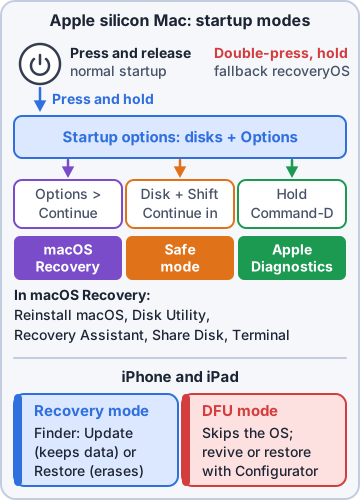
Intel Macs used many startup key combos. A Mac with Apple silicon uses the power button (Touch ID button on laptops). Press and release for a normal start. Press and hold until "Loading startup options" appears to get the startup options window: your startup disks plus Options.
Mr. Barkley: So I just... hold the button? That's the secret?
Maya: Hold it until you see startup options. Yes.
Exam tip Intel-only habits like Command-R, Option-Command-P-R or holding D at the chime don't apply to Apple silicon.
The modes you can reach
From startup options you reach almost everything.
- macOS Recovery: click Options > Continue (this is the paired recoveryOS)
- Fallback recoveryOS: shut down, then press and release, then press and hold the power button again (double-press and hold): a second copy of recoveryOS
- Safe mode: select the startup disk, hold Shift, click Continue in Safe Mode
- Another startup disk: select it, then Continue (Option for Always Use)
- Apple Diagnostics: at startup options, press Command-D
Share Disk and DFU mode
Share Disk (in macOS Recovery's Utilities menu) shares the internal disk with another Mac over a USB-C or Thunderbolt cable, the Apple silicon replacement for Target Disk Mode. Use it to copy files off a Mac that won't start macOS. DFU mode is the deepest level: another Mac running Apple Configurator can Revive (reinstall recoveryOS and firmware, keep data) or Restore (erase everything) a Mac whose recovery won't even start.
Exam tip DFU entry uses a model-specific key sequence and a specific port. Look it up for the exact Mac before you try it.
Check yourself 1On a Mac with Apple silicon, how do you start up in Safe Mode?
- Hold Shift right after pressing the power button
- Hold Command-R while pressing the power button
- Startup options: select disk, hold Shift
- Press Command-D in startup options
Show the answer
Answer: C. Startup options: select disk, hold Shift
On Apple silicon, Safe Mode is chosen in startup options: select the startup disk, hold Shift, then click Continue in Safe Mode.
Objective 3.1
Startup, restore and recovery options in macOS Recovery
The Recovery window
macOS Recovery may first ask you to pick a user and enter an admin password (FileVault unlocks the disk here). Then it shows its main options:
- Restore from Time Machine: restore the whole Mac from a Time Machine backup
- Reinstall macOS: install macOS again over the existing system; user data stays
- Safari: open Apple Support pages and other web help
- Disk Utility: First Aid repairs, erase, partition and mount volumes
The Utilities menu and more
The menu bar adds more tools.
- Startup Security Utility: security policy (Full or Reduced Security)
- Terminal: command line, for example
resetpasswordorcsrutil - Share Disk: share the internal disk with another Mac over a cable
- Startup Disk: choose which disk the Mac starts from
- Recovery Assistant: appears when needed, for example to Erase Mac or to activate after Activation Lock
- Window > Recovery Log: the log of everything Recovery tries
Exam tip Startup Security Utility can only be changed from recoveryOS. Apple silicon Macs ship in Full Security; kernel extensions need Reduced Security.
Which tool erases data?
This matters before you click. Reinstall macOS keeps users and files. Disk Utility First Aid repairs without erasing. Disk Utility Erase, Erase Mac in Recovery Assistant and Restore from Time Machine replace what's on the disk. Have a backup (or Share Disk) before any of those.
Maya: Reinstall first, erase last. Data first, always.
Check yourself 2A Mac with Apple silicon won't start macOS, but you can reach macOS Recovery. Which option should you try first to keep the user's files?
- Erase Mac in Recovery Assistant
- Reinstall macOS
- Restore from Time Machine
- Startup Security Utility
Show the answer
Answer: B. Reinstall macOS
Reinstall macOS installs a fresh copy of macOS without erasing user data. Try First Aid and Reinstall before anything that erases.
Objective 3.8
Resolving Apple silicon startup issues with macOS Recovery
Read the startup screen
The screen tells you where to look.
- Folder with a question mark: no startup disk with a working macOS
- Circle with a line through it: the macOS on the disk can't be used by this Mac
- Circled exclamation point: firmware or recoveryOS needs a revive or restore
- Activation Lock screen: the previous owner's Apple Account is needed
- Lock with a PIN: the Mac was locked with Find My
A safe order of repairs
Work from least to most destructive.
- Restart; try Safe Mode (if it works there, suspect third-party login items or extensions)
- macOS Recovery > Disk Utility > First Aid on the volume, then the container and disk
- macOS Recovery > Reinstall macOS
- Recovery won't load: fallback recoveryOS
- Still nothing: DFU Revive with Apple Configurator, then DFU Restore (erases)
- Disk can't be repaired: copy data with Share Disk, erase, reinstall, restore from Time Machine
FileVault and passwords in Recovery
With FileVault on, macOS Recovery asks for a user password (an admin who can unlock the disk) or the recovery key before Disk Utility or Reinstall can use the data volume. If nobody knows a password, the Reset Password assistant (resetpassword in Terminal) helps. A Mac erased with Find My still on shows Activation Lock after reinstall.
Exam tip Exam trap: you can't skip FileVault in Recovery. No password and no recovery key means the data is gone.
Objective 8.1
Diagnosing startup, install and recovery issues with recovery logs
Open the Recovery Log
macOS Recovery records what it does: network access, disk checks, installs. Choose Window > Recovery Log (the installer also has Window > Installer Log). Choose the detail level: Show Errors Only, Show Errors and Progress or Show All Logs. You can search the text and save the log to a file for escalation.
Exam tip Start with Errors Only. Switch to Errors and Progress to see which step ran just before the failure.
What the errors tell you
Match the message to the fix.
- Network errors: Recovery can't reach Apple; check Wi-Fi or use Ethernet
- Volume can't be mounted or APFS corruption: First Aid; if it fails, back up and erase
- Install failed, not enough space: free space or erase the volume after a backup
Recovery Log (Errors Only)
Disk Utility: Volume Macintosh HD - Data
  could not be mounted
fsck_apfs: error: container disk3
  invalid checksum
OSInstaller: install failed: volume
  not available
After the Mac starts again
In normal macOS, the full install history lives in /var/log/install.log, which you can read in Console (under Log Reports). It shows each update and installer step with a timestamp, useful when an update keeps failing.
Maya: Never escalate a startup case without the log. Apple's first question is: what does the log say?
Check yourself 3A Reinstall macOS attempt stops with a generic error. Where do you look first for the cause, while still in macOS Recovery?
- System Settings > General > Storage
- Activity Monitor's Memory tab
- Startup Security Utility
- Window > Recovery Log
Show the answer
Answer: D. Window > Recovery Log
The Recovery Log records install, disk and network steps in macOS Recovery. Filter to errors to find the cause, then switch to progress to see what ran before it.
Practice questions
Answer in your head, then open the answer. Ranger's Device Doctor has 538 questions like these for Apple Device Support, with mock exams.
Question 1You need to open macOS Recovery on a MacBook Air with Apple silicon. The Mac is shut down. What do you do?
- Turn it on and immediately press and hold Command-R
- Turn it on and hold Option-Command-P-R
- Turn it on and hold the T key
- Press and hold the power button, then click Options
Show the answer
Answer: D. Press and hold the power button, then click Options
On a Mac with Apple silicon you press and hold the power (Touch ID) button until "Loading startup options" appears, then click Options and Continue. Command-R is the Intel-based Mac combination.
Question 2A user wants a Mac returned to exactly how it was last Tuesday, using the company's Time Machine disk. Which macOS Recovery option fits?
- Restore from Time Machine
- Reinstall macOS
- Disk Utility First Aid
- Startup Security Utility
Show the answer
Answer: A. Restore from Time Machine
Restore from Time Machine in macOS Recovery brings back the system and data from a Time Machine backup. Reinstall macOS only reinstalls the operating system.
Question 3Rosa's office Mac keeps showing errors after a failed update, but her files are fine. Maya wants to put a fresh copy of macOS on it without erasing Rosa's data. What should she use in macOS Recovery?
- Disk Utility, Erase
- Reinstall macOS
- Recovery Assistant, Erase Mac
- Terminal, resetpassword
Show the answer
Answer: B. Reinstall macOS
Reinstalling macOS from Recovery replaces the system without removing the user's files. Erase in Disk Utility or Erase Mac in Recovery Assistant would delete everything.
Question 4A Mac with Apple silicon will not start up normally, and a technician wants to copy files from it to another Mac with a USB-C cable. Which macOS Recovery feature does this?
- Startup Disk
- Disk Utility, Restore
- Share Disk
- Restore from Time Machine
Show the answer
Answer: C. Share Disk
Share Disk (Utilities > Share Disk in macOS Recovery) shares the Mac's storage with another Mac over a USB, USB-C or Thunderbolt cable; the other Mac sees it under Network in the Finder. It replaces target disk mode on Apple silicon.
Question 5A warehouse Mac with Apple silicon needs a third-party kernel extension for a label printer driver. In macOS Recovery, which tool lowers the security policy to allow it?
- Disk Utility
- Startup Security Utility
- Recovery Assistant
- Startup Disk
Show the answer
Answer: B. Startup Security Utility
Startup Security Utility changes the security policy of a startup disk. Full Security is the default; legacy kernel extensions need Reduced Security, and an administrator must authenticate.
Apple, iPhone, iPad and Mac are trademarks of Apple Inc. Ranger Gamez is not affiliated with or endorsed by Apple. The practice questions are written to the published exam objectives; they are not real exam questions.