 RANGER
 Apple Device Support · chapter 7 of 12
Month 3: Who are you, really?
In this chapter Objectives 4.1, 4.2, 4.3, 4.4, 4.5, 4.6
Objective 4.1
Managing profiles in Safari on Mac
What a Safari profile is
A Safari profile keeps a separate set of browsing data in one Safari: its own history, cookies and website data, extensions, Tab Groups and favorites. A Work profile can stay signed in to the Kibble portal while a Personal profile stays signed in to the user's own accounts on the same sites. Profiles sync with iCloud to the user's other Apple devices.
Exam tip Profiles separate everyday browsing. Private Browsing is different: it keeps no history and forgets the session when the window closes.
Create, use and remove profiles
Manage them in Safari > Settings > Profiles.
- New Profile: name, symbol, color and a favorites folder
- Open one: File > New Window > New [Profile] Window, or the profile button in the toolbar
- Per-profile settings: extensions, new-window page, and which profile opens links
- Remove a profile with the minus button: its history, cookies and website data are deleted
Rosa: So Work-me and Home-me can both be signed in? That's the dream.
Exam tip Removing a profile deletes its history, cookies and website data, but its favorites and other bookmarks are kept. The default Personal profile can't be removed.
Check yourself 1Rosa wants to stay signed in to the Kibble supplier portal for work and to her own account on the same portal for personal orders, in one Safari. What's the best fix?
- Use Private Browsing for personal orders
- Create Work and Personal Safari profiles
- Clear Safari history at the end of each day
- Make a second macOS user account for orders
Show the answer
Answer: B. Create Work and Personal Safari profiles
Each Safari profile keeps its own cookies and website data, so both accounts can stay signed in, side by side.
Objective 4.2
Creating and using passkeys
Why passkeys beat passwords
A passkey replaces a password with a pair of cryptographic keys. The website keeps only the public key; the private key stays on the user's devices. Signing in uses Face ID, Touch ID or the device passcode. There's nothing to guess, reuse or type into a fake site: a passkey works only on the website or app it was made for, which makes it phishing-resistant.
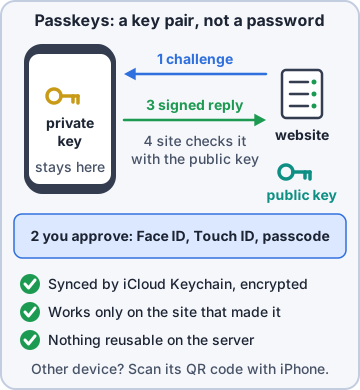
Exam tip A data breach at the website leaks only public keys, which are useless to an attacker.
Creating and syncing passkeys
On a site or app that supports passkeys, choose the passkey option when signing up or in account settings, then confirm with Face ID or Touch ID. Passkeys are saved in the Passwords app (iOS 18 / macOS Sequoia and later; earlier versions keep them in Passwords settings) and sync through iCloud Keychain, which is end-to-end encrypted and requires two-factor authentication for the Apple Account.
- No passkey option on the site = the site doesn't support passkeys yet
- One account can have both a password and a passkey
- Some sites let you save the passkey to a hardware security key instead
Signing in on someone else's device
On a computer that doesn't have the passkey, such as a shared Windows PC, choose to sign in with a passkey from another device. The site shows a QR code: scan it with the iPhone, confirm with Face ID, and the phone checks it's nearby over Bluetooth before approving. The passkey never leaves the iPhone. Passkeys can also be shared with trusted people through shared groups in the Passwords app.
Ranger: sniffs the QR code suspiciously
Exam tip Exam pattern: "sign in on a non-Apple device" = scan the QR code with the iPhone; Bluetooth must be on for the proximity check.
Check yourself 2Dev signs in to a vendor site with a passkey on his iPhone. Why can't a fake look-alike site steal it?
- The passkey is sent encrypted to every website
- Face ID blocks fake websites from loading
- It's bound to the real site's domain
- iCloud Keychain changes the passkey daily
Show the answer
Answer: C. It's bound to the real site's domain
Passkeys are bound to the website or app they were made for, and only a signed challenge, never the private key, is sent. A look-alike domain gets nothing usable.
Objective 4.3
Resetting a Mac user's password with an admin account
The steps
Log in as an administrator. Open System Settings > Users & Groups, click the Info button next to the locked-out user, click Reset Password, and enter and verify a new password (plus a hint if you like). Authenticate as the admin when asked. The user logs in with the new password and keeps all their files.
Exam tip Only an administrator can reset another user's password this way. A standard user can change only their own.
The keychain catch
The user's login keychain is still locked with the old password. At next login, macOS may ask to update the keychain password (needs the old one) or offer to create a new keychain. A new keychain means saved passwords from the old one aren't available, though passwords in iCloud Keychain sync back down.
- Remembers the old password: update the keychain
- Doesn't: create a new keychain; the old one is kept but stays locked
- No admin account? Use the Apple Account option, the FileVault recovery key, or the Reset Password assistant in macOS Recovery
Check yourself 3Priya resets Rosa's Mac password in Users & Groups. At login, Rosa sees a message that her keychain couldn't be unlocked. Why?
- The login keychain still uses her old password
- FileVault was turned off by the reset
- Priya's admin account was deleted
- Rosa's Apple Account was signed out
Show the answer
Answer: A. The login keychain still uses her old password
An admin reset changes the login password but not the login keychain's password. Rosa updates the keychain with her old password or creates a new keychain.
Objective 4.4
Accessibility features on Apple devices
Built in, not bolted on
Every iPhone, iPad and Mac includes accessibility features in Settings > Accessibility (Mac: System Settings > Accessibility). Apple groups them by need: vision, hearing, physical and motor, speech, and cognitive. No extra apps or licenses are needed.
- Vision: VoiceOver, Zoom, Magnifier, Display & Text Size, Spoken Content
- Hearing: Live Captions, Sound Recognition, hearing devices, Mono Audio, RTT
- Physical and motor: AssistiveTouch, Voice Control, Switch Control, Eye Tracking, Back Tap
- Speech: Live Speech, Personal Voice, Vocal Shortcuts
- Cognitive: Guided Access, Assistive Access, Background Sounds
Exam tip Version caution: Apple adds features most years (Eye Tracking, Vocal Shortcuts arrived with iOS 18). Know the classics by need.
Objective 4.6
How accessibility features support users' needs
Vision and hearing
VoiceOver is a gesture-based screen reader: it speaks what's on screen. Zoom magnifies the whole screen or a window; Magnifier uses the camera as a magnifying glass. Display & Text Size offers bold or larger text, higher contrast and color filters. For hearing: Live Captions show real-time captions of audio, Sound Recognition alerts on sounds like a doorbell or alarm, and LED flash for alerts turns notifications into light.
Exam tip Blind user needs to hear the screen = VoiceOver. Low-vision user needs things bigger = Zoom or Larger Text.
Mobility, speech and cognition
AssistiveTouch gives an onscreen menu for gestures and buttons that are hard to press. Voice Control operates the whole device by voice. Switch Control works with adaptive switches. Live Speech speaks typed words aloud in calls and in person; Personal Voice creates a voice that sounds like the user. Guided Access locks the device to one app, and Assistive Access offers a simplified interface with large buttons.
Rosa: Guided Access on the shop iPad. Ooh. No more customers playing games on it.
Exam tip Guided Access is also handy for a shop kiosk iPad: it keeps customers inside the one app.
Objective 4.5
Quickly turning accessibility features on and off
Shortcuts on iPhone and iPad
Choose features in Settings > Accessibility > Accessibility Shortcut. Then triple-click the side button (Face ID models) or Home button to turn them on or off; with several chosen, a menu appears. Other quick ways: the Accessibility Shortcuts control in Control Center, asking Siri ("Turn on VoiceOver"), and Back Tap (double or triple tap on the back of iPhone).
Exam tip Guided Access also uses the triple-click: triple-click inside the app to start or end a session.
Shortcuts on Mac
Press Option-Command-F5 (or quickly press Touch ID three times) to open the Accessibility Shortcuts panel and toggle features. Command-F5 turns VoiceOver on or off directly. You can also add Accessibility Shortcuts to Control Center or the menu bar, or ask Siri.
- Option-Command-F5 or triple-press Touch ID: Accessibility Shortcuts panel
- Command-F5: VoiceOver on/off
- Zoom keyboard shortcuts work once turned on in Accessibility > Zoom
Maya: If VoiceOver turns on by accident, the same shortcut turns it off. Most "my Mac is talking" tickets end there.
Check yourself 4The new warehouse lead has low vision and wants the whole iPhone screen magnified, switched on and off quickly. What should you set up?
- VoiceOver, with Back Tap
- Guided Access, with Siri
- Sound Recognition in Control Center
- Zoom, with the Accessibility Shortcut
Show the answer
Answer: D. Zoom, with the Accessibility Shortcut
Zoom magnifies the screen, and adding it to the Accessibility Shortcut lets her triple-click the side button to toggle it.
Practice questions
Answer in your head, then open the answer. Ranger's Device Doctor has 538 questions like these for Apple Device Support, with mock exams.
Question 1A user wants separate Work and Personal browsing in Safari on a Mac. Where does she set up her first profile?
- Safari > Settings > Profiles, then Start Using Profiles
- System Settings > Users & Groups > Add User
- Safari > Settings > Privacy > Manage Website Data
- File > New Private Window
Show the answer
Answer: A. Safari > Settings > Profiles, then Start Using Profiles
Safari profiles are created in Safari Settings > Profiles; the first time you click Start Using Profiles. A new macOS user account would separate everything, not just browsing.
Question 2A user starts using Safari profiles and creates a Work profile. What happens to the history, cookies, Tab Groups and favorites he already had?
- They are copied into both profiles
- They are deleted to start fresh
- They move to the default Personal profile
- They all move into the new Work profile instead
Show the answer
Answer: C. They move to the default Personal profile
Existing history, cookies, website data, extensions, Tab Groups and favorites move into the default profile, named Personal; new profiles start separate.
Question 3Maya signs in to the Kibble & Co. supplier site in her Personal profile. When she opens it in her Work profile, the site asks her to sign in again. Why?
- Her saved passwords are not available in the Work profile
- The site blocks Safari profiles
- The Work profile uses Private Browsing
- Cookies and website data are kept separate for each profile
Show the answer
Answer: D. Cookies and website data are kept separate for each profile
Each profile keeps its own history, cookies and website data, so sites see a new session. Saved passwords and AutoFill are shared, so she can fill in her credentials.
Question 4A user creates a School profile in Safari, but his ad blocker and password manager extensions do nothing there. What should he do?
- Reinstall the extensions from the App Store
- Turn on the extensions for that profile
- Delete and recreate the profile
- Sign out of iCloud and back in so the extensions sync
Show the answer
Answer: B. Turn on the extensions for that profile
Extensions are available to every profile but are turned on or off per profile, and new profiles start with them off. Turn them on in that profile's settings.
Question 5Rosa deletes a Safari profile she no longer needs. What is removed?
- Its history, cookies and website data
- Its bookmarks and Favorites bar folder
- All saved passwords
- The Personal profile as well
Show the answer
Answer: A. Its history, cookies and website data
Deleting a profile removes its history, cookies and website data, while its favorites and other bookmarks are kept. The default profile cannot be deleted.
Apple, iPhone, iPad and Mac are trademarks of Apple Inc. Ranger Gamez is not affiliated with or endorsed by Apple. The practice questions are written to the published exam objectives; they are not real exam questions.