 RANGER
 Apple Device Support · chapter 8 of 12
Month 4: Wi-Fi at the shops
In this chapter Objectives 5.1, 5.2, 5.3, 5.4, 5.5
Objective 5.1
Common Wi-Fi network types
Open, secured and captive
Public or open networks need no password, so anyone nearby can join, and traffic over the air isn't encrypted by the Wi-Fi itself. Private or secured networks need a password (Personal) or a username or certificate (Enterprise), and encrypt traffic. Captive or subscription networks (hotels, airports, Kibble's guest Wi-Fi) let you join, then send you to a web captive portal to sign in, accept terms or pay before the internet works.
Rosa: That's why the hotel Wi-Fi made me accept terms on my last trip!
Exam tip Apple devices show a lock for secured networks and a Privacy or Weak Security warning for networks that are open or use old security.
Living with captive portals
After joining, iPhone, iPad and Mac usually open the sign-in page by themselves. If it doesn't appear, open Safari and visit any plain http page such as captive.apple.com to trigger it. Until the user signs in, the network shows as connected but with no internet. Some subscription networks (such as Passpoint carrier hotspots) sign in automatically with a profile or account.
- Open network: prefer apps using HTTPS, or a VPN
- Captive network: sign in, then the internet works
- Secured network: password or credentials before joining
Dev: Most "guest Wi-Fi is broken" tickets are a captive portal nobody opened.
Objective 5.2
Wi-Fi authentication and encryption that Apple devices support
Personal: one shared password
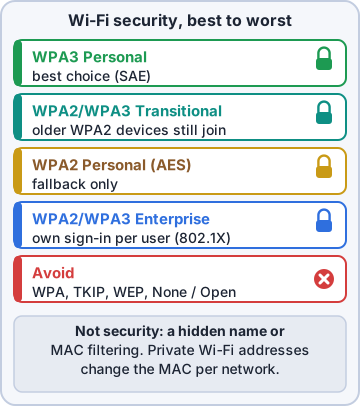
WPA3 Personal (using SAE) is the strongest home and small-office option and resists password-guessing. WPA2 Personal with AES is still common and supported everywhere. WPA2/WPA3 Transitional mode lets older devices use WPA2 while newer ones use WPA3. WEP and WPA/TKIP are obsolete; Apple devices flag them with a Weak Security warning.
Exam tip Exam pick: the most secure option a modern Apple device supports for a password network is WPA3 Personal.
Enterprise: each user signs in
WPA2 Enterprise and WPA3 Enterprise (including a 192-bit mode) use 802.1X with a RADIUS server, so every user or device has its own credentials. Apple devices support EAP types such as EAP-TLS (certificates on both sides), PEAP and EAP-TTLS (username and password inside a TLS tunnel) and EAP-FAST. Companies push these settings and certificates in an MDM Wi-Fi payload.
Exam tip Certificate-based EAP-TLS is why an unenrolled device can't join staff Wi-Fi: its certificate came from MDM.
Check yourself 1Kibble's guest Wi-Fi lets visitors join without a password, then shows a page where they accept terms before the internet works. What type of network is it?
- A WPA3 Personal network
- A captive network
- An 802.1X Enterprise network
- A Personal Hotspot
Show the answer
Answer: B. A captive network
Captive networks let devices join, then redirect web traffic to a sign-in page (the captive portal) until the user signs in or accepts terms.
Objective 5.3
Why Apple devices use a different MAC address on each network
A private address for each network
Every Wi-Fi chip has a hardware MAC address. If a device used it everywhere, every network it joined could recognize it, and observers could track the device from the coffee shop to the airport. So iPhone, iPad, Apple Watch, Vision Pro and Mac (macOS 15 and later) join each network with a private Wi-Fi address: a different MAC address per network.
Exam tip The goal is privacy: network operators and passive observers can't link the device across networks or over time.
Fixed, Rotating, or Off
Newer releases (iOS 18 and later, macOS 15 and later) offer three settings per network.
- Fixed: one private address that doesn't change on that network. Default for WPA2 or stronger networks
- Rotating: a new private address about every two weeks. Default for open or weak networks
- Off: the hardware MAC address is used
- Erasing the device or resetting network settings gives a new private address next time; so does forgetting the network, unless it was last forgotten less than 24 hours earlier (iOS 18 and later)
Exam tip Older iOS versions show a simple Private Wi-Fi Address on/off switch. Same idea, fewer choices.
Objective 5.4
Stopping or resuming a private address on iPhone and iPad
Where the switch lives
Open Settings > Wi-Fi, tap the Info button next to the network, then Private Wi-Fi Address: choose Off to use the hardware address, or Fixed or Rotating to resume using a private one. The device rejoins the network with the new address. The setting is per network, so turning it off for KC-Shop doesn't affect other networks.
Exam tip On Mac: System Settings > Wi-Fi > Details for the network > Private Wi-Fi Address.
When to turn it off
Turn it off only for networks that depend on recognizing a device: MAC address filtering (allow lists), DHCP reservations, network access control, or parental controls and monitoring tools. The better long-term fix is for the network admin to stop relying on MAC addresses, or for MDM to turn off the private address in the managed Wi-Fi payload for that network.
Dev: I know, I know. I'll replace that router with 802.1X. Next budget.
Ranger: skeptical stare
Check yourself 2Why does an iPhone join each Wi-Fi network with a different MAC address by default?
- To avoid IP address conflicts on busy networks
- To make it harder to track the device across networks
- To get faster speeds from the access point
- To meet WPA3 encryption requirements
Show the answer
Answer: B. To make it harder to track the device across networks
Private Wi-Fi addresses reduce tracking by network operators and observers, because the device looks different on each network.
Objective 5.5
Configuring advanced Wi-Fi settings
Inside a network's Info screen (iPhone, iPad)
Tap the Info button next to a network to see and change:
- Auto-Join: join this network automatically when in range
- Low Data Mode: apps cut background data, useful on hotspots
- Limit IP Address Tracking: hides the IP address from known trackers in Mail and Safari
- Configure IP: Automatic (DHCP), Manual or BootP; shows IP address, subnet mask and router
- Configure DNS: Automatic or Manual servers; HTTP Proxy: Off, Manual or Automatic
- Forget This Network: removes it and its password
Network-wide choices and the Mac
On the main Wi-Fi screen, Ask to Join Networks (Off, Notify, Ask) and Auto-Join Hotspot (Never, Ask to Join, Automatic) control how the device finds new networks. On Mac, System Settings > Wi-Fi > Details for a network adds tabs for TCP/IP, DNS, WINS, 802.1X, Proxies and Hardware (MAC address, MTU), plus Low Data Mode and Limit IP Address Tracking. Known networks can be edited or removed there.
Exam tip Manual DNS or proxy settings left over from another site are a classic cause of "connected, but nothing loads".
Check yourself 3A driver's iPhone connects to the depot Wi-Fi and has an IP address, but no website loads. Other phones are fine. Configure DNS shows Manual with one server, 10.9.9.9. What's the best fix?
- Turn on Low Data Mode for the network
- Set Private Wi-Fi Address to Rotating
- Turn on Limit IP Address Tracking
- Set Configure DNS back to Automatic
Show the answer
Answer: D. Set Configure DNS back to Automatic
A stale manual DNS server stops name lookups even though the connection works. Automatic DNS uses the servers the network hands out.
Practice questions
Answer in your head, then open the answer. Ranger's Device Doctor has 538 questions like these for Apple Device Support, with mock exams.
Question 1Rosa joins the hotel Wi-Fi on her iPhone during a trade show. Before any website loads, a page appears asking for her room number and last name. What kind of network is this?
- A private network secured with WPA3 Personal
- A captive (subscription) network
- An open network with no sign-in requirement
- An 802.1X enterprise network
Show the answer
Answer: B. A captive (subscription) network
Captive or subscription networks, common in hotels and airports, hold traffic until the user signs in, pays, enters a code or accepts terms on a page that appears after joining. A secured network asks for its password before the device joins.
Question 2A Kibble & Co. driver stops at a coffee shop whose Wi-Fi shows no lock icon and asks for no password. What is the BEST advice before he opens the company's inventory site?
- Turn off Private Wi-Fi Address so the shop can identify the iPhone
- Turn on Low Data Mode for the network to encrypt traffic
- Treat it as a public network and connect through the company VPN
- Forget the network and rejoin it to get a secure session
Show the answer
Answer: C. Treat it as a public network and connect through the company VPN
A network without a lock icon is public or open: anyone nearby can join, and traffic is not protected by Wi-Fi encryption. Apple's guidance is to use a VPN to reach an organization's resources from a public network.
Question 3The Kibble & Co. front office network shows a lock icon next to its name, and the Macs must enter a password before they can join. Which network type is this?
- Captive or subscription network
- Public or open network
- Personal Hotspot network
- Private or secured network
Show the answer
Answer: D. Private or secured network
Private or secured networks, common in homes and offices, show a lock icon and need a password (or enterprise credentials) before the device can join.
Question 4An iPhone joins the airport Wi-Fi and shows it as connected, but no sign-in page appears and nothing loads. According to Apple's guidance, what should the user try to bring up the sign-in page?
- Open Safari and go to captive.apple.com
- Reset Network Settings, then rejoin the airport network
- Turn off Private Wi-Fi Address for the airport network
- Set Configure DNS to Manual and enter a public server
Show the answer
Answer: A. Open Safari and go to captive.apple.com
When a captive network's welcome page does not appear on its own, Apple suggests opening Safari and visiting captive.apple.com so the network can redirect to its sign-in page. Resetting settings is a later step for wider problems.
Question 5A user joins a conference center's Wi-Fi from the network's More Info screen, then taps Cancel on the sign-in page. The iPhone asks how to continue, and she picks Without Internet. What happens?
- The iPhone disconnects and returns to the Wi-Fi list
- The iPhone stays on the network and Auto-Login is turned off for it
- The iPhone forgets the network and its private address
- The iPhone switches to cellular data while it stays on this network
Show the answer
Answer: B. The iPhone stays on the network and Auto-Login is turned off for it
On a captive network, Without Internet dismisses the welcome screen, keeps the device associated with the network and turns off Auto-Login, so the welcome screen appears again next time. Other Network is the choice that disconnects.
Apple, iPhone, iPad and Mac are trademarks of Apple Inc. Ranger Gamez is not affiliated with or endorsed by Apple. The practice questions are written to the published exam objectives; they are not real exam questions.