 RANGER
 Apple Device Support · chapter 9 of 12
Month 4: Macs, signals and hotspots
In this chapter Objectives 5.6, 5.7, 5.8, 5.9, 5.10
Objective 5.6
Managing Network settings on Mac
The Network pane
Open System Settings > Network. Each network service (Wi-Fi, Ethernet, Thunderbolt Bridge, an iPhone USB connection) has a status dot.
- Green: on and connected
- Yellow: active but not connected (for example, no IP address)
- Red: not set up or needs configuring
- Gray: turned off or unavailable
Dev: Yellow dot means the cable's in but no address came back. Check DHCP first.
Exam tip VPN, Firewall and content filters also appear in the Network pane in recent macOS versions.
Details for a service
Click a service, then Details. Tabs include TCP/IP (Configure IPv4: Using DHCP, DHCP with manual address, Manually; Renew DHCP Lease), DNS, WINS, 802.1X, Proxies and Hardware (MAC address, speed, MTU). The Action (...) menu below the list adds services, deletes them, sets the service order and manages Locations: saved sets of network settings, such as Office and Home.
Exam tip To test a clean network setup without losing the old one, create a new Location and switch to it.
Objective 5.7
Why change the network service order on Mac
Who goes first
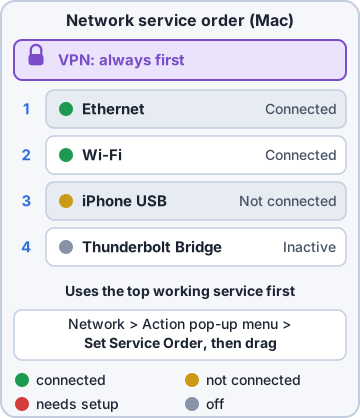
A Mac can have several services active at once, such as Ethernet and Wi-Fi. macOS uses the highest active service in the service order first for its default route and DNS, then falls back down the list if that one isn't available. VPN connections always take precedence and can't be reordered.
Exam tip Purpose in one line: the service order decides which connected interface the Mac prefers.
Changing it
Choose Set Service Order from the Action (...) menu, drag the services into the order you want, click OK, and apply. Typical reasons: prefer wired Ethernet over Wi-Fi at a desk, or push a slow or metered connection (such as an iPhone USB tether) below Wi-Fi so it's used only as a backup. Each Location can have its own order.
Dev: Plugging in Ethernet doesn't help if Wi-Fi is still at the top of the list.
Check yourself 1The warehouse Mac is plugged into Ethernet and also joined to Wi-Fi. Both show green, but traffic still goes over the slow Wi-Fi. Why?
- Ethernet needs Low Data Mode turned off
- Macs can't use Ethernet while Wi-Fi is on
- Ethernet needs a private MAC address
- Wi-Fi is above Ethernet in the service order
Show the answer
Answer: D. Wi-Fi is above Ethernet in the service order
With two active services, macOS prefers the one higher in the service order. Moving Ethernet to the top makes the Mac use it first.
Objective 5.8
Troubleshooting Wi-Fi configurations and connections
Scope first
Ask who and where. All devices failing on one network points to the network (router, DHCP, internet outage). One device failing everywhere points to the device. One device on one network points to that network's saved settings: password, private address, manual IP, DNS or proxy.
- Can't join: check the password, Forget This Network and rejoin; check MAC filtering
- Joined but no internet: check for a captive portal, then IP, router and DNS
- Slow or dropping: signal strength, interference, distance, channel congestion
Read the IP settings
In the network's Info (iPhone) or Details > TCP/IP (Mac), check that there's an IP address, subnet mask and router. An address starting with 169.254 is self-assigned: DHCP didn't answer. Renew the lease (Mac: Renew DHCP Lease), rejoin, or have the network admin check the DHCP server. Wrong manual IP, DNS or proxy settings also break a working connection.
Exam tip 169.254.x.x on an Apple device = no DHCP response. The Wi-Fi link is up, but the network gave no address.
Bigger hammers, in order
Restart the device and the router. On iPhone or iPad, Reset Network Settings (Settings > General > Transfer or Reset > Reset) clears all saved Wi-Fi networks, VPN and cellular settings. On Mac, try a new Location or remove and re-add the Wi-Fi service. Keep routers on Apple's recommended settings: WPA3 or WPA2 with AES, one network name across bands, and one DHCP server.
Dev: Reset Network Settings forgets every Wi-Fi password. Warn the user first.
Check yourself 2A shop iPad joins KC-Guest but shows an IP address of 169.254.12.40 and no router address. What does this tell you?
- The iPad got no address from DHCP
- The captive portal sign-in hasn't been opened
- Private Wi-Fi Address is set to Rotating
- The network uses WPA3 instead of WPA2
Show the answer
Answer: A. The iPad got no address from DHCP
A 169.254.x.x address is self-assigned when no DHCP server answers. Renew or rejoin, and check the network's DHCP server.
Objective 5.9
Analyzing a Mac Wi-Fi connection with Wireless Diagnostics
Option-click the Wi-Fi icon
Holding Option while clicking the Wi-Fi icon shows the connection's details: IP address, router, security, BSSID, channel and band, RSSI (signal strength) and noise in dBm, Tx Rate and PHY mode. RSSI closer to 0 is stronger: about -50 dBm is excellent, and a Mac starts looking for a stronger access point around -75 dBm. The gap between RSSI and noise is the signal-to-noise ratio; bigger is better.
RSSI:     -81 dBm
Noise:    -89 dBm
Tx Rate:  13 Mbps
Channel:  6 (2.4 GHz, 20 MHz)
PHY Mode: 802.11n
Exam tip RSSI -81 and noise -89 = only 8 dB of signal-to-noise ratio. Expect slow, unreliable Wi-Fi.
Running Wireless Diagnostics
From the same Option-click menu, open Wireless Diagnostics (the item reads Open Wireless Diagnostics or Create Diagnostics Report, depending on the version). Its assistant tests the connection, can monitor for drops, and ends with a summary of issues and recommendations. It saves a report named WirelessDiagnostics_...tar.gz in /private/var/tmp (/var/tmp) for the network team or AppleCare.
- Window menu tools include Info, Logs, Scan (nearby networks and best channels) and Performance (signal, noise and rate over time)
- Find the report: Finder > Go > Go to Folder > /var/tmp
Objective 5.10
Troubleshooting Personal Hotspot connections
Hotspot basics
Personal Hotspot shares an iPhone's or cellular iPad's mobile data over Wi-Fi, Bluetooth or USB. It must be allowed by the carrier and the plan; if it's missing from Settings, ask the carrier. Turn on Allow Others to Join in Settings > Personal Hotspot and set a password there. Family members and the user's own devices (Instant Hotspot, same Apple Account with Bluetooth and Wi-Fi on) can join without the password.
Exam tip MDM can also restrict Personal Hotspot on managed devices. Check the profile if the switch is dimmed.
When devices can't connect
Work through the connection type.
- Wi-Fi: keep the Personal Hotspot screen open while the other device joins; check the password; turn on Maximize Compatibility (2.4 GHz) for older devices
- Bluetooth: pair the devices; stay on Settings > Bluetooth while connecting; forget and re-pair if needed
- USB: Trust the computer; on Mac, the iPhone must appear as a service in Network settings
- Still failing: restart both, update carrier settings, then Reset Network Settings on the hotspot device
Exam tip Non-Apple devices are dropped after about 90 seconds with no traffic. Reconnect them; it's normal.
Check yourself 3A driver's old barcode scanner can't see the iPhone's Personal Hotspot, but a new laptop can. What setting helps most?
- Low Data Mode on the iPhone
- Maximize Compatibility
- Private Wi-Fi Address on the iPhone
- Allow Others to Join off
Show the answer
Answer: B. Maximize Compatibility
Maximize Compatibility switches the hotspot to 2.4 GHz, which older devices support. It may lower speed slightly.
Go deeper
More on the objectives in this chapter, in the same exam-ready detail.
Objective 5.6 · Manage Network settings on Mac.
Network settings on a Mac
Where they live
Open System Settings > Network. Each service (Wi-Fi, Ethernet, Thunderbolt Bridge, VPN) is listed with its status. Select one and choose Details to change its settings. Use the Action (…) menu to add a service, set the service order (which connection the Mac prefers) or manage locations (sets of network settings, if shown).
- TCP/IP: Configure IPv4 using DHCP or Manually (IP address, subnet mask, router); Renew DHCP Lease
- DNS: add DNS servers and search domains
- Proxies: web proxies, automatic proxy configuration
- Hardware: MTU and speed (Ethernet)
- Wi-Fi: Known Networks list, Ask to join networks, Limit IP address tracking, Private Wi-Fi address
Troubleshooting order
Green dot = connected; yellow = connected without a usable address (often a self-assigned 169.254.x.x address: DHCP failed); red = not connected. Try in order: check the service order, Renew DHCP Lease, check DNS, forget and rejoin a Wi-Fi network, and remove a VPN or profile that changes routing. Use Wireless Diagnostics (hold Option and click the Wi-Fi menu) for Wi-Fi problems.
Exam tip A Mac with a 169.254 address can't reach the router; a Mac with a good IP that can't load websites usually has a DNS problem.
Practice questions
Answer in your head, then open the answer. Ranger's Device Doctor has 538 questions like these for Apple Device Support, with mock exams.
Question 1In System Settings > Network on a front-office Mac, Ethernet shows a yellow status indicator. What does it mean?
- The service is on and connected
- The service is not set up and needs configuration
- The service is on but not connected
- The service is turned off
Show the answer
Answer: C. The service is on but not connected
Network service colors: green = on and connected; yellow = on but not connected; red = not set up or needs configuration; gray = off or unavailable.
Question 2A red status indicator appears under a VPN service in a Mac's Network settings. What does it tell the technician?
- It is not set up or needs configuration
- The VPN is connected but slow
- The service is on but not connected
- The service is connected and working normally
Show the answer
Answer: A. It is not set up or needs configuration
Red means the service is not set up or needs configuration. Yellow means it is on but not connected, and green means connected.
Question 3A Mac has many custom network settings from an old consultant. A technician wants to test whether fresh default settings fix a connection problem without losing the current setup. What should she do?
- Delete every service and add them again
- Reset the NVRAM
- Choose Renew DHCP Lease on each service
- Create a new network location and test
Show the answer
Answer: D. Create a new network location and test
A network location stores its own set of service settings. Creating a new one lets you test fresh settings while the old location keeps its settings intact.
Question 4On a Mac with macOS Tahoe 26, where do you add a new network location?
- Wi-Fi settings > Advanced > Known Networks > Add Location
- General > Sharing > Local hostname > Edit
- Network > Action pop-up menu > Locations > Edit Locations
- Apple menu > Location > Add Location
Show the answer
Answer: C. Network > Action pop-up menu > Locations > Edit Locations
In macOS Ventura and later, locations are managed from the Action pop-up menu below the services list in Network settings: Locations > Edit Locations.
Question 5Maya has only the default network location on her Mac. She looks for Location in the Apple menu so she can switch locations, but it is not there. Why?
- It appears only when more than one location exists
- Location switching requires an MDM profile
- The Location menu was removed from the Apple menu in macOS Tahoe 26
- She must turn on Location Services first
Show the answer
Answer: A. It appears only when more than one location exists
Apple menu > Location appears only when more than one network location has been created; until then, there is nothing to switch to.
Apple, iPhone, iPad and Mac are trademarks of Apple Inc. Ranger Gamez is not affiliated with or endorsed by Apple. The practice questions are written to the published exam objectives; they are not real exam questions.