 RANGER
 Apple Device Support · chapter 10 of 12
Month 5: Privacy, permissions and protection
In this chapter Objectives 6.1, 6.2, 6.3, 6.4, 6.5, 6.6
- Managing Privacy & Security settings
- Managing Location Services and app location access
- Managing settings to share content and services
- Resetting privacy permissions with tccutil
- How System Integrity Protection protects macOS
- Rapid Security Response and Background Security Improvements
- Privacy & Security settings
- Practice questions
- Chapter recap
Objective 6.1
Managing Privacy & Security settings
Where permissions live
Apps must ask before using private data or hardware. The user's answer is stored and can be changed later in Settings > Privacy & Security (iPhone, iPad) or System Settings > Privacy & Security (Mac). Each category lists the apps that asked.
- Hardware: Camera, Microphone, Bluetooth, Local Network, Motion & Fitness
- Data: Contacts, Calendars, Reminders, Photos (Limited or Full Access), Files and Folders, Health
- Mac only: Full Disk Access, Accessibility, Input Monitoring, Screen & System Audio Recording, Automation, App Management
- Also: Location Services, Tracking (Allow Apps to Request to Track), Analytics & Improvements, Safety Check (iPhone)
The Security part of the pane on Mac
Further down, Mac Privacy & Security holds security controls: Allow applications from (App Store, or App Store and identified developers), the Open Anyway button for an app Gatekeeper blocked, FileVault, Lockdown Mode and, on laptops with Apple silicon, Allow accessories to connect. Changing many of these needs an administrator.
Exam tip Green dot in the status bar or menu bar = camera in use. Orange dot = microphone in use.
What MDM can and can't do here
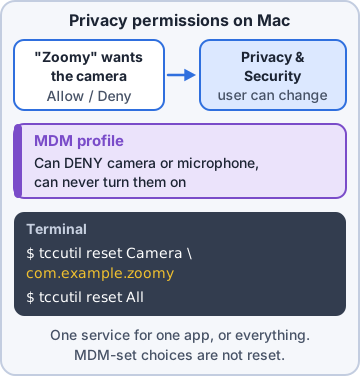
MDM can set some privacy permissions for managed apps on Mac (a Privacy Preferences Policy Control payload) and can deny camera or microphone access, but it can never grant camera or microphone access: only the user can. Settings set by MDM show as managed and can't be changed by the user.
Priya: If a toggle won't move and says it's managed, stop. That's Sam's policy, not a bug.
Check yourself 1Mr. Barkley's meeting app shows a black video box. In System Settings > Privacy & Security > Camera, the app is listed with its switch off. What should you do?
- Turn off FileVault so the app can reach the camera
- Turn on the app's Camera switch
- Give the app Full Disk Access
- Reset the Mac's NVRAM
Show the answer
Answer: B. Turn on the app's Camera switch
The camera permission was denied earlier. Turning the app on under Camera grants access; the app may need to restart to use it.
Objective 6.3
Managing Location Services and app location access
The master switch and per-app choices
Settings > Privacy & Security > Location Services turns location on or off for the whole device, and lists every app that asked. For each app choose Never, Ask Next Time Or When I Share, While Using the App, or Always (offered when the app needs background location). Precise Location can be turned off so the app only gets an approximate area.
Exam tip Find My and emergency calls use location too. Turning off the master switch affects everything.
System services, Mac, and resetting
System Services at the bottom covers things like time zone, Significant Locations and Find My. On Mac, System Settings > Privacy & Security > Location Services works the same way (an admin may need to unlock it). On iPhone or iPad, Reset Location & Privacy (Settings > General > Transfer or Reset > Reset) clears every app's privacy choices, so apps ask again.
Rosa: So my driver's route app should be While Using, with Precise on?
Priya: Exactly. It needs the exact street, but not while the phone is in a pocket at home.
Check yourself 2The delivery app needs a driver's exact location while the app is open, but Kibble doesn't want it tracking drivers after hours. What setting fits?
- Always, with Precise Location off
- Never, and drivers type each address
- While Using the App, with Precise Location on
- Location Services off for the whole iPhone
Show the answer
Answer: C. While Using the App, with Precise Location on
While Using the App gives location only when the app is in use, and Precise Location gives the exact position needed for deliveries.
Objective 6.2
Managing settings to share content and services
Sharing on Mac
System Settings > General > Sharing turns network services on or off and sets the computer's name. Each service you leave on is a door into the Mac, so turn on only what's needed and limit who can use it.
- File Sharing, Media Sharing, Screen Sharing, Printer Sharing, Bluetooth Sharing
- Remote Login (SSH), Remote Management, Remote Application Scripting
- Internet Sharing (shares the Mac's connection) and Content Caching (caches Apple downloads for local devices)
- AirDrop and AirPlay Receiver live in General > AirDrop & Handoff
Exam tip Content Caching saves Apple software updates and apps on one Mac so local devices download them faster.
Sharing on iPhone and iPad
Users share content through many features: Family Sharing, shared albums, shared notes and files, Find My location sharing and Home access. Safety Check (Settings > Privacy & Security > Safety Check) shows who and which apps have access, lets the user stop sharing selectively with Manage Sharing & Access, or all at once with Emergency Reset.
Exam tip Safety Check is for personal safety: one place to review and stop sharing with people and apps.
Objective 6.4
Resetting privacy permissions with tccutil
TCC and when to reset
macOS keeps app privacy choices in the TCC (Transparency, Consent, and Control) database. Sometimes an app never asks again because it was denied before, a setting gets stuck, or an app was replaced. The tccutil command in Terminal resets those choices so the app asks again. It doesn't change settings that MDM manages.
Exam tip Reset just what's needed. tccutil reset All wipes every app's choices for this user, and they'll all ask again.
The commands
Use the service name and, optionally, the app's bundle ID.
- Service + bundle ID: one permission for one app
- Service only: that permission for every app
- All + bundle ID: every permission for one app
- Find a bundle ID: codesign -d -r - /Applications/AppName.app
tccutil reset Camera com.kibbleco.meet
tccutil reset Microphone
tccutil reset All com.kibbleco.meet
tccutil reset All
Check yourself 3A meeting app on a Mac was denied the microphone weeks ago and no longer asks. You want only that app to ask again, for the microphone only. Which command?
- tccutil reset Microphone com.kibbleco.meet
- tccutil reset All
- tccutil reset All com.kibbleco.meet
- tccutil reset Microphone
Show the answer
Answer: A. tccutil reset Microphone com.kibbleco.meet
Naming both the service (Microphone) and the bundle ID resets just that one permission for that one app.
Objective 6.5
How System Integrity Protection protects macOS
Even root can't touch these
System Integrity Protection (SIP) stops any process, even one running as root, from changing protected parts of macOS. Only Apple-signed processes with special entitlements, such as Apple's software updates, may write there.
- Protected: /System, /usr, /bin, /sbin, /var and apps that come with macOS
- Writable by apps and installers: /Applications, /Library, /usr/local
- macOS also runs from a Signed System Volume: a read-only, cryptographically sealed system volume
Sam: Not even me with sudo. That's the point.
Checking and changing SIP
In Terminal, csrutil status shows whether SIP is enabled. SIP can only be turned off from macOS Recovery (Terminal there), never from normal macOS, so malware can't simply switch it off. Turning it off is almost never the right support fix: it weakens every protection on the Mac.
Mr. Barkley: My old plug-in says to turn off SIP.
Sam: Then we need a new plug-in. SIP stays on.
Exam tip Exam pattern: malware with an admin password still can't modify /System because of SIP.
Objective 6.6
Rapid Security Response and Background Security Improvements
Security fixes between updates
Apple can ship urgent security fixes without a full software update. iOS 16 and macOS Ventura delivered them as Rapid Security Responses; Apple's current guides describe Background Security Improvements, supported starting with iOS 26.1, iPadOS 26.1 and macOS 26.1. They patch parts like Safari, WebKit and system libraries. Once applied, a letter follows the version number, such as macOS 13.3.1 (a). They install automatically by default and may need a restart.
Exam tip Version caution: the objective says Rapid Security Response; Apple's 26.1 and later guides describe Background Security Improvements, and MDM settings still use the RapidSecurityResponse name.
Settings, removal and MDM
Before 26.1 the switch was Security Responses & System Files under Software Update > Automatic Updates. From 26.1 it's Settings > Privacy & Security > Background Security Improvements (Mac: System Settings > Privacy & Security). A user can remove one with the Info button next to the version, then Remove and Restart; the device returns to the base version. MDM can decide whether they install automatically and whether users may remove them. They don't follow update deferrals.
- Turned off: the fixes come later, in the next normal software update
- Removal undoes every one applied since the last software update
- Only for the latest OS version; deferring that update delays them too
Check yourself 4A Mac shows macOS 26.1 (a) after a restart. What does the (a) mean?
- It's a public beta of macOS 26.1
- The Mac is running from macOS Recovery
- An MDM deferral is holding the update
- A Background Security Improvement is applied
Show the answer
Answer: D. A Background Security Improvement is applied
Rapid Security Responses and Background Security Improvements both add a letter such as (a) after the version number once applied.
Go deeper
More on the objectives in this chapter, in the same exam-ready detail.
Objective 6.1 · Manage Privacy & Security settings.
Privacy & Security settings
Privacy: apps ask, you decide
In System Settings > Privacy & Security (Mac) or Settings > Privacy & Security (iPhone/iPad), each protected resource lists the apps that asked for it, with a switch to allow or deny.
- Location Services, Contacts, Calendars, Photos
- Camera, Microphone
- Mac only: Full Disk Access, Accessibility, Screen & System Audio Recording, Files & Folders, Input Monitoring, App Management
- Analytics & Improvements, Apple Advertising, App Privacy Report (iPhone/iPad)
Exam tip An app 'can't see the screen' in a video call or 'can't control the Mac' for remote support: it needs Screen Recording or Accessibility permission here.
Security: what the Mac allows
Further down the same pane: Allow applications from (App Store, or App Store & Known Developers); the Open Anyway button for an app Gatekeeper just blocked; FileVault (full-disk encryption); Lockdown Mode; and accessories allowed to connect (Apple silicon). On iPhone/iPad, Security includes Stolen Device Protection (under Face ID & Passcode) and Lockdown Mode.
Exam tip MDM can preapprove privacy permissions (PPPC profiles) on managed Macs; users can't override what MDM locks.
Practice questions
Answer in your head, then open the answer. Ranger's Device Doctor has 538 questions like these for Apple Device Support, with mock exams.
Question 1Sam downloads a label-printer utility from the vendor's website. When he opens it on his Mac, he sees the alert in the exhibit. He trusts the vendor. Where can he allow it to open?
- System Settings > General > Login Items & Extensions > Allow
- Finder > Get Info > Sharing & Permissions > Read & Write
- System Settings > Network > Firewall > Add app to the allowed list
- System Settings > Privacy & Security, then Open Anyway
Show the answer
Answer: D. System Settings > Privacy & Security, then Open Anyway
When Gatekeeper blocks an app, the Security section of Privacy & Security shows the blocked app with an Open Anyway button for a while after the attempt. The user confirms, and the app is saved as an exception.
Question 2An admin wants office Macs to open only apps from the App Store and from developers identified by Apple. Which Privacy & Security setting does that?
- Allow applications from: App Store only, plus Lockdown Mode
- Allow applications from: Anywhere
- Allow applications from: App Store & Known Developers
- Full Disk Access granted only to the App Store app
Show the answer
Answer: C. Allow applications from: App Store & Known Developers
The Allow applications from setting chooses between App Store only and App Store & Known Developers (signed and notarized apps). Device management can also restrict this choice.
Question 3Rosa, a standard user on a shared Mac, tries to turn on Camera access for a video app in Privacy & Security, and macOS asks for credentials she does not have. Why?
- Camera access can only be granted by the company's MDM profile
- Some privacy settings, such as Camera, need an admin
- Standard users cannot use the camera in any app on a Mac
- The app must be reinstalled before the switch can be turned on
Show the answer
Answer: B. Some privacy settings, such as Camera, need an admin
On Mac, some privacy settings such as Camera or Microphone require administrator privileges to change, so a standard user needs an admin to approve.
Question 4You want to grant a new scanning app access to the Mac's microphone, but the app does not appear in Privacy & Security > Microphone. What is the MOST likely reason?
- The app has not yet asked for microphone access
- The app must first be given Full Disk Access by an administrator
- Microphone access is available only to apps from the App Store
- The Mac must be restarted before new apps show in any privacy list
Show the answer
Answer: A. The app has not yet asked for microphone access
An app does not appear in a privacy list until it asks for permission to use that data or hardware. Open the app and trigger the feature so macOS asks, then approve it.
Question 5A company uses MDM. A manager asks the MDM admin to push a profile that turns ON camera access for the video-call app on every Mac, so users are never asked. What should the admin explain?
- MDM can deny camera access but can't enable it
- MDM can enable it only after FileVault is turned on for every Mac
- MDM can enable it if the app comes from the App Store
- MDM can enable it on supervised Macs but not on personal Macs
Show the answer
Answer: A. MDM can deny camera access but can't enable it
Apple's privacy guidance says camera and microphone settings can be disabled but not enabled by a device management service; the user must turn on access for these privacy-affecting settings.
Apple, iPhone, iPad and Mac are trademarks of Apple Inc. Ranger Gamez is not affiliated with or endorsed by Apple. The practice questions are written to the published exam objectives; they are not real exam questions.