 RANGER
 Apple Device Support · chapter 11 of 12
Month 5: Updates, apps and AirDrop
In this chapter Objectives 7.1, 7.2, 7.3, 7.4, 7.5, 7.6, 7.7
- Updating iOS, iPadOS and macOS
- Managing automatic software updates
- Troubleshooting OS updates
- Troubleshooting unresponsive apps
- Sharing content between devices with AirDrop
- Troubleshooting AirDrop
- Managing storage space on Mac
- Updating iOS, iPadOS and macOS
- Managing storage space on a Mac
- Practice questions
- Chapter recap
Objective 7.1
Updating iOS, iPadOS and macOS
Update or upgrade
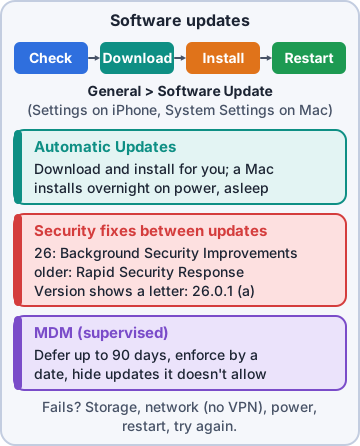
An update is a newer release of the same major version (iOS 26.0.1 to 26.1). An upgrade is a new major version (iOS 26 to iOS 27, macOS Tahoe to the next macOS). Back up first, connect to power, and use a reliable network.
- iPhone/iPad: Settings > General > Software Update (Update Now, or Update Tonight)
- Mac: System Settings > General > Software Update (Update Now / Upgrade Now)
- No wireless update possible: connect the iPhone to a Mac and use Finder (or Apple Configurator)
- Mac command line: softwareupdate -l lists updates; softwareupdate -i -a installs them
Rosa: So 26.0.1 to 26.1 is an update, and 26 to 27 is an upgrade?
Maya: Exactly right.
Managed devices
On supervised devices, MDM can delay updates by up to 90 days, enforce a specific version by a deadline, and hide versions that aren't approved. Updates blocked by policy don't appear in Software Update, and settings may be dimmed. When a user asks why their iPhone "has no update", check management first.
Sam: We hold big upgrades for 30 days while we test our apps. Users see nothing until we release them.
Objective 7.2
Managing automatic software updates
Automatic Updates settings
On iPhone and iPad, Settings > General > Software Update > Automatic Updates has Download iOS Updates and Install iOS Updates: updates download and then install overnight while the device is charging, on Wi-Fi and locked. On Mac, the Info button next to Automatic Updates offers Download new updates when available, Install macOS updates and Install application updates from the App Store; the Mac installs while it's on power and asleep or idle.
Exam tip Security fixes between updates (Background Security Improvements from 26.1) have their own switch in Privacy & Security.
Apps update too
App updates are separate: on iPhone, the App Store settings > App Updates; on Mac, App Store > Settings > Automatic Updates (or the Software Update option above). MDM can control automatic OS updates with declarations, and can update managed apps for the user on supervised devices.
Exam tip Exam trap: automatic install needs power and Wi-Fi overnight. A phone that's never charged overnight never auto-installs.
Objective 7.3
Troubleshooting OS updates
The usual suspects
Failed updates mostly come down to storage, network or power.
- Not enough space: free storage (Settings > General > iPhone Storage; Mac: General > Storage)
- "Unable to Check for Update" or "Unable to Download": restart, try another network, turn off VPN
- Low battery: connect to power
- Damaged download: delete the update in iPhone Storage, then download it again
- Still failing: update with Finder on a Mac; Mac: install from macOS Recovery
When updates simply don't appear
If Software Update shows nothing, the device may already be current, the OS may not support that model, or MDM is deferring or restricting the update. On Mac, check the install history in Console (/var/log/install.log) for errors, and remember a Background Security Improvement applies only to the latest version.
Priya: "No updates" on a managed iPhone? Ask Sam before you blame Apple.
Check yourself 1A shop iPad says "Unable to Install Update" twice. It has plenty of free space and power. What's a good next step?
- Turn on Low Data Mode for Wi-Fi
- Reset Location & Privacy
- Turn off Automatic Updates and try once more
- Delete the update, then download it again
Show the answer
Answer: D. Delete the update, then download it again
A damaged download can fail every time. Deleting it from Settings > General > iPad Storage forces a fresh download; if that fails, update with a Mac.
Objective 7.4
Troubleshooting unresponsive apps
On iPhone and iPad
Close the app: open the App Switcher (swipe up from the bottom and pause, or double-click the Home button) and swipe the app up. If it's still stuck, restart the device; if the screen won't respond, force restart (iPhone 8 and later: volume up, volume down, hold the side button until the Apple logo). Then update the app, check free storage, and if needed offload or delete and reinstall it.
Exam tip Offload App (Settings > General > iPhone Storage) removes the app but keeps its documents and data.
On Mac
Choose Apple menu > Force Quit or press Option-Command-Esc, select the app and click Force Quit. You can also Option-click its Dock icon and choose Force Quit, or use Activity Monitor. If it keeps happening, update the app, test in another user account or Safe Mode, and read its crash reports in Console.
- Force Quit loses unsaved work in that app
- App fine in Safe Mode = suspect a login item or extension
- App fine in another user = suspect that user's preferences or caches
Priya: Force quit is fine for one hang. If it hangs daily, find the cause.
Check yourself 2The label app on a Mac shows a spinning cursor and ignores clicks. The rest of the Mac works. What do you try first?
- Hold the power button to shut down
- Option-Command-Esc, then Force Quit the app
- Start up in macOS Recovery
- Reset the Mac's privacy permissions
Show the answer
Answer: B. Option-Command-Esc, then Force Quit the app
Force Quit closes only the hung app. Shut down or Recovery affect the whole Mac and aren't needed for a single unresponsive app.
Objective 7.5
Sharing content between devices with AirDrop
Sending and receiving
AirDrop sends photos, files, links and contacts directly between nearby Apple devices, encrypted, without the internet. Tap Share > AirDrop and choose a person or device; on Mac, use the Share menu or drag files onto someone in a Finder AirDrop window. The receiver taps Accept, unless both devices use the same Apple Account, which accepts automatically.
- iPhone: files open in the matching app; Mac: files land in Downloads
- Bring two iPhones close together to share (NameDrop shares contact info)
- Newer iOS can finish large transfers over the internet if you move out of range
Who can find you
Receiving settings decide who sees the device: Receiving Off, Contacts Only, or Everyone for 10 Minutes (after which it returns to Contacts Only). iPhone: Settings > General > AirDrop or Control Center. Mac: Control Center > AirDrop, or the Finder AirDrop window's Allow me to be discovered by menu.
Exam tip Contacts Only needs the sender's email address or phone number in the receiver's Contacts, and both signed in to an Apple Account.
Objective 7.6
Troubleshooting AirDrop
A checklist that works
Most AirDrop failures are settings, not hardware.
- Both devices: Wi-Fi and Bluetooth on, awake and unlocked, within about 9 m (30 ft)
- Personal Hotspot off on the iPhone
- Receiver set to Everyone for 10 Minutes (or Contacts Only with the sender in Contacts)
- Mac firewall: Block all incoming connections must be off
- Screen Time Content & Privacy Restrictions may block AirDrop
- Managed devices: MDM may block AirDrop or keep work files out of it
Managed devices and AirDrop
Supervised devices can have AirDrop turned off entirely. MDM can also treat AirDrop as an unmanaged destination, so documents from managed apps can't be AirDropped to other devices. If the AirDrop option is missing or dimmed on a work iPhone, check VPN & Device Management before anything else.
Ranger: drops a tennis ball next to the iPad. AirDrop, dog style.
Exam tip Version caution: Apple tweaks AirDrop discovery for strangers in new releases. Know the three receiving settings and the checklist.
Check yourself 3Rosa can't see Mr. Barkley's iPhone in AirDrop, though they're in the same room. His iPhone is set to Contacts Only and Rosa isn't in his contacts. What fixes it fastest?
- Turn on his Personal Hotspot
- Sign Rosa in to his Apple Account
- Set his receiving to Everyone for 10 Minutes
- Turn off Bluetooth on both phones
Show the answer
Answer: C. Set his receiving to Everyone for 10 Minutes
Contacts Only hides the iPhone from senders who aren't in its Contacts. Everyone for 10 Minutes lets Rosa find it, then switches back automatically.
Objective 7.7
Managing storage space on Mac
See where the space went
Open System Settings > General > Storage. The bar shows categories such as Applications, Documents, Photos, iCloud Drive, Messages, iOS Files (old iPhone and iPad backups) and System Data. Click the Info button next to a category to review and delete items, such as large files or old device backups.
Exam tip System Data includes caches, logs and local Time Machine snapshots. macOS frees much of it automatically; don't hand-delete system folders.
Recommendations
The Storage pane suggests ways to free space.
- Store in iCloud: keep Desktop and Documents, Photos and Messages in iCloud with only recent items on the Mac
- Optimize Storage: remove Apple TV movies and shows you've watched
- Empty Trash Automatically: delete items in the Trash after 30 days
- Purgeable space: files macOS can remove on its own when space is needed
Maya: Store in iCloud only helps if iCloud has room. Check the plan first.
Check yourself 4Maya's Mac Storage pane shows iOS Files using 64 GB. What is that space?
- The iOS apps installed on her iPhone
- iCloud Drive files kept only in iCloud
- macOS system files that can't be removed
- Local iPhone and iPad backups
Show the answer
Answer: D. Local iPhone and iPad backups
iOS Files holds local backups and software files for iPhone and iPad. Old backups you no longer need can be deleted from its Info view.
Go deeper
More on the objectives in this chapter, in the same exam-ready detail.
Objective 7.1 · Update iOS, iPadOS, or macOS.
Updating iOS, iPadOS and macOS
The normal way
iPhone/iPad: Settings > General > Software Update. Mac: System Settings > General > Software Update. You'll see the update available for this device, sometimes a choice of the newest major version or a security update for the current one, and Automatic Updates options (download, install, security responses and system files).
- Back up first (iCloud or a computer)
- Keep enough free space, and connect to power
- Background Security Improvements / Rapid Security Responses patch security fixes between full updates
When it won't update
Common causes: not enough storage, low battery, a network that blocks Apple's update servers, a beta profile installed, or the organization's MDM deferring or enforcing updates (managed devices may show the update later or install it at a set deadline). A Mac that won't start can be updated or reinstalled from macOS Recovery; an iPhone or iPad can be updated or restored with a Mac (Finder) or PC (Apple Devices app or iTunes).
Exam tip Update vs restore: updating keeps data; restoring erases the device and installs the latest software.
Objective 7.7 · Manage storage space on Mac.
Managing storage space on a Mac
See what's using space
System Settings > General > Storage shows a bar chart by category (Applications, Documents, Photos, iCloud Drive, System Data, macOS) and lists each category with an Info button to review and delete large items.
Exam tip 'System Data' includes caches, logs and Time Machine local snapshots; it often shrinks by itself when space is needed.
Recommendations
The same pane offers storage recommendations you can turn on:
- Store in iCloud: keep Desktop, Documents and Photos in iCloud and download them on demand
- Optimize Storage: remove watched Apple TV movies and shows
- Empty Trash Automatically after 30 days
- Review and delete large files, unused apps and old downloads
When space is critically low
With very little free space, updates fail, apps crash and the Mac slows down. Free up space with the recommendations, empty the Trash, delete old iOS backups (Manage in Storage), and move large files to an external drive. Disk Utility's First Aid checks the disk itself but doesn't free space.
Practice questions
Answer in your head, then open the answer. Ranger's Device Doctor has 538 questions like these for Apple Device Support, with mock exams.
Question 1A shop iPad needs the latest iPadOS update, and it is on the shop's Wi-Fi with plenty of free storage. Where do you install the update on the iPad itself?
- Settings > App Store > App Updates
- Settings > Privacy & Security > Background Security Improvements
- Settings > General > Transfer or Reset iPad
- Settings > General > Software Update
Show the answer
Answer: D. Settings > General > Software Update
On iPhone and iPad, updates are installed wirelessly from Settings > General > Software Update, which needs Wi-Fi or cellular data and enough free storage.
Question 2Where do you check for and install a macOS update on a Mac with macOS Tahoe 26?
- Apple menu > System Settings > General > Software Update
- App Store > Updates, which holds every macOS update and upgrade
- Apple menu > System Settings > Privacy & Security > Updates
- Finder > Applications > Utilities > Software Update Assistant
Show the answer
Answer: A. Apple menu > System Settings > General > Software Update
macOS updates are installed from Apple menu > System Settings > General > Software Update, over Wi-Fi or Ethernet with enough free storage.
Question 3Which change is an UPGRADE rather than an update, in Apple's terms?
- iOS 18.6.1 to iOS 18.6.2
- iOS 18 to iOS 26
- macOS 15.4 to macOS 15.5
- macOS 26.1 to macOS 26.1 (a)
Show the answer
Answer: B. iOS 18 to iOS 26
Apple calls a newer version of the current software an update (18.6.1 to 18.6.2) and a new major version an upgrade (iOS 18 to iOS 26, macOS 15 to macOS 26).
Question 4A driver's iPhone repeatedly shows Unable to Install Update over Wi-Fi at the depot. What other method does Apple suggest for installing the update?
- Put it in DFU mode and choose Restore in the Finder
- Install the update from the App Store on the iPhone
- Connect it to a Mac and update it from the Finder
- Push it through Content Caching on the shop Mac
Show the answer
Answer: C. Connect it to a Mac and update it from the Finder
When wireless updates fail or are not available, connect the device to a Mac with a cable and use the Finder to update it.
Question 5A technician needs to see which macOS updates are available on a Mac mini in the server closet over an SSH session. Which command lists them?
- sysdiagnose -u
- csrutil update --list
- networksetup -listupdates
- softwareupdate -l
Show the answer
Answer: D. softwareupdate -l
softwareupdate is macOS's command-line update tool: -l lists available updates, and -i with a label (or -a for all) installs them.
Apple, iPhone, iPad and Mac are trademarks of Apple Inc. Ranger Gamez is not affiliated with or endorsed by Apple. The practice questions are written to the published exam objectives; they are not real exam questions.