 RANGER
 Apple Device Support · chapter 12 of 12
Month 6: The Device Doctor's toolkit
In this chapter Objectives 8.2, 8.3, 8.4, 8.5, 8.6, 8.7, 8.8, 8.9
- Capturing and submitting logs with sysdiagnose
- Finding the sysdiagnose file on iPhone and iPad
- Using a Mac system report to find hardware issues
- What Activity Monitor does and when to use it
- Running system diagnostics reports in Activity Monitor
- Closing unresponsive apps and processes in Activity Monitor
- What Console does and when to use it
- Finding issues in Console error, hang and crash messages
- Console: reading the Mac's logs
- Practice questions
- Chapter recap
Objective 8.2
Capturing and submitting logs with sysdiagnose
What sysdiagnose collects
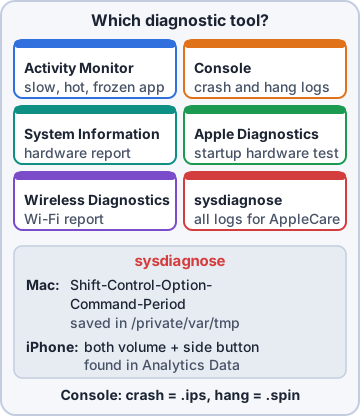
sysdiagnose gathers system logs, crash and hang reports, network and power state and much more into one archive. AppleCare or the app developer can then see what happened. Reproduce the problem first, note the time, then capture right away.
Exam tip The archive can include personal information. Get the user's OK before sending it anywhere.
How to capture it
Each device has a shortcut.
- iPhone or iPad: press and hold both volume buttons and the side (or top) button for about 1 to 1.5 seconds; release at a short vibration
- Buttons not working: AssistiveTouch menu > Analytics
- Mac: press Shift-Control-Option-Command-Period; the screen flashes, and after a few minutes Finder opens the file
- Mac Terminal: sudo sysdiagnose; Activity Monitor: System Diagnostics option
Submitting it
On Mac the file is saved in /private/var/tmp as sysdiagnose_<date>_<name>.tar.gz. Attach it to the AppleCare case or the developer's ticket, or upload it with Feedback Assistant. Large files may need the support case's upload link rather than email.
Maya: A sysdiagnose taken right after the problem is worth ten taken the next day.
Objective 8.3
Finding the sysdiagnose file on iPhone and iPad
Where it appears
After about 10 minutes, open Settings > Privacy & Security > Analytics & Improvements > Analytics Data. Find the file whose name starts with sysdiagnose_ and matches the time you noted (sysdiagnose_YYYY.MM.DD_HH-MM-SS...). Tap it, then the Share button to AirDrop it to a Mac (it lands in Downloads) or attach it to email.
Exam tip Search for "sys" in Analytics Data to find it quickly.
Getting it with a Mac
Or connect the device to a Mac and sync it in Finder. The file is copied to the hidden Library folder: ~/Library/Logs/CrashReporter/MobileDevice/<device name>/DiagnosticLogs/sysdiagnose. Hold Option and choose Go > Library in Finder to see it.
Rosa: So my driver presses three buttons, waits ten minutes, and AirDrops it to you?
You: Exactly. Then I send it to Apple or the app vendor.
Check yourself 1A driver captured a sysdiagnose on her iPhone 15 minutes ago. Where does she find it on the iPhone?
- Settings > Privacy & Security > Analytics & Improvements > Analytics Data
- Settings > General > iPhone Storage > System Data
- The Files app > Recents
- Settings > General > VPN & Device Management
Show the answer
Answer: A. Settings > Privacy & Security > Analytics & Improvements > Analytics Data
sysdiagnose archives appear in Analytics Data, named sysdiagnose_ with the date and time. From there they can be shared with AirDrop or Mail.
Objective 8.4
Using a Mac system report to find hardware issues
Opening System Report
Choose Apple menu > System Settings > General > About, then System Report. Or hold Option and choose Apple menu > System Information. The report has three groups: Hardware, Network and Software (including installed apps, extensions, logs and profiles).
Rosa: Hold Option and the menu changes? Macs have secret menus!
Exam tip File > Save creates a report file you can attach to a ticket.
Hardware sections worth knowing
Compare what the report shows with what should be there.
- Power: battery cycle count, condition (Normal or Service Recommended), maximum capacity, charger
- USB and Thunderbolt/USB4: is the device on the bus? Missing = cable, port, hub or device power
- Storage / NVMExpress: capacity, SMART status (Verified or Failing)
- Memory, Graphics/Displays, Bluetooth, Camera, Audio
Exam tip Device missing from the USB list = the Mac doesn't see it at all. That's a cable, port or device fault, not a driver or app problem.
When to run Apple Diagnostics
If the report points to failing hardware, run Apple Diagnostics: on Apple silicon, hold the power button to startup options, then press Command-D. It tests hardware and gives reference codes for AppleCare.
Rosa: Service Recommended on the battery. That explains lunch.
You: And the scanner only shows on the USB list with a different cable.
Check yourself 2A barcode scanner isn't working on a Mac. In System Report > USB, the scanner isn't listed at all, though the keyboard on the same hub is. What's the most likely issue?
- A missing privacy permission for the scanner app
- The scanner needs SIP turned off
- The scanner's cable, port or the scanner itself
- The Mac's battery condition
Show the answer
Answer: C. The scanner's cable, port or the scanner itself
If the device doesn't appear in the USB section, macOS doesn't see it electrically. Check the cable, port and device power before software.
Objective 8.5
What Activity Monitor does and when to use it
A live view of the Mac
Activity Monitor (Applications > Utilities) shows every running app and process, in real time, across tabs: CPU, Memory, Energy, Disk and Network (plus Cache when Content Caching is on). Sort a column to find what's using the most.
- CPU: % CPU per process; a stuck process near 100% heats and slows the Mac
- Memory: the Memory Pressure graph (green fine, yellow watch, red needs more memory or fewer apps)
- Energy: Energy Impact and apps that prevent sleep; battery drain suspects
- Disk and Network: which process reads, writes or sends the most
Rosa: Memory pressure is red on my Mac. Is that why it crawls?
You: Probably. Close a few apps and watch it go green.
When to open it
Use it when the Mac is slow or hot, the fans are loud, the battery drains, an app hangs, or the network seems busy. It answers "what is the Mac doing right now?" Console answers "what happened, and when?"
Dev: Slow Mac at four? I bet my inventory app is eating the CPU.
Objective 8.6
Running system diagnostics reports in Activity Monitor
The diagnostics menu
Click the system diagnostics options pop-up (the More button with three dots, or the gear in older versions) in the toolbar.
- Sample Process: records what a selected process does over about 3 seconds
- Run Spindump: a report for unresponsive apps that were terminated with Force Quit
- Run System Diagnostics: the full sysdiagnose archive
- Run Spotlight Diagnostics: a report for Spotlight search problems
Exam tip Hung app still running? Sample it first: a sample needs the live process. Spindump covers unresponsive apps that ended up being force quit.
Objective 8.7
Closing unresponsive apps and processes in Activity Monitor
Quit or Force Quit
Select the process (hung ones say (Not Responding) in red), click the Stop (X) button in the toolbar, then choose:
- Quit: like File > Quit; the app closes when it's safe to
- Force Quit: stops it immediately; unsaved data is lost and dependent processes may misbehave
- Processes owned by other users or the system may need an admin password
Exam tip Don't force quit system processes you don't recognize (such as WindowServer or kernel_task). Find out what they are first.
Seeing the family tree
View > All Processes, Hierarchically shows which processes started which. Quitting a parent can take its children with it. View > Send Signal to Process is for advanced cases.
Priya: Try Quit first. Force Quit is for when Quit gets ignored.
Check yourself 3Dev's KibbleStock app shows (Not Responding) in Activity Monitor at 99% CPU. You want evidence for the vendor and then to close it. What order?
- Sample Process, then Quit, then Force Quit
- Force Quit it, then Sample Process on it
- Restart the Mac, then open Console
- Run Spotlight Diagnostics, then Force Quit
Show the answer
Answer: A. Sample Process, then Quit, then Force Quit
Sample the process while it is still hung, then try Quit, and Force Quit only if Quit doesn't work.
Objective 8.8
What Console does and when to use it
The Mac's log viewer
Console (Applications > Utilities) shows log messages from the Mac and from connected iPhones, iPads and other Apple devices, plus saved reports. Use it to find errors, crashes, hangs and patterns around the time a problem happened. Non-admin users need an admin password to see log messages.
- Click Start to stream live messages; Pause to stop
- Search by text, process, subsystem or category; save searches
- Errors and Faults button: show only problems
- Message dots: red = Fault, yellow = Error
The Reports sidebar
Saved reports sit under Reports in the sidebar:
- Crash Reports: an app quit unexpectedly
- Spin Reports: an app or process hung (spun)
- Log Reports: log files such as install.log and wifi.log
- Diagnostic Reports and Mac Analytics Data: system-level reports
Exam tip Live log = what's happening now. Reports = what already happened. Start with Reports for a crash at 4:02.
Objective 8.9
Finding issues in Console error, hang and crash messages
Reading a crash report
A crash report names the process, its version, the exception type and the crashed thread, with the code it was running. A third-party library on the crashed thread points at a plug-in or vendor code.
Process:   KibbleStock [2214]
Version:   4.2 (412)
Exception: EXC_BAD_ACCESS (SIGSEGV)
Crashed Thread: 0
0  libKCLabels.dylib  render + 88
1  KibbleStock        print + 410
Exam tip EXC_BAD_ACCESS = the app touched memory it shouldn't. Usually an app or plug-in bug, not hardware.
Hangs and errors
A spin (hang) report shows where a process was stuck: waiting on the network, the disk or a lock. In the live log, filter by the process name and the time of the problem, then switch to Errors and Faults. Repeated errors just before a crash often explain it.
- Same crash in the same library every time: update or remove that plug-in
- Crashes in many different apps: suspect the system, hardware or memory, and run Apple Diagnostics
- Hang reports pointing at network waits: test the network the app uses
Dev: libKCLabels... that's the label printer plug-in we installed last month!
Check yourself 4Console shows three KibbleStock crash reports this week. Each lists EXC_BAD_ACCESS with libKCLabels.dylib on the crashed thread. What's the most likely cause?
- A failing SSD in the Mac
- A missing camera permission
- A weak Wi-Fi signal
- A bug in the label printer plug-in
Show the answer
Answer: D. A bug in the label printer plug-in
The same third-party library on the crashed thread every time points to that plug-in. Update it, or remove it and test.
Go deeper
More on the objectives in this chapter, in the same exam-ready detail.
Objective 8.8 · Describe what Console does and when you would use it.
Console: reading the Mac's logs
What Console is
Console (Applications > Utilities) shows the Mac's unified log: messages from apps, system processes and the kernel, plus crash and diagnostic reports. You can stream live messages, search, and filter by process, subsystem or message type (errors and faults).
- Log reports: crash reports, spin/hang reports, diagnostic reports
- Start streaming to watch messages while you reproduce a problem
- Select a connected iPhone or iPad in the sidebar to stream its log too
When to use it
Reach for Console when something fails without a clear message: an app that quits on launch, a printer that won't respond, a login item that hangs, Wi-Fi that drops. Start streaming, reproduce the problem, then search for the app or process name and look for errors around that time. Crash reports tell you which app and thread crashed and why.
Exam tip Console reads logs; it doesn't fix anything. Activity Monitor shows live CPU/memory use; System Information lists hardware and software; Console explains what went wrong.
Practice questions
Answer in your head, then open the answer. Ranger's Device Doctor has 538 questions like these for Apple Device Support, with mock exams.
Question 1AppleCare asks a user for a sysdiagnose from her Mac right after a freeze. Which keyboard shortcut starts one?
- Shift-Command-3 then Option-Command-Escape
- Option-Command-P-R held during startup
- Shift-Control-Option-Command-Period (.)
- Control-Option-Command-D at the login window
Show the answer
Answer: C. Shift-Control-Option-Command-Period (.)
Pressing Shift-Control-Option-Command-Period together and releasing starts sysdiagnose on a Mac; the screen may flash, and Finder opens the folder with the result when it finishes.
Question 2A technician is connected to a Mac by SSH and needs a sysdiagnose. Which command does Apple's logging guidance give?
- log collect --sysdiagnose
- sudo sysdiagnose
- softwareupdate --diagnose
- system_profiler -sysdiagnose
Show the answer
Answer: B. sudo sysdiagnose
In Terminal, sudo sysdiagnose (then the admin password) collects a full sysdiagnose. It can take about 10 minutes.
Question 3A technician starts a sysdiagnose on a Mac. About how long can it take, and where does it end up?
- Up to about 10 minutes; saved in /private/var/tmp
- About 10 seconds; saved on the Desktop
- About an hour; uploaded to Apple automatically
- Up to 10 minutes; saved in ~/Library/Logs/DiagnosticReports
Show the answer
Answer: A. Up to about 10 minutes; saved in /private/var/tmp
Apple's instructions say sysdiagnose can take 10 minutes; when it finishes, Finder opens /private/var/tmp with a sysdiagnose_ ... .tar.gz file.
Question 4A driver's iPhone keeps losing its cellular connection, and AppleCare asks for a sysdiagnose right after it happens. How does he start one on his iPhone?
- Press the side button five times quickly, then slide the slider to confirm
- Press volume up, then volume down, then hold the side button
- Hold the side button and volume up until the Apple logo appears
- Hold both volume buttons and the side button for 1 to 1.5 s
Show the answer
Answer: D. Hold both volume buttons and the side button for 1 to 1.5 s
Press both volume buttons and the side (or top) button together for 1 to 1.5 seconds and release. A short vibration confirms the sysdiagnose started.
Question 5Before running sysdiagnose on Rosa's iPhone for an intermittent problem, what does Apple recommend Priya do?
- Restart the iPhone so the logs start fresh
- Turn on Airplane Mode to stop new log messages
- Reproduce the problem first and note the time
- Sign out of iCloud so personal data is excluded
Show the answer
Answer: C. Reproduce the problem first and note the time
Apple suggests reproducing the issue, then triggering sysdiagnose right away and recording the start time so the correct file can be found later.
Apple, iPhone, iPad and Mac are trademarks of Apple Inc. Ranger Gamez is not affiliated with or endorsed by Apple. The practice questions are written to the published exam objectives; they are not real exam questions.