 RANGER
 AWS Certified Cloud Practitioner (CLF-C02) · chapter 13 of 14
Who left the big instance on?
In this chapter Objectives 4.1, 4.2
- Paying for Amazon EC2
- Special cases: dedicated hardware and reserved capacity
- Data transfer and storage pricing
- Billing, budgets and cost tools
- Tags, detailed reports and billing help
- EC2 purchasing options
- Storage classes and tiers
- Reserved Instance flexibility
- Billing information and help
- Finding AWS prices
- Cost allocation tags
- AWS Cost and Usage Reports
- EC2 instance families
- Practice questions
- Chapter recap
Objective 4.1
Paying for Amazon EC2
Four ways to pay for the same server
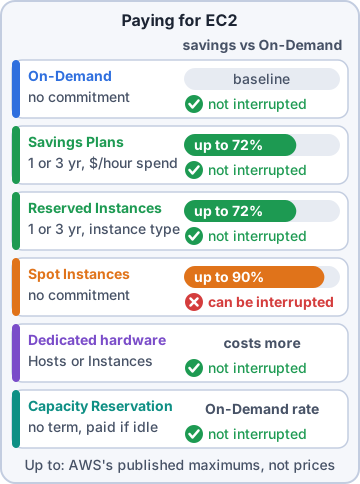
The same instance can cost very different amounts. On-Demand Instances: pay by the second or hour, no commitment; best for short, spiky or unpredictable work. Savings Plans: commit to a steady amount of compute spend per hour for 1 or 3 years. Reserved Instances (RIs): commit to an instance configuration for 1 or 3 years. AWS says both can save up to 72% compared with On-Demand. Spot Instances: spare Amazon EC2 capacity at up to 90% off On-Demand, but AWS can reclaim it with a two-minute warning.
Mr. Barkley: Up to 90% off? Put everything on Spot!
Exam tip Steady 24/7 = Savings Plans or RIs. Unpredictable = On-Demand. Can stop and restart = Spot. Never Spot for the always-on shop.
Reserved Instance flexibility
RIs aren't all equally rigid. Standard RIs give the bigger discount; you can change some details, such as the Availability Zone (AZ) or the instance size within the same family, and sell unused ones on the RI Marketplace. Convertible RIs give a smaller discount but can be exchanged for a different instance family, operating system or tenancy. A regional RI applies to any AZ in its Region and to different sizes in the family; a zonal RI also reserves capacity in one AZ.
Mr. Barkley: So the more I promise, the less I pay. Like kibble by the pallet.
Exam tip More flexibility = less discount. Need to switch instance families later? Convertible. Paying more up front (All Upfront) gives a bigger discount than No Upfront.
RIs across AWS Organizations
With consolidated billing in AWS Organizations, all accounts are treated as one for billing. So an RI bought in one account can lower the bill of a matching instance running in another account in the organization. Savings Plans share the same way. The management account can turn this sharing off for specific accounts, for example to keep a team's discounts to itself.
Dev: Production bought the RIs, but at night the test account's servers use the leftover discount. Nothing wasted.
Check yourself 1Kibble & Co. buys RIs in the production account. The test account in the same organization runs matching instances while production's RIs sit unused. What happens on the bill?
- The unused RIs are refunded at the end of the month
- The test account can receive the RI discount
- RIs only ever apply in the account that bought them
- The RIs convert into Spot Instances
Show the answer
Answer: B. The test account can receive the RI discount
Consolidated billing treats the organization as one account, so RI and Savings Plans discounts can apply to matching usage in any member account, unless sharing is turned off.
Objective 4.1
Special cases: dedicated hardware and reserved capacity
Dedicated Hosts, Dedicated Instances, Capacity Reservations
Dedicated Hosts are whole physical servers for your use only, with visibility into sockets and cores, so you can bring per-socket or per-core software licenses (BYOL, Bring Your Own License) and meet strict rules. Dedicated Instances run on hardware dedicated to your account, without that host-level control. On-Demand Capacity Reservations reserve EC2 capacity in a specific AZ for any length of time, with no term; you pay for them whether or not you use them.
Exam tip Licenses tied to physical cores or sockets = Dedicated Hosts. Guaranteed capacity in one AZ for an event, no 1-3 year term = Capacity Reservation.
Check yourself 2The nightly stock report runs for three hours, can be stopped and restarted without harm, and Mr. Barkley wants it as cheap as possible. Which option fits?
- Spot Instances
- Dedicated Hosts
- On-Demand Capacity Reservations
- A 3-year Standard RI
Show the answer
Answer: A. Spot Instances
Interruptible, flexible work is ideal for Spot Instances, the deepest discount. If AWS reclaims the capacity, the job restarts.
Objective 4.1
Data transfer and storage pricing
Data in, data out
General rules for data transfer costs:
- Data coming in to AWS from the internet: generally free
- Data going out from AWS to the internet: charged per gigabyte (GB)
- Between AWS Regions: charged (on the sending side)
- Between Availability Zones in the same Region: usually charged, a smaller amount
- Within the same AZ over private Internet Protocol (IP) addresses: generally free
Ranger: carries a toy into the yard: free. Refuses to bring it back out: expensive.
Exam tip Exam rule of thumb: in is free, out costs, crossing Regions costs. CloudFront can lower data transfer out costs for popular content.
Paying for storage tiers
Storage is priced by what you keep and how you use it. Amazon Simple Storage Service (Amazon S3): per GB stored each month (cheaper in colder classes), plus requests, and retrieval fees and minimum storage durations for the Infrequent Access (IA) and Glacier classes. Amazon Elastic Block Store (Amazon EBS): per GB you provision, even if the volume is empty, plus snapshots. Amazon Elastic File System (Amazon EFS): per GB you actually use, with cheaper infrequent-access storage classes.
Exam tip Cold classes are cheap to keep, expensive to read. A volume you provisioned but don't use still bills: delete unattached EBS volumes.
Check yourself 3Which data transfer is generally free of charge on AWS?
- Data sent from EC2 to shoppers on the internet
- Data copied from us-east-1 to eu-west-1
- Data uploaded from the internet into Amazon S3
- Data restored from S3 Glacier Deep Archive
Show the answer
Answer: C. Data uploaded from the internet into Amazon S3
Inbound data transfer from the internet to AWS is generally free. Outbound to the internet and between Regions is charged.
Objective 4.2
Billing, budgets and cost tools
Before, during, after
AWS Pricing Calculator estimates the cost of a design before you build it, using AWS's published pricing (each service's pricing page lists its rates). AWS Budgets sets cost or usage limits and alerts you, by email or Amazon Simple Notification Service (Amazon SNS), when actual or forecasted spend passes them; budget actions can even apply a restriction. AWS Cost Explorer charts past costs, filtered by service, account or tag, and forecasts the coming months.
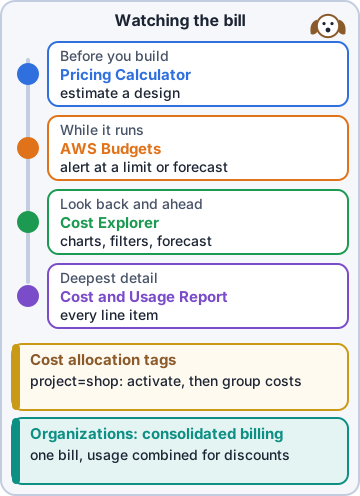
Exam tip Estimate before = Pricing Calculator. Alert when over = Budgets. Analyze what happened and forecast = Cost Explorer.
Consolidated billing in AWS Organizations
AWS Organizations groups many AWS accounts under one management account. Its consolidated billing gives one bill for all of them, at no extra charge. Usage is combined, so the whole company reaches volume pricing tiers sooner, and RI and Savings Plans discounts are shared. Each account's costs are still listed separately, so you can allocate them back to the right team.
Maya: One bill for test, production and the data team, but I can still see who spent what.
Guardrails for every account: SCPs and Control Tower
In AWS Organizations, member accounts sit in organizational units (OUs), such as Production and Test. A service control policy (SCP) on an OU or account caps what anyone in those member accounts can do, even admins and the root user. An SCP grants nothing by itself (IAM must still allow the action), and it doesn't limit the management account. AWS Control Tower sets up a landing zone: a ready multi-account setup with guardrails (controls) and central logging.
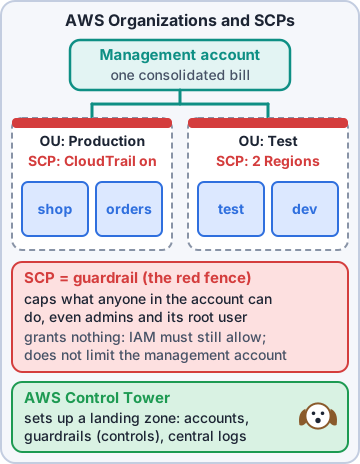
Priya: Even an admin in the test account can't get past the SCP.
Exam tip Cap what an account or OU can ever do = SCP. Grant a person access = IAM policy or permission set. Governed accounts, fast = Control Tower.
Check yourself 4Mr. Barkley wants an email the moment the forecast for this month's AWS spend goes over $5,000. Which tool does that?
- AWS Cost Explorer
- AWS Pricing Calculator
- AWS Budgets
- AWS Trusted Advisor
Show the answer
Answer: C. AWS Budgets
Budgets alerts when actual or forecasted cost or usage crosses a threshold you set.
Objective 4.2
Tags, detailed reports and billing help
Cost allocation tags
A tag is a label on a resource, such as project=shop. Cost allocation tags let you group the bill by those labels. AWS-generated tags are created by AWS (they start with aws:, such as aws:createdBy). User-defined tags are the ones you create. Either kind must be activated in the Billing and Cost Management console before it shows up in Cost Explorer and the Cost and Usage Report, and only from then on.
Exam tip Trap: tagging a resource isn't enough. Activate the tag key as a cost allocation tag, or it won't appear in billing reports.
The Cost and Usage Report and billing support
The AWS Cost and Usage Report (CUR) is the most detailed billing data: line items by hour or day, with a column for each activated cost allocation tag, delivered to an S3 bucket to analyze with Athena, Redshift or Quick Sight. For billing and account questions, every customer, even on Basic Support, can open a case in AWS Support Center. The AWS Billing and Cost Management console brings bills, payments and these tools together.
Priya: Cost Explorer for the quick look. The CUR when the auditor wants every line.
Exam tip Most granular, line-item data for your own analysis = Cost and Usage Report. Quick charts = Cost Explorer.
Check yourself 5Dev tagged every shop resource with project=shop, but the tag doesn't appear in Cost Explorer. Which statements are true? Choose two.
- The tag key must be activated as a cost allocation tag
- Tags only work on Dedicated Hosts
- Activated tags apply to costs from activation onward
- Cost Explorer can never group by tag
- Only AWS-generated tags can be used for billing
Show the answer
Answers: A. The tag key must be activated as a cost allocation tag, C. Activated tags apply to costs from activation onward
User-defined tags must be activated as cost allocation tags in the Billing and Cost Management console, and they appear in reports from then on, not for past costs.
Go deeper
More on the objectives in this chapter, in the same exam-ready detail.
Objective 4.1 · Compute purchasing options (for example, On-Demand Instances, Reserved Instances, Spot Instances, AWS…
EC2 purchasing options
The options
The same EC2 instance can be paid for in several ways:
- On-Demand: pay by the second/hour, no commitment. Short, unpredictable workloads; testing
- Savings Plans: commit to a $/hour amount for 1 or 3 years for a big discount. Compute Savings Plans apply to EC2, Fargate and Lambda in any Region/family; EC2 Instance Savings Plans are for one family in one Region with a bigger discount
- Reserved Instances (RIs): commit to an instance configuration for 1 or 3 years; Standard or Convertible
- Spot Instances: spare capacity at up to a 90% discount, but AWS can interrupt them with a 2-minute warning. Fault-tolerant, flexible jobs (batch, rendering, CI)
- Dedicated Hosts: a whole physical server for you; needed for some per-socket/per-core licenses (BYOL) and compliance
- Dedicated Instances: your instances on hardware not shared with other customers (no host-level control)
- On-Demand Capacity Reservations: reserve capacity in an AZ without a term commitment; pay On-Demand rates
Quick matching
Steady 24/7 for years = Savings Plans or RIs. Can be stopped any time and cheapest = Spot. Short, unknown = On-Demand. License tied to physical cores = Dedicated Hosts. Guarantee capacity for an event = Capacity Reservation.
Exam tip Payment options for RIs/Savings Plans: All Upfront (biggest discount), Partial Upfront, No Upfront.
Objective 4.1 · Storage options and tiers
Storage classes and tiers
Amazon S3 storage classes
Pick a class by how often you read the data and how fast you need it back:
- S3 Standard: frequently accessed data
- S3 Intelligent-Tiering: moves objects between tiers automatically when access patterns are unknown
- S3 Standard-IA and S3 One Zone-IA: infrequent access, cheaper storage, retrieval fee (One Zone keeps one AZ only)
- S3 Express One Zone: highest-performance, single-AZ
- S3 Glacier Instant Retrieval: archive with millisecond access
- S3 Glacier Flexible Retrieval: archive, minutes to hours to retrieve
- S3 Glacier Deep Archive: cheapest, retrieval within 12 hours
Moving data between tiers
S3 Lifecycle rules transition objects to cheaper classes after a number of days and expire them later. EBS has SSD and HDD volume types; EFS and FSx have infrequent-access tiers too.
Exam tip Unknown or changing access patterns = Intelligent-Tiering. Keep 7 years for compliance, rarely read = Glacier Deep Archive.
Objective 4.1 · Describing Reserved Instance flexibility
Reserved Instance flexibility
Standard vs Convertible
Standard RIs give the biggest discount; you can modify some attributes (AZ, size within the family, network type) and sell them on the Reserved Instance Marketplace. Convertible RIs have a smaller discount but can be exchanged for RIs with a different family, OS or tenancy.
Size flexibility and scope
Regional RIs apply to any AZ in the Region and, for Linux/Unix, to any size in the same instance family (instance size flexibility: one large RI can cover two mediums). Zonal RIs reserve capacity in one AZ but don't get size flexibility.
Exam tip Need to change instance family later = Convertible RI (or a Compute Savings Plan).
Objective 4.2 · Billing support and information
Billing information and help
Where to look
The Billing and Cost Management console shows your bills, payments and credits.
- AWS Cost Explorer: charts of past costs, forecasts and rightsizing recommendations
- AWS Budgets: set cost or usage budgets with alerts (and actions)
- AWS Cost Anomaly Detection: alerts on unusual spend
- AWS Cost and Usage Reports / Data Exports: the most detailed billing data
- AWS Billing Conductor: custom billing views for resellers or internal chargeback
- Consolidated billing in AWS Organizations: one bill, combined volume discounts
Getting help
Every account, even on Basic support, can open billing and account support cases for free. Enterprise support adds a concierge team for billing questions.
Exam tip Alert me before I go over $500 this month = AWS Budgets. Show me what I spent last quarter by service = Cost Explorer.
Objective 4.2 · Pricing information for AWS services
Finding AWS prices
Pricing tools
Ways to look up or estimate prices:
- AWS Pricing Calculator: estimate the monthly cost of a planned architecture before you build it
- Each service's pricing page
- AWS Price List API: query prices programmatically
- AWS Free Tier: always-free offers, 12-month free (for older accounts) and trials; newer accounts get credits
What drives the bill
Most services charge for compute time, storage and data transfer out. Data transfer into AWS is generally free; data out to the internet and between Regions costs money.
Exam tip Estimate costs for a new project = Pricing Calculator. Analyze costs already spent = Cost Explorer.
Objective 4.2 · AWS cost allocation tags
Cost allocation tags
What they do
A tag is a key-value label on a resource (for example Project=Website, CostCenter=Marketing). When you activate a tag as a cost allocation tag in the Billing console, it appears as a column in Cost Explorer and the Cost and Usage Reports, so you can see costs by project, team or environment.
- AWS-generated tags (for example aws:createdBy)
- User-defined tags you create
- Tags only show in billing data after activation, and only from then on
Governance
Use tag policies in AWS Organizations to enforce consistent tags, and AWS Budgets filtered by tag to track each team's spend.
Exam tip 'Charge each department for its AWS usage' = cost allocation tags (plus separate accounts in Organizations).
Objective 4.2 · AWS Cost and Usage Reports
AWS Cost and Usage Reports
The most detailed billing data
AWS Cost and Usage Reports (CUR), now delivered through AWS Data Exports, contain line-item detail of every charge: service, usage type, resource ID, tags, pricing and discounts, updated several times a day and delivered to an S3 bucket. Analyze them with Amazon Athena, Amazon Redshift or Amazon QuickSight.
Exam tip Most granular cost data for your own analysis = Cost and Usage Reports. Quick charts in the console = Cost Explorer.
Objective 4.1 · Amazon EC2 instance types (for example, Reserved Instances, On-Demand Instances, Spot Instances)
EC2 instance families
Families by job
Instance types are named like m7g.large: family (m), generation (7), options (g = Graviton processor), size (large).
- General purpose (M, T): balanced; T types are burstable
- Compute optimized (C): high CPU, such as batch processing and game servers
- Memory optimized (R, X): large in-memory databases and caches
- Storage optimized (I, D, H): high disk throughput, large data sets
- Accelerated computing (P, G, Inf, Trn): GPUs and ML chips
And how you pay for them
Any type can be bought as On-Demand, Reserved Instances / Savings Plans or Spot (see Compute purchasing options).
Exam tip In-memory database = memory optimized. High-performance web server or batch = compute optimized.
Practice questions
Answer in your head, then open the answer. Ranger's Cloud Kennel has 563 questions like these for AWS Cloud Practitioner, with mock exams.
Question 1Sam needs a server for a test of unknown length. It might run for two days or two weeks, it must not be stopped by AWS partway through, and the team will not sign any commitment. Which EC2 purchasing option fits?
- Spot Instances
- On-Demand Instances
- A 3-year Standard Reserved Instance
- A Dedicated Host
Show the answer
Answer: B. On-Demand Instances
On-Demand Instances are paid by the second or hour with no long-term commitment and are not interrupted by AWS. Spot is cheaper but can be reclaimed; Reserved Instances need a 1- or 3-year term.
Question 2Every night Kibble & Co. resizes thousands of product photos. If a job stops, it simply starts again later, and nobody minds if it finishes a few hours late. Which purchasing option costs the least for this work?
- On-Demand Instances
- On-Demand Capacity Reservations
- Dedicated Instances
- Spot Instances
Show the answer
Answer: D. Spot Instances
Spot Instances use spare EC2 capacity at the deepest discount, but AWS can interrupt them with a two-minute warning. Work that can stop and restart, like this batch job, is the classic Spot fit.
Question 3The order database server runs all day, every day, and the team is sure it will need the same instance type in the same Region for the next three years. Which option gives the largest discount for this steady use?
- A 3-year Standard Reserved Instance
- A 3-year Convertible Reserved Instance
- On-Demand Instances
- Spot Instances
Show the answer
Answer: A. A 3-year Standard Reserved Instance
For steady, predictable use of one instance type, a Standard Reserved Instance gives the biggest RI discount, and a 3-year term saves more than 1 year. Convertible RIs trade some discount for the right to exchange.
Question 4Dev wants a Reserved Instance discount, but he expects the team to move to a newer instance family and maybe a different operating system within the term. Which choice keeps the discount if those changes happen?
- Standard Reserved Instances
- Zonal Standard Reserved Instances
- Convertible Reserved Instances
- Spot Instances
Show the answer
Answer: C. Convertible Reserved Instances
Convertible Reserved Instances can be exchanged during the term for others with a new instance family, platform or tenancy. Standard RIs give a bigger discount but can't be exchanged (only some attributes can be modified).
Question 5Kibble & Co. runs EC2 instances of several families in two Regions, plus AWS Lambda functions and AWS Fargate tasks. Mr. Barkley will commit to a steady hourly spend for 3 years if the discount follows the work wherever it runs. What fits best?
- An EC2 Instance Savings Plan
- Convertible Reserved Instances
- A Compute Savings Plan
- On-Demand Capacity Reservations
Show the answer
Answer: C. A Compute Savings Plan
A Compute Savings Plan is a commitment to a dollar amount per hour for 1 or 3 years. It applies to EC2 in any family, size, Region, OS or tenancy, and also to Lambda and Fargate.
AWS and Amazon Web Services are trademarks of Amazon.com, Inc. or its affiliates. Ranger Gamez is not affiliated with or endorsed by Amazon. The practice questions are written to the published exam objectives; they are not real exam questions.