 RANGER
 CompTIA A+ Core 1 (220-1201) · chapter 9 of 15
Week 9: Printers everywhere
In this chapter Objectives 3.7, 3.8
Objective 3.7
Deploying a multifunction device
Unboxing and set-up location
Unbox properly: big MFDs are heavy, so use two people or a lift; let a device that came in from the cold reach room temperature to avoid condensation; remove all shipping tape, locks and foam (toner/drum and scanner locks). Set-up location: stable surface, ventilation and clearance for trays and doors, near the right power outlet (not a UPS for lasers), network drop, and away from heat, dust and direct sun.
Exam tip Laser printer on a UPS? No: the fuser's current draw can overload it. Use a surge protector.
Drivers: PCL and PostScript
Install the right driver for each OS (Windows, macOS, Linux; 64-bit vs. ARM). The page description language matters: PCL (Printer Command Language) is fast and common for office text, and somewhat printer-dependent. PostScript is device-independent and best for graphics and design work (same output on any PS printer). Wrong driver = garbled output.
Exam tip Pages of random symbols = wrong or corrupt driver. Marketing's exact graphics = PostScript.
Firmware
MFDs run their own firmware. Update it from the vendor to fix bugs, add features and patch security vulnerabilities. Do it during a quiet time, never power off mid-update, and read the release notes first.
Exam tip Firmware is software on the device itself; drivers are software on the computer.
Device connectivity
USB: one computer, simple, no network setup. Ethernet: the business choice; give it a static IP or DHCP reservation so it never moves. Wireless: Wi-Fi (infrastructure mode on the company WLAN, or Wi-Fi Direct to a device) and sometimes Bluetooth. Use the network for shared MFDs.
Exam tip Network printer "offline" every few days? Its DHCP address is changing. Reserve it.
Public/shared devices: printer share vs. print server
A printer share shares a printer attached to one workstation: the host PC must be on for others to print. A print server (a server role or a built-in network print server) holds the queues, drivers and permissions for many printers centrally. Clients get drivers automatically.
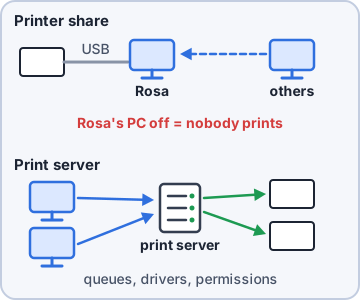
Exam tip Users can't print whenever Rosa turns off her PC = it is a printer share. Move it to a print server.
Configuration settings
Duplex: print both sides (saves paper; needs a duplex unit). Orientation: portrait or landscape. Tray settings: which tray holds which paper size/type (letter, legal, labels, envelopes) and the default source. Quality: resolution in dpi (e.g. 600 or 1200), draft/economy vs. best. Set company defaults on the print server.
Exam tip Prints lighter than expected after a settings change? Check for toner-save/draft quality mode.
Check yourself 1Nobody can print to the warehouse printer whenever Rosa shuts down her PC for the night. How is the printer MOST likely set up?
- Through a dedicated print server
- As a printer share on Rosa's PC
- As a network printer with a reservation
- Over Wi-Fi Direct to each laptop
Show the answer
Answer: B. As a printer share on Rosa's PC
With a printer share, the printer hangs off one workstation, so that PC must be on for others to print. Moving it to a print server fixes this.
Security
User authentication: sign in at the panel before copying, scanning or printing. Badging: tap an ID badge at the MFD's reader to sign in. Secured prints (PIN or "pull" printing): the job waits in memory until the user releases it at the device, so nothing sits in the tray. Audit logs record who printed, copied or scanned what and when.
Exam tip CEO's papers left in the tray = enable secured print / badge release.
Network scan services
Scan to email: the MFD sends the file via an SMTP server (needs the server name, port and often credentials). Scan to SMB (folder): saves to a Windows share (\\server\scans, TCP 445) with an account that can write there. Scan to cloud services: uploads to a cloud storage account through a connector app.
Exam tip Scan to folder fails after a password change? The MFD's saved SMB credentials need updating.
ADF and flatbed scanner
The ADF (automatic document feeder) pulls a stack of pages through by itself; a duplexing ADF scans both sides. The flatbed scanner is the glass under the lid: for books, ID cards, photos and fragile or odd-sized pages.
Exam tip Streaks on every ADF scan but not on flatbed? Clean the narrow ADF scan glass strip.
Check yourself 2Every page scanned through the document feeder has a thin vertical streak, but scans from the flatbed glass are clean. What should you do?
- Replace the toner cartridge
- Clean the ADF scan glass strip
- Update the scan-to-email settings
- Reinstall the PostScript driver
Show the answer
Answer: B. Clean the ADF scan glass strip
The ADF scans pages as they slide over a narrow glass strip. Dirt on that strip streaks every ADF scan, while the flatbed glass stays clean.
Objective 3.8
Printer maintenance by type
Laser printers
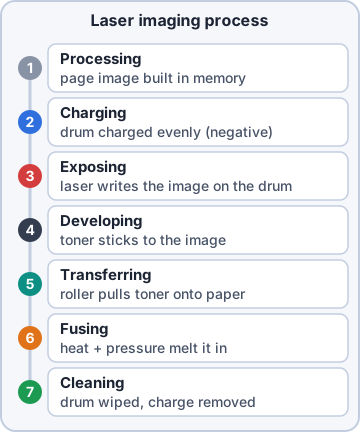
Background, not tested on 220-1201: the imaging steps are processing, charging, exposing, developing, transferring, fusing, cleaning. On the exam (3.8) know the maintenance: Replace toner (often with the drum in one cartridge). Apply a maintenance kit at the page count the printer prompts: new fuser, pickup and separation rollers, transfer roller; then reset the page counter. Calibrate to align color and density. Clean with a toner vacuum (not a household vacuum) and isopropyl alcohol on rollers.
Exam tip Let the fuser cool before you touch it: it runs around 180-200 C.
Inkjet printers
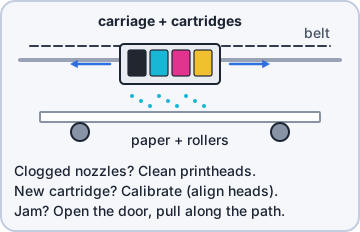
Parts: ink cartridges, a printhead (built into the cartridge or fixed in the printer), a carriage and belt, a roller and feeder that move paper. Maintenance: clean printheads with the built-in utility (clogged nozzles leave lines/gaps), replace cartridges, calibrate (align the heads after a cartridge change), and clear jams by opening the access door and pulling paper gently along the paper path.
Exam tip Inkjets that sit unused dry out. Print a test page weekly or run a head clean.
Thermal printers
Direct thermal printers (labels, receipts) heat special thermal paper that darkens where heated: no ink or toner. The feed assembly (platen roller) moves paper over the heating element (printhead). Maintenance: replace paper with the right type and side facing up, clean the heating element with isopropyl alcohol, and remove debris (label glue, dust) from the path.
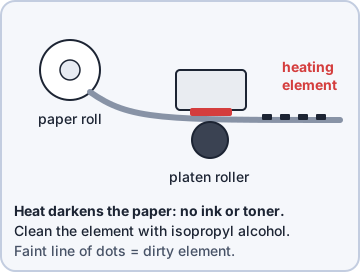
Exam tip Thermal labels fade over time and in heat or sun. Faint spots in a line = dirty heating element.
Impact printers
Impact (dot matrix) printers strike pins through an inked ribbon. They are the only type that can print multipart paper (carbon/carbonless copies) in one pass, often tractor-fed. Maintenance: replace the ribbon when print fades, replace the printhead when dots are missing (bent or broken pins), and replace paper, keeping tractor feed aligned.
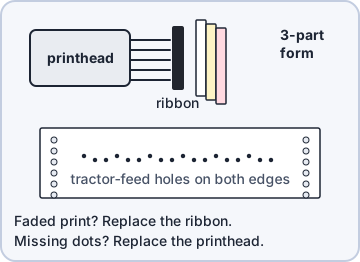
Exam tip Need a 3-part shipping form signed in triplicate? Impact printer.
Check yourself 3Rosa's shipping-label printer uses no ink or toner. Labels now have a thin white line through every barcode. What should you do FIRST?
- Replace the ribbon
- Apply a maintenance kit
- Clean the heating element
- Run the printhead alignment calibration
Show the answer
Answer: C. Clean the heating element
A thin gap in every label means some heating-element dots are dirty (or dead). Clean first; replace the printhead if it persists.
Practice questions
Answer in your head, then open the answer. Ranger's Help Desk has 436 questions like these for A+ Core 1, with mock exams.
Question 1A new laser multifunction device was delivered on a truck in freezing weather. What should the technician do before powering it on?
- Run a firmware update before unpacking
- Power it on at once to warm the fuser
- Install the toner while the unit is still cold
- Let it reach room temperature first
Show the answer
Answer: D. Let it reach room temperature first
Cold equipment brought indoors can collect condensation. Letting it acclimate first prevents damage, and you should follow the maker's unboxing steps.
Question 2A technician is choosing where to install a large office MFD. Which location is the BEST choice?
- Next to a space heater to keep paper dry
- A closed closet with no airflow, to reduce noise
- A ventilated spot near power and network, with clearance
- On a cart in a busy walkway for easy access
Show the answer
Answer: C. A ventilated spot near power and network, with clearance
Set-up location should give airflow, nearby power and network, clearance for trays and service, and a stable, level surface.
Question 3A graphic design team needs precise, device-independent output for complex vector artwork across different printers. Which printer driver type should be installed?
- PostScript
- PCL
- Generic text-only
- Fax
Show the answer
Answer: A. PostScript
PostScript is a page description language that renders the same way on any PostScript printer, which suits graphics work. PCL is common for general office use.
Question 4A printer manufacturer releases an update that fixes a security flaw in the MFD's web interface. What should the technician apply?
- A firmware update
- A new toner cartridge
- A new print driver on one PC
- A maintenance kit
Show the answer
Answer: A. A firmware update
Firmware runs on the device itself. Updating it fixes bugs and vulnerabilities and can add features.
Question 5Users print to a network MFD through a Standard TCP/IP port set to 10.0.5.40. Printing failed after a weekend power outage. Based on the exhibit, what is the BEST long-term fix?
- Shorten the DHCP lease to one hour
- Connect the MFD to a single PC over a USB cable
- Give the MFD a reserved or static IP address
- Reinstall the PCL driver on every PC
Show the answer
Answer: C. Give the MFD a reserved or static IP address
The MFD took a new DHCP address (10.0.5.63), so ports pointing to 10.0.5.40 fail. A DHCP reservation or static IP keeps the address fixed.
CompTIA, A+, Network+, Security+ and Linux+ are trademarks of CompTIA, Inc. Ranger Gamez is not affiliated with or endorsed by CompTIA. The practice questions are written to the published exam objectives; they are not real exam questions.