 RANGER
 CompTIA Linux+ (XK0-006) · chapter 2 of 14
Week 2: Disks, volumes and mounts
In this chapter Objectives 1.3, 5.2
Objective 1.3
Disks, partitions and filesystems
Seeing the disks
Disks show up as block devices: /dev/sda (SATA/SAS/USB), /dev/nvme0n1 (NVMe, partitions p1, p2), /dev/vda (VirtIO in a VM). lsblk draws the tree of disks, partitions, LVM volumes and mount points. blkid prints each filesystem's UUID, label and type, which is what /etc/fstab should use because device names can change between boots.
$ lsblk
NAME             SIZE TYPE MOUNTPOINT
sda               40G disk
├─sda1             1G part /boot
└─sda2            39G part
  ├─vg_web-root   20G lvm  /
  └─vg_web-var    19G lvm  /var
sdb               20G disk
Exam tip lsblk = the picture. blkid = the IDs. Use UUID= in fstab.
Partitioning tools
fdisk edits MBR and GPT partition tables interactively. gdisk is the GPT-focused version. parted works with both, can be scripted and can resize partitions. growpart (from cloud-utils) grows a partition to fill the disk, which is exactly what you need after enlarging a VM's virtual disk: growpart /dev/vda 3 (note the space before the partition number).
Exam tip GPT is the modern table: big disks, many partitions, required for UEFI boot disks. MBR tops out at 2 TiB.
Four filesystem formats
Create one with mkfs (mkfs.ext4, mkfs.xfs).
- ext4: Debian/Ubuntu default; can grow online and shrink offline with resize2fs; checked with fsck
- xfs: RHEL default; great for big files; grows online with xfs_growfs but can never shrink; repaired with xfs_repair
- btrfs: copy-on-write, snapshots, subvolumes, checksums, built-in RAID (Fedora and openSUSE default)
- tmpfs: lives in RAM (and swap); fast and gone at reboot (/run, often /tmp)
Exam tip Trap: you can't shrink XFS. Need a smaller one? Back up, recreate, restore.
Space and speed utilities
df -h shows free space per mounted filesystem. du -sh dir totals what a directory uses, so df tells you which filesystem is full and du tells you why. fsck checks and repairs ext filesystems, and must run on an unmounted filesystem. xfs_repair does the same for XFS. fio benchmarks storage: IOPS, throughput and latency with patterns you choose.
$ df -h /var
Filesystem         Size Used Avail Use%
/dev/mapper/vg_web-var
                    19G  19G     0 100%
$ sudo du -xh --max-depth=1 /var | sort -h
...
 15G /var/www
Exam tip Never fsck a mounted read-write filesystem. Unmount it, or boot rescue mode.
Check yourself 1db01 uses XFS for /var/lib/pgsql. The logical volume underneath was just enlarged. Which command makes the filesystem use the new space?
- resize2fs /dev/vg_db/lv_pgsql
- xfs_growfs /var/lib/pgsql
- xfs_repair /dev/vg_db/lv_pgsql
- mkfs.xfs -f /dev/vg_db/lv_pgsql
Show the answer
Answer: B. xfs_growfs /var/lib/pgsql
XFS grows online with xfs_growfs, given the mount point. ext4 would use resize2fs instead.
Objective 1.3
LVM: three layers
PV, VG, LV
The Logical Volume Manager (LVM) puts a flexible layer between disks and filesystems. A physical volume (PV) is a disk or partition prepared for LVM. PVs pool into a volume group (VG). You carve logical volumes (LVs) out of the VG and put filesystems on them. Need more room? Add a disk to the VG and grow the LV, with no downtime and no repartitioning.
disks  /dev/sda2   /dev/sdb
         |  pvcreate  |
PVs    [PV]        [PV]
          \  vgcreate /
VG       [  vg_web   ]
          /  lvcreate \
LVs  [root]  [var]  [free]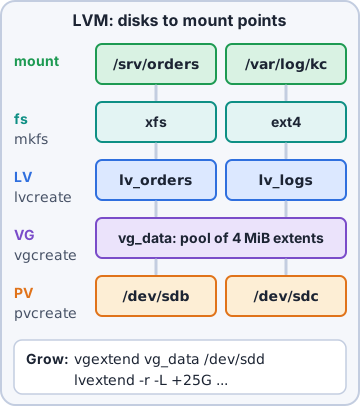
Sam: Disks into the pot, volumes out of the pot.
The command families
Each layer has the same verbs: pv, vg or lv plus create, remove, display, s (short list) or scan.
- PV: pvcreate, pvs, pvdisplay, pvscan, pvremove, pvresize (after the disk itself grows), pvmove (move data off a PV before removing it)
- VG: vgcreate, vgs, vgdisplay, vgscan, vgremove, vgextend (add a PV), vgchange -ay (activate), vgexport/vgimport (move a VG to another host)
- LV: lvcreate, lvs, lvdisplay, lvremove, lvchange (e.g. -an to deactivate), lvextend / lvresize (grow or change size)
Exam tip pvs/vgs/lvs = one line each. *display = the long form. *scan = look for LVM on all disks.
Growing a volume, start to finish
The usual job: a new disk arrives, /var needs it. Prepare the disk, add it to the VG, then grow the LV. lvextend -r also resizes the filesystem for you; without -r, run resize2fs (ext4) or xfs_growfs (XFS) afterwards.
pvcreate /dev/sdb
vgextend vg_web /dev/sdb
lvextend -r -L +20G /dev/vg_web/var
# or: lvextend -l +100%FREE ...
vgs   # check VFree before and after
Exam tip -L takes a size (+20G). -l takes extents or percentages (+100%FREE).
Retiring a disk with no downtime
To pull an old disk out of a VG: pvmove /dev/sdc moves its extents onto other PVs in the VG (there must be enough free space), vgreduce vg_web /dev/sdc takes it out of the group, and pvremove /dev/sdc wipes the LVM label. The filesystems stay mounted the whole time.
Exam tip Order matters: move the data, leave the group, then remove the label.
Check yourself 2A VM's virtual disk /dev/vdb was a PV of 50 GB. The hypervisor team grew it to 80 GB, but vgs still shows no free space. What should you run first?
- vgextend vg_data /dev/vdb
- lvextend -r -L +30G /dev/vg_data/lv1
- pvresize /dev/vdb
- pvcreate /dev/vdb
Show the answer
Answer: C. pvresize /dev/vdb
When the disk under an existing PV grows, pvresize tells LVM the PV is bigger. Then the VG has free extents and lvextend can use them.
Objective 1.3
RAID, mounts and inodes
Software RAID with mdadm
mdadm builds Linux software RAID devices (/dev/md0). /proc/mdstat shows each array's state at a glance: [UU] means both mirror halves are up; [U_] means one is missing and the array is degraded. mdadm --detail /dev/md0 gives the full story. RAID 1 mirrors, RAID 5 and 6 add parity (survive one or two failed disks), RAID 10 stripes across mirrors, and RAID 0 only stripes, so it has no redundancy.
$ cat /proc/mdstat
md0 : active raid1 sdb1[1] sda1[0](F)
      976630464 blocks [2/1] [_U]
Exam tip (F) marks a failed member. RAID protects against a dead disk, not against rm -rf: you still need backups.
Mounting and /etc/fstab
mount attaches a filesystem to a directory; umount detaches it (it fails with "target is busy" while something uses it). Permanent mounts go in /etc/fstab: device, mount point, type, options, dump, fsck order. Test new lines with mount -a before rebooting. /proc/mounts is the kernel's live list of mounts, and /etc/mtab today is just a link to it.
# /etc/fstab
UUID=6c1f /var  ext4 defaults 0 2
UUID=a2b9 /data xfs  noatime,nofail 0 0
files01:/pub /mnt/pub nfs _netdev 0 0
Exam tip A typo in fstab can drop a server into emergency mode at boot. Run mount -a after every edit.
Mount options that matter
Options trade speed and safety:
- ro / rw: read-only or read-write; remount changes options live (mount -o remount,rw /)
- noexec: no programs run from here (good for /tmp); nosuid: setuid bits are ignored; nodev: device files are ignored
- noatime / nodiratime: don't write an access time on every read (of files / of directories): less disk I/O
- nofail: if the device is missing, boot carries on instead of stopping
Exam tip noexec, nosuid, nodev on /tmp, /var/tmp and removable media is a classic hardening answer.
autofs, network mounts and inodes
autofs mounts a share the moment someone opens its path and unmounts it when idle (maps in /etc/auto.master). NFS shares Linux exports (server:/path, type nfs). SMB/Samba shares Windows-style shares (//server/share, type cifs, a credentials file for the password). Add _netdev so boot waits for the network. An inode stores a file's metadata (owner, permissions, times, where its blocks are) but not its name; the directory maps names to inode numbers. ls -i and stat show them; df -i shows how many are left.
Exam tip ext4 fixes the inode count at mkfs time. Millions of tiny files can run out of inodes with free space left.
Check yourself 3A USB backup disk is in /etc/fstab. When it's unplugged, the server stops at boot in emergency mode. Which option fixes that?
- noauto,ro
- nodev
- remount
- nofail
Show the answer
Answer: D. nofail
nofail tells systemd not to fail the boot if the device is absent. The server starts, and the disk mounts when it's present.
Objective 5.2
When storage misbehaves
Full filesystems, and full inode tables
OS filesystem full: df -h finds which one, du -xh --max-depth=1 finds where. Space that doesn't come back after deleting a big log? A process still holds the file open: lsof +L1 lists deleted-but-open files; restart that service. Inode exhaustion: "No space left on device" while df -h shows free space. df -i shows 100% IUse: some app made millions of tiny files.
Exam tip Same error message, two causes: check df -h AND df -i.
Won't mount, won't write
Filesystem will not mount: read the error and journalctl -b. Usual causes: a wrong UUID or typo in fstab, a missing filesystem driver, or a dirty filesystem that needs fsck/xfs_repair. Partition not writable: the kernel may have remounted it read-only after I/O errors (dmesg: "Remounting filesystem read-only"), it's mounted ro, or permissions/attributes block you. Fix the cause, then remount rw.
Exam tip An ext4 that flips to read-only by itself is a warning sign: check the disk before you remount it.
Corruption and dying devices
Data corruption: checksum errors, garbled files, fsck complaints. Unmount and run fsck or xfs_repair; restore from backup what can't be repaired. Device failure: dmesg shows I/O errors or resets, smartctl -a reports reallocated sectors, mdstat shows (F). In an array, swap the disk: mdadm --manage /dev/md0 --fail /dev/sda1 --remove /dev/sda1, then --add the new one and watch the rebuild.
Exam tip Before repairing a sick disk, copy the data off. ddrescue (next week) is built for that.
Quota issues
Disk quotas cap how much space or how many files a user or group may use. Symptom: "Disk quota exceeded" while df shows lots of space. Check with quota -u rosa or the report repquota -a; raise limits with edquota (ext4) or xfs_quota (XFS). The soft limit allows a grace period; the hard limit is a wall.
Exam tip "Disk quota exceeded" is a per-user limit, not a full disk.
Go deeper
More on the objectives in this chapter, in the same exam-ready detail.
Objective 1.3 · Partitions: blkid, fdisk/gdisk, growpart, lsblk, parted
Partition tools
Look before you touch
lsblk shows disks, partitions and mount points as a tree. blkid shows each device's UUID, label and filesystem type (use UUIDs in /etc/fstab, since /dev/sdX names can change).
Creating and resizing partitions
Pick the tool by partition table and whether you need a script:
- fdisk: interactive partitioning (MBR and GPT)
- gdisk: GPT-focused version of fdisk
- parted: scriptable, handles GPT and large disks (parted /dev/sdb mklabel gpt; mkpart)
- growpart /dev/sda 1: grows a partition to fill new space, common after enlarging a cloud disk
Exam tip Grow a cloud VM disk: enlarge the volume, growpart the partition, then grow the filesystem (resize2fs or xfs_growfs). Partition first, filesystem second.
Objective 1.3 · Filesystems: utilities (df, du, fio, fsck, mkfs, resize2fs, xfs_growfs, xfs_repair)
Filesystem utilities
Space
df -h shows free space per mounted filesystem (df -i shows inodes). du -sh /var/log/* shows how much each directory uses.
Create, check, resize, test
The tools for building, checking, resizing and testing filesystems:
- mkfs.ext4 /dev/sdb1, mkfs.xfs /dev/sdb1: create a filesystem
- fsck (ext*): check and repair; run on an unmounted filesystem
- xfs_repair: repair XFS (unmounted)
- resize2fs: grow or shrink ext2/3/4
- xfs_growfs /mountpoint: grow XFS while mounted (XFS can't shrink)
- fio: benchmark disk performance (IOPS, latency, throughput)
Exam tip XFS can only grow. Need to shrink: ext4 with resize2fs (unmounted).
Objective 1.3 · Redundant Array of Independent Disks (RAID): /proc/mdstat, mdadm
Software RAID with mdadm
RAID levels in one line each
The levels the exam expects you to compare:
- RAID 0: striping; fast, no redundancy
- RAID 1: mirroring; survives one disk failure
- RAID 5: striping with parity; survives one failure, needs 3+ disks
- RAID 6: double parity; survives two failures, 4+ disks
- RAID 10: mirrors striped together; fast and redundant, 4+ disks
mdadm and /proc/mdstat
mdadm --create /dev/md0 --level=1 --raid-devices=2 /dev/sdb1 /dev/sdc1 builds an array. cat /proc/mdstat shows arrays and rebuild progress ([UU] healthy, [U_] degraded). mdadm --detail /dev/md0 shows details; mdadm /dev/md0 --fail /dev/sdc1 --remove /dev/sdc1 then --add a new disk to replace one. Save the config to /etc/mdadm.conf (or /etc/mdadm/mdadm.conf).
Exam tip [U_] in /proc/mdstat = degraded array; replace the failed disk.
Objective 1.3 · Mounted storage: mount options (noatime, nodev, nodiratime, noexec, nofail, nosuid, remount, ro, rw)
Mount options
What each option does
Options are comma-separated after -o, or in the fourth column of fstab:
- ro / rw: read-only or read-write
- remount: change options on a mounted filesystem (mount -o remount,ro /data)
- noexec: don't run programs from this filesystem (good for /tmp)
- nosuid: ignore setuid/setgid bits
- nodev: ignore device files
- noatime / nodiratime: don't update access times (less disk writing, faster)
- nofail: don't stop booting if this device is missing (removable or network disks)
Where to set them
In the fourth column of /etc/fstab, for example UUID=... /tmp xfs defaults,nodev,nosuid,noexec 0 0. Test with mount -a before rebooting.
Exam tip Hardening /tmp or /var/tmp: nodev, nosuid, noexec.
Objective 1.3 · Mounted storage: network mounts (NFS, SMB/Samba)
Network mounts: NFS and SMB
NFS
NFS (Network File System) is the Linux/Unix standard. Mount with mount -t nfs server:/export /mnt/data; in fstab use type nfs with _netdev (wait for the network) and often nofail. The server lists shares in /etc/exports (apply with exportfs -ra). Check what a server exports with showmount -e server.
SMB/CIFS
SMB is the Windows file-sharing protocol; Samba implements it on Linux. Mount with mount -t cifs //server/share /mnt/share -o credentials=/root/.smbcred (keep usernames/passwords in a root-only credentials file, not in fstab). Package: cifs-utils.
Exam tip Linux-to-Linux shares: NFS. Shares with Windows: SMB/Samba.
Practice questions
Answer in your head, then open the answer. Ranger's Terminal has 514 questions like these for Linux+, with mock exams.
Question 1Sam has added a new disk, /dev/sdb, to files01 and wants to use it in a new LVM volume group. Which command must run on the disk before vgcreate can use it?
- lvcreate /dev/sdb
- pvcreate /dev/sdb
- mkfs.xfs /dev/sdb
- vgextend /dev/sdb
Show the answer
Answer: B. pvcreate /dev/sdb
LVM stacks in order: physical volume (pvcreate), volume group (vgcreate), logical volume (lvcreate), then a filesystem (mkfs) and mount. pvcreate writes the LVM label that the VG tools look for.
Question 2/var/lib/pgsql on db01 is an XFS filesystem on /dev/vg_data/lv_pg and is nearly full. The volume group has 60 GiB free. Which single command grows both the logical volume and the filesystem by 20 GiB?
- lvextend -L 20G /dev/vg_data/lv_pg
- resize2fs /dev/vg_data/lv_pg +20G
- lvextend -r -L +20G /dev/vg_data/lv_pg
- vgextend -L +20G vg_data /dev/vg_data/lv_pg
Show the answer
Answer: C. lvextend -r -L +20G /dev/vg_data/lv_pg
lvextend -r (--resizefs) calls the right filesystem tool after growing the LV: xfs_growfs for XFS, resize2fs for ext4. +20G adds 20 GiB; 20G without the plus sets an absolute size.
Question 3Refer to the exhibit. The archive LV on files01 needs 50 GiB more and a new disk, /dev/sdc, has been attached. Which sequence is correct?
- vgcreate vg_files /dev/sdc; lvextend -r -L +50G vg_files/archive
- pvcreate /dev/sdc; vgextend vg_files /dev/sdc; lvextend -r -L +50G vg_files/archive
- pvcreate /dev/sdc; vgcreate vg_archive /dev/sdc; lvextend -r -L +50G vg_files/archive
- mkfs.xfs /dev/sdc; mount /dev/sdc /srv/archive
Show the answer
Answer: B. pvcreate /dev/sdc; vgextend vg_files /dev/sdc; lvextend -r -L +50G vg_files/archive
VFree is 0, so the VG needs another PV: initialize the disk with pvcreate, add it with vgextend, then grow the LV and its filesystem with lvextend -r.
Question 4Sam over-allocated an XFS filesystem on vg_web/lv_cache and wants to shrink it from 200 GiB to 100 GiB to free space for another LV. What is the correct approach?
- Back up, recreate it smaller, restore
- Run xfs_growfs with a smaller size, then lvreduce
- Run lvreduce -r -L 100G vg_web/lv_cache
- Unmount it, run resize2fs to 100G, then lvreduce
Show the answer
Answer: A. Back up, recreate it smaller, restore
XFS can be grown online but never shrunk. The only way down is backup, recreate and restore. ext4 can be shrunk offline with resize2fs before lvreduce.
Question 5An old disk, /dev/sdb, in volume group vg_data is reporting SMART errors. A new disk, /dev/sdd, is already a PV in vg_data. Which command moves the data off /dev/sdb while the logical volumes stay online?
- vgexport vg_data
- pvremove /dev/sdb
- lvremove /dev/sdb
- pvmove /dev/sdb /dev/sdd
Show the answer
Answer: D. pvmove /dev/sdb /dev/sdd
pvmove relocates allocated extents from one PV to others in the same VG while LVs stay in use. Afterwards vgreduce vg_data /dev/sdb and pvremove /dev/sdb retire the old disk.
CompTIA, A+, Network+, Security+ and Linux+ are trademarks of CompTIA, Inc. Ranger Gamez is not affiliated with or endorsed by CompTIA. The practice questions are written to the published exam objectives; they are not real exam questions.