 RANGER
 CompTIA Linux+ (XK0-006) · chapter 7 of 14
Month 3: Packages and systemd
In this chapter Objectives 2.4, 2.5, 5.2
- Package managers, both families
- Repositories, trust and choices
- Basic configs of common services
- systemd units
- Managing units, and systemd's helpers
- Unit failures and broken dependencies
- Excluding packages from updates
- Sandboxed applications: Flatpak, Snap, AppImage
- update-alternatives
- Configuring installed software
- Common services and their config files
- systemd unit types
- Practice questions
- Chapter recap
Objective 2.4
Package managers, both families
Low-level and high-level tools
Each family has a low-level tool that handles one package file, and a high-level tool that talks to repositories and resolves dependencies.
           low-level    high-level
Debian     dpkg         apt
RHEL       rpm          dnf (yum)
SUSE       rpm          zypper

dpkg -i x.deb    rpm -i x.rpm
dpkg -l          rpm -qa
dpkg -L pkg      rpm -ql pkg
dpkg -S /file    rpm -qf /file
Exam tip dpkg -S and rpm -qf answer "which package owns this file?"
Install, update, remove
apt update refreshes the package index, and apt upgrade installs newer versions (full-upgrade may also remove packages to finish). apt install / remove / purge (purge also deletes config files). On RHEL: dnf install / remove / upgrade, dnf info, dnf provides /usr/bin/dig (which package ships a file) and dnf history undo to roll back a transaction.
Exam tip apt update changes nothing installed: it only downloads the latest lists. Then upgrade.
Dependencies and conflicts
Packages depend on other packages (libraries, tools). dpkg -i and rpm -i don't fetch dependencies; they just fail. The fixes: apt install ./label.deb, or dnf install ./label.rpm, which pull the dependencies from repositories. After a failed dpkg -i, apt -f install finishes the job. A conflict is two packages that can't be installed together, such as both claiming the same file.
Exam tip Install local package files with apt or dnf, not dpkg or rpm, and dependencies come along.
Source code and language packages
Software that's only published as source is built with the classic ./configure, make, sudo make install, landing in /usr/local. Nothing tracks it, so no updates and no clean removal. Language-specific managers install libraries for one language: pip (Python), cargo (Rust), npm (Node.js). Keep them out of the system's files: pip into a virtual environment, npm per project.
Exam tip Ubuntu 24.04 refuses sudo pip install with "externally-managed-environment". Use a venv or the distro package.
Objective 2.4
Repositories, trust and choices
Repository files
Debian/Ubuntu list repositories in /etc/apt/sources.list and /etc/apt/sources.list.d/ (Ubuntu 24.04 uses .sources files). RHEL family uses /etc/yum.repos.d/*.repo. A repo can be enabled or disabled: enabled=0 in the .repo file, dnf config-manager --set-disabled, or dnf --enablerepo=name for a single command. Third-party repositories (EPEL, vendor repos) add software and add risk: you trust whoever signs them.
# /etc/yum.repos.d/labelco.repo
[labelco]
name=LabelCo printer tools
baseurl=https://repo.labelco.example/el9
enabled=1
gpgcheck=1
gpgkey=https://repo.labelco.example/KEY
GPG signatures
Repositories sign their packages with a GNU Privacy Guard (GPG) key. The package manager checks every download against the key you imported, so a tampered or fake package is refused. RHEL: rpm --import the key, keep gpgcheck=1. Debian: store the key in /etc/apt/keyrings and point the repo at it with signed-by=.
Exam tip "Just set gpgcheck=0" is never the right answer. Fix the key instead.
Exclusions, holds and alternatives
To stop a package from updating: exclude=kernel* in /etc/dnf/dnf.conf or one .repo file (or dnf versionlock), and apt-mark hold pkg on Debian. update-alternatives (alternatives on RHEL) manages a link like /usr/bin/java when several versions are installed: --config java picks one. Software configuration lives in /etc. Updates keep your edits: Debian asks you, and RPM saves the new default as .rpmnew next to your file.
Exam tip Found nginx.conf.rpmnew after an update? Your config was kept; compare the two with diff.
Sandboxed applications
Snap (Ubuntu), Flatpak and AppImage ship an app with its own libraries and run it confined from the rest of the system. That gives fewer dependency fights and newer versions on old distros, but bigger downloads and separate updates. snap list and flatpak list show what's installed.
Sam: Repos for the system, sandboxes for desktop apps, venvs for Python. Each in its own box.
Check yourself 1db01 must stay on its tested kernel during next month's warehouse launch, while every other package keeps updating. What's the best approach?
- Set gpgcheck=0 for the BaseOS repository
- Disable every repository until the launch
- Add exclude=kernel* to /etc/dnf/dnf.conf
- Run apt-mark hold linux-image-generic
Show the answer
Answer: C. Add exclude=kernel* to /etc/dnf/dnf.conf
An exclude line keeps dnf from upgrading matching packages while everything else updates. Remove it after the launch (or use dnf versionlock).
Objective 2.4
Basic configs of common services
Time: NTP and PTP
Logs, Kerberos and TLS all need correct clocks. chrony (chronyd) is the usual NTP client and server: list sources in /etc/chrony.conf (RHEL) or /etc/chrony/chrony.conf (Ubuntu), then check with chronyc sources. PTP (Precision Time Protocol, ptp4l) reaches sub-microsecond accuracy with hardware timestamps, for trading floors, telecom and factories.
# chrony.conf
server ntp1.kibbleco.example iburst
server ntp2.kibbleco.example iburst
$ chronyc tracking
Exam tip Kerberos logins failing for everyone on one server? Check its clock.
DNS and DHCP servers
A DNS server (BIND's named, or unbound for caching) answers name queries from zone files. Kibble's zone holds A records like db01 -> 10.20.30.15. A DHCP server (ISC Kea, or the older dhcpd) hands out addresses from a range, plus the gateway and DNS servers, and can reserve fixed addresses by MAC.
; zone kibbleco.example
db01   IN A      10.20.30.15
shop   IN CNAME  web01

# DHCP subnet, in words:
10.10.8.0/24 range .100-.200
router 10.10.8.1, dns 10.10.0.53
Web servers: Apache httpd and Nginx
Apache HTTP Server is the package httpd on RHEL (config /etc/httpd/conf/httpd.conf) and apache2 on Debian/Ubuntu (/etc/apache2/, sites-available plus a2ensite). Sites are VirtualHost blocks with a DocumentRoot. Nginx keeps config in /etc/nginx/nginx.conf, with server blocks in conf.d/ or sites-enabled/. Test before reloading: nginx -t, apachectl configtest.
server {
  listen 80;
  server_name shop.kibbleco.example;
  root /srv/shop;
}
Exam tip Same software, different names: httpd on RHEL, apache2 on Debian.
Mail: SMTP and IMAP4
SMTP moves mail between servers (port 25) and from clients that submit it (587). Postfix is the common Linux mail transfer agent: main.cf sets myhostname and a relayhost if mail goes out through another server. IMAP4 lets clients read mail that stays on the server (143, or 993 with TLS); Dovecot is the usual IMAP server.
Exam tip SMTP sends, IMAP reads. A server that only sends alerts needs just an SMTP relay.
Check yourself 2Dev changes the Nginx config on web01 and wants to apply it without dropping connections, but only if the syntax is valid. Which pair of commands fits?
- nginx -t, then systemctl reload nginx
- systemctl restart nginx, then nginx -t
- apachectl configtest, then systemctl reload nginx
- nginx -t, then systemctl daemon-reload
Show the answer
Answer: A. nginx -t, then systemctl reload nginx
nginx -t checks the syntax. reload tells the running Nginx to re-read its config gracefully, so open connections aren't cut.
Objective 2.5
systemd units
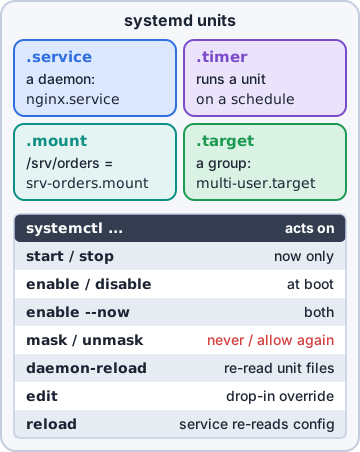
Four unit types
systemd manages units, each described by a file.
- .service: a daemon or one-shot task (nginx.service)
- .timer: starts the matching .service on a schedule (OnCalendar=daily) or after a delay
- .mount: a filesystem mount, named after its path (/srv/data = srv-data.mount); fstab lines become mount units
- .target: a group of units, like an old runlevel: multi-user.target, graphical.target, rescue.target
Exam tip Package unit files live in /usr/lib/systemd/system. Your own and overrides go in /etc/systemd/system, which wins.
Anatomy of a service
[Unit] describes it and orders it (After=). [Service] says what to run, as whom, and what to do when it dies. [Install] says which target pulls it in when it's enabled.
[Unit]
Description=Kibble label printer
After=network-online.target

[Service]
ExecStart=/opt/label/bin/labeld
User=label
Restart=on-failure

[Install]
WantedBy=multi-user.target
Timers instead of cron
A timer pairs with a service of the same name: label-batch.timer starts label-batch.service. OnCalendar=Mon..Fri 02:30 works like a calendar; Persistent=true runs a missed job at the next boot, like anacron. systemctl list-timers shows the next and last run of each timer. Output goes to the journal automatically.
[Timer]
OnCalendar=*-*-* 02:30
Persistent=true
[Install]
WantedBy=timers.target
Exam tip Enable the .timer, not the .service. The timer starts the service.
Objective 2.5
Managing units, and systemd's helpers
Changing unit states
start / stop / restart act now. reload asks the service to re-read its config without stopping (if it supports that). enable / disable decide whether it starts at boot (enable --now does both). mask links the unit to /dev/null so nothing can start it, not even a dependency; unmask undoes that. status shows state and recent log lines.
Exam tip disable = won't start at boot, but can still be started. mask = can't be started at all.
edit and daemon-reload
systemctl edit nginx opens a drop-in file (/etc/systemd/system/nginx.service.d/override.conf) that changes only the lines you add and survives package updates. --full copies the whole unit to edit. If you change unit files by hand, run systemctl daemon-reload so systemd re-reads them; otherwise it keeps using the old version and warns you.
Exam tip "Warning: The unit file changed on disk. Run systemctl daemon-reload" means exactly that.
The systemd toolbox
Helpers for the rest of the system:
- hostnamectl set-hostname db01: the permanent host name
- timedatectl: time zone (set-timezone), NTP on or off (set-ntp true), clock status
- resolvectl status / query: DNS as seen by systemd-resolved, the local resolver behind 127.0.0.53
- sysctl: kernel settings at runtime (sysctl -w vm.swappiness=10); make them permanent in /etc/sysctl.d/*.conf and load with sysctl --system
- systemd-analyze: boot time; systemd-analyze blame lists units by start time; critical-chain shows what delayed boot
Exam tip The objectives print "systemd-blame". The real command is systemd-analyze blame.
Objective 5.2
Unit failures and broken dependencies
When a unit fails
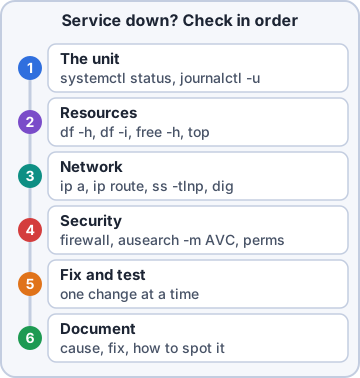
systemctl status shows the result and exit code; journalctl -u name -b shows its log from this boot; systemctl --failed lists every failed unit. Exit status 203/EXEC means the program couldn't be executed: wrong path, or the file isn't executable. Other common causes: a port already in use, a missing config file, the wrong User=, or a hand-edited unit without daemon-reload.
Exam tip status=203/EXEC: check the ExecStart path and the x bit before anything else.
Package dependency issues
Messages like "Depends: libssl3 but it is not going to be installed" or "nothing provides libfoo.so" usually mean mixed or broken repositories: a third-party repo built for another release, or an interrupted upgrade. Fix: apt -f install or dpkg --configure -a after an interruption; on RHEL, dnf check and dnf distro-sync. Remove or disable the repo that doesn't match your release.
Exam tip A package built for Ubuntu 22.04 on 24.04, or EL8 on EL9, is the classic source of dependency hell.
Go deeper
More on the objectives in this chapter, in the same exam-ready detail.
Objective 2.4 · Package and repository exclusions
Excluding packages from updates
Holding packages back
Sometimes a package must not be upgraded (a kernel your driver needs, a database version an app depends on).
- dnf: add **exclude=kernel* httpd to /etc/dnf/dnf.conf (all repos) or to one repo's file in /etc/yum.repos.d/; or one-off dnf update --exclude=kernel***
- dnf versionlock add mysql-server (plugin) pins a version
- apt: apt-mark hold nginx (release with apt-mark unhold); apt-mark showhold lists holds
- Repository priority/pinning (/etc/apt/preferences.d/) prefers or blocks packages from a repo
Objective 2.4 · Sandboxed applications
Sandboxed applications: Flatpak, Snap, AppImage
What sandboxing means
Sandboxed formats bundle an app with its dependencies and run it isolated from the rest of the system, with limited, declared permissions.
- Flatpak: desktop apps from repositories such as Flathub (flatpak install, flatpak run)
- Snap: Canonical's format (snap install, snap list); strict confinement uses AppArmor
- AppImage: one executable file, no install (less isolation)
Trade-offs
Pros: works across distributions, newer versions than the distro offers, fewer dependency conflicts, isolation. Cons: bigger downloads, duplicated libraries, and updates come from the app's maintainer rather than the distribution.
Objective 2.4 · Update alternatives
update-alternatives
Choosing between versions
When several programs provide the same command (java, python3, editor), the alternatives system decides which one the generic name points to, using symbolic links in /etc/alternatives.
- update-alternatives --config java (Debian) or alternatives --config java (RHEL): pick interactively
- --display java: show the choices
- --install /usr/bin/java java /usr/lib/jvm/.../java 100: register an option with a priority
Objective 2.4 · Software configuration
Configuring installed software
Where configuration goes
Most services keep configuration in /etc (for example /etc/ssh/sshd_config, /etc/nginx/). Good habits:
- Put local changes in drop-in directories when they exist (/etc/ssh/sshd_config.d/, /etc/nginx/conf.d/, systemctl edit for units) so package updates don't overwrite them
- Test the syntax before restarting: sshd -t, nginx -t, apachectl configtest
- Reload rather than restart when possible (systemctl reload)
- Package managers keep your edited file and save the new default as .rpmnew (dnf) or ask you (apt)
Objective 2.4 · Basic configurations of common services: DNS, NTP/PTP, DHCP, HTTP (Apache HTTP Server (httpd), Nginx), SMTP…
Common services and their config files
Where each service is configured
The services named in the objectives and the software that usually provides them:
- DNS server: BIND (named) in /etc/named.conf and zone files; clients use resolv.conf
- NTP: chronyd, /etc/chrony.conf (server/pool lines); check with chronyc sources. PTP (Precision Time Protocol, linuxptp: ptp4l) gives sub-microsecond accuracy for finance and telecom
- DHCP server: ISC dhcpd (/etc/dhcp/dhcpd.conf) or Kea
- HTTP: Apache httpd (/etc/httpd/conf/httpd.conf; Debian /etc/apache2/) or Nginx (/etc/nginx/nginx.conf, server blocks)
- SMTP (sending mail): Postfix (/etc/postfix/main.cf)
- IMAP4 (reading mail): Dovecot (/etc/dovecot/)
Ports to remember
DNS 53, NTP 123/UDP, DHCP 67/68 UDP, HTTP 80, HTTPS 443, SMTP 25 (587 submission), IMAP 143 (IMAPS 993).
Objective 2.5 · systemd units: services, timers, mounts, targets
systemd unit types
The unit types
systemd manages more than services; each unit type has a suffix:
- .service: a daemon or task (sshd.service)
- .timer: schedules a service, like cron (OnCalendar=daily). List with systemctl list-timers
- .mount: a mount point (generated from fstab or written by hand; name matches the path, data.mount for /data)
- .target: a group of units, like runlevels (multi-user.target, graphical.target, rescue.target)
- Also .socket, .path, .device
Working with units
systemctl status|start|stop|restart|enable|disable name. Custom units go in /etc/systemd/system/; after editing run systemctl daemon-reload. systemctl get-default / set-default multi-user.target sets the boot target.
Practice questions
Answer in your head, then open the answer. Ranger's Terminal has 514 questions like these for Linux+, with mock exams.
Question 1Sam added a vendor's apt repository for the monitoring agent, but apt install kibble-agent says 'Unable to locate package'. What did he forget?
- Run apt upgrade to install pending updates first
- Run apt autoremove to clear old packages
- Run dpkg --configure -a
- Run apt update to refresh the package lists
Show the answer
Answer: D. Run apt update to refresh the package lists
apt update downloads the package indexes from every configured repository; until then apt does not know the new repository's packages.
Question 2On a RHEL 9 server, the dig command is missing. Sam wants to know which package contains /usr/bin/dig before installing it. Which command tells him?
- dnf list installed dig
- rpm -qf /usr/bin/dig
- dnf provides /usr/bin/dig
- dnf check-update dig
Show the answer
Answer: C. dnf provides /usr/bin/dig
dnf provides (whatprovides) searches repository metadata for the package that contains a file; here it is bind-utils. On Debian, apt-file search does the same.
Question 3Sam installs a vendor package with dpkg -i agent_3.2_amd64.deb and gets errors about unmet dependencies. What is the best way to finish the install?
- Run dpkg -i --force-depends on the same file again
- Run apt remove dpkg and reinstall it
- Run rpm -ivh on the .deb file
- Run apt install -f to add the dependencies
Show the answer
Answer: D. Run apt install -f to add the dependencies
dpkg installs one file and does not fetch dependencies. apt install -f (or apt install ./agent_3.2_amd64.deb in the first place) resolves and installs them from the repositories.
Question 4On Rocky Linux 9, Sam needs one package from the CodeReady Builder (crb) repository, which is disabled. He wants it turned on permanently. Which command does this?
- dnf repolist --enable crb
- dnf config-manager --set-enabled crb
- dnf --enablerepo=crb repolist
- rpm --import crb
Show the answer
Answer: B. dnf config-manager --set-enabled crb
dnf config-manager --set-enabled (from dnf-plugins-core) writes enabled=1 to the .repo file. --enablerepo=NAME on a dnf command enables a repository for that one run. On RHEL itself, subscription-manager repos --enable turns on CodeReady Builder.
Question 5After adding a third-party apt repository, apt update reports 'NO_PUBKEY 4A3B...' and refuses the repository. What should Sam do?
- Add [trusted=yes] to the repository line
- Run apt update --allow-insecure-repositories
- Add the vendor's key to a keyring and use signed-by
- Delete /etc/apt/trusted.gpg.d and run apt update
Show the answer
Answer: C. Add the vendor's key to a keyring and use signed-by
apt checks repository metadata with GPG. Fetch the vendor's key from a trusted source, save it under /etc/apt/keyrings and reference it with signed-by= in the source entry.
CompTIA, A+, Network+, Security+ and Linux+ are trademarks of CompTIA, Inc. Ranger Gamez is not affiliated with or endorsed by CompTIA. The practice questions are written to the published exam objectives; they are not real exam questions.