 RANGER
CompTIA Tech+ (FC0-U71) · chapter 4 of 18
Plug it in
In this chapter Objectives 2.4, 2.5
Objective 2.4
Peripherals around the warehouse
Things you type, click, scan and see with
A peripheral is a device you connect to a computer. Keyboards and mice are the classic input peripherals. A scanner reads paper or barcodes into the computer. A web camera (webcam) sends video for calls, and the OS may ask you to allow apps to use it in the privacy settings. A printer puts results on paper, and speakers or a headset bring sound out. A headset with a microphone also takes your voice in.
You: The webcam is plugged in, but the video app shows a black box.
Maya: Check the OS privacy settings. Apps often need permission to use the camera.
Displays: monitor, smart TV, projector
A monitor is a screen for a computer. It needs a computer or other device to send it a picture. A smart TV has its own apps and network connection, so it can stream training videos with no computer attached. A projector shines a picture onto a wall or pull-down screen, which makes a very big image for a meeting room.
Rosa: The break room wants a screen for training videos, with no PC.
Maya: Then a smart TV. A plain monitor would just sit there, dark.
External drives and the UPS
An external drive plugs in, usually by USB, to add storage or hold a backup. An uninterruptible power supply (UPS) has a battery inside. When the building's power flickers or goes out, the UPS keeps the computer running for a short time, long enough to save work and shut down safely. A surge protector only blocks power spikes. It has no battery, so it can't help in an outage.
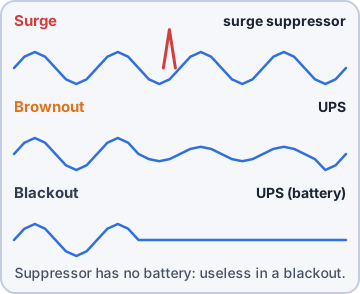
Rosa: The label PC restarts every time the lights flicker.
You: So that's what the heavy box is for.
Exam tip Power flickers keep restarting a PC? A UPS, not another surge protector.
Objective 2.4
Installing them
Plug-and-play vs. driver installation
A driver is software that lets the operating system talk to a device. With plug-and-play, the OS detects the new device and finds and loads its driver by itself, so a USB keyboard works a few seconds after you plug it in. Some devices need driver installation instead: you download the driver from the maker's site and install it, often because the device is new, special or needs extra features.
Rosa: The keyboard just worked. The new scanner says "driver not found."
Maya: Then we install the driver from the scanner's maker.
Exam tip Plug-and-play still uses a driver. The OS just installs it for you.
Other required steps
Plugging in isn't always the end. Read the quick-start guide, because some devices need extra steps:
- Install the maker's software before you connect the cable, if the guide says so.
- Put a Bluetooth device in pairing mode so the computer can find it.
- Load paper or labels, then set the printer as the default.
- Allow apps to use the webcam or microphone in privacy settings.
- Update the device's firmware, then print or record a test.
You: The scanner guide says "install software first." I already plugged it in.
Maya: Unplug it, install, then reconnect. We've all done it.
IP-based peripherals
An IP-based peripheral, like a network printer, joins the network by itself with its own IP address. Every PC then adds it by that address, so printing doesn't depend on one desk PC being on. Give it a fixed address (static or reserved), because if its address keeps changing, the PCs lose track of it.
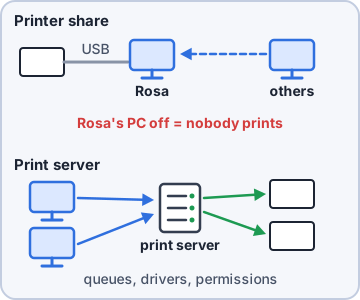
Rosa: When my PC is off on weekends, the stores can't print to the label printer.
Maya: Because it's plugged into your PC by USB. Put it on the network instead.
Web-based configuration
Many network devices have a small settings page built in. To use it, type the device's IP address into a web browser on the same network, then sign in. That's web-based configuration. The first thing to change is the default admin password from the sticker, because everyone with the same model knows it. Then set things like the device's name and a fixed IP address.
You: I typed the printer's address into the browser and got a login page!
Maya: Good. Now change that default password before anyone else finds it.
Check yourself 1Short power flickers keep restarting the warehouse label PC, and Rosa loses her work. It's already plugged into a surge protector. What should you add?
- A second surge protector
- A UPS
- A bigger monitor
- An external drive
Show the answer
Answer: B. A UPS
A UPS has a battery that keeps the PC running through short power losses. A surge protector blocks spikes but has no battery.
Check yourself 2Dev needs to change settings on the store's new IP-based receipt printer. Its guide says it has a built-in settings page. What should he do?
- Pair the printer with his laptop over Bluetooth first
- Install a webcam driver
- Type the printer's IP address into a web browser
- Plug it into a UPS
Show the answer
Answer: C. Type the printer's IP address into a web browser
An IP-based printer serves its own settings page, so Dev types its IP address into a browser on the same network and signs in.
Objective 2.5
Network connections
Wired: Ethernet and fiber
Wired networks mostly use Ethernet cables with an RJ45 connector, a clear plug with eight contacts and a little latch. It looks like a phone plug (RJ11), but it's wider. For long runs between buildings or racks, networks use fiber. Switches often have small form-factor pluggable (SFP) slots that take swappable modules, most often for fiber cables.
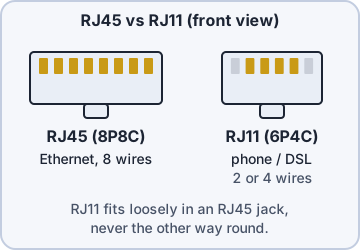
Dev: The dock switch has two SFP slots. Fiber goes there, for the long run to HQ.
You: And all the normal cables are RJ45.
Wireless: Bluetooth, NFC and Wi-Fi
Bluetooth links devices across a room, like a headset or a wireless keyboard, after you pair them. Near-field communication (NFC) works only when devices are a few centimeters apart, which is why it's used for tap-to-pay at a checkout. 802.11x is the family of Wi-Fi standards that connect laptops, phones and scanners to the network.
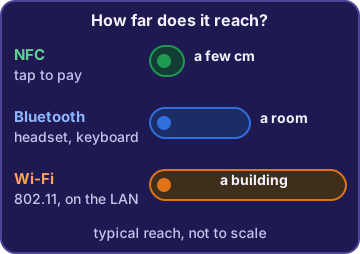
Rosa: The checkout reader is Bluetooth, right? You hold your phone right on it.
Dev: That closeness is the clue. It's NFC.
Exam tip Touching distance = NFC. Across the room = Bluetooth. Across the building, on the network = Wi-Fi (802.11).
Crimpers and cable testers
Dev makes cables for the dock himself. A crimper is a hand tool that squeezes an RJ45 plug onto the end of a cable so its contacts bite into the wires. A cable tester then checks the finished cable, making sure each wire reaches the right pin at the other end. Crimp first, then test before the cable goes into a wall.
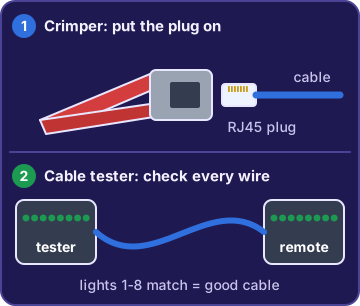
You: My first cable! crimps Ready to go.
Dev: Tester first. beep beep... silence Wire 3 isn't connected. Try again.
Objective 2.5
Peripheral ports
USB-A, USB-B and USB-C
Universal Serial Bus (USB) is the most common peripheral port. USB-A is the flat rectangle on most computers. USB-B is the squarish plug on the printer end of an older printer cable. USB-C is the small oval that fits either way up. It carries data and power, and on many laptops it can carry video too.
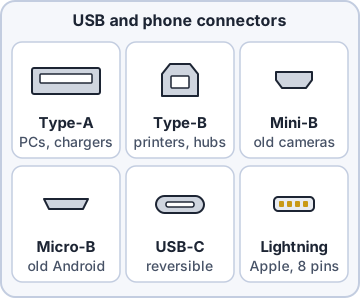
Rosa: My old printer cable: flat on one end, square on the other.
Dev: USB-A to the PC, USB-B to the printer.
Thunderbolt, Lightning, Bluetooth and RF
Thunderbolt is a fast port for docks, displays and drives. Current Thunderbolt ports use the USB-C shape and have a lightning-bolt icon next to them. Lightning is Apple's own small plug, used on older iPhones and iPads. The iPhone 15 moved to USB-C. Wireless keyboards and mice connect by Bluetooth, or by radio frequency (RF) to a small USB receiver you plug into the PC.
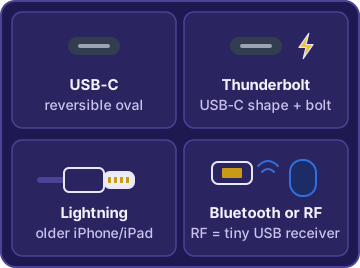
Sam: My laptop has a USB-C port with a little bolt icon.
Dev: That's Thunderbolt. It takes USB-C cables too.
Check yourself 3Sam needs a wireless keyboard for the warehouse PC. Which two connection types do wireless keyboards commonly use? Choose two.
- NFC
- Bluetooth
- SFP
- RF with a small USB receiver
- VGA
Show the answer
Answers: B. Bluetooth, D. RF with a small USB receiver
Wireless keyboards pair by Bluetooth or use radio frequency (RF) to a small USB receiver. NFC only works a few centimeters away, which is no good for typing.
Objective 2.5
Display ports and screen sharing
VGA, DVI, HDMI, DisplayPort and USB-C
Video Graphics Array (VGA) is an old analog port: a blue plug with three rows of pins. Digital Visual Interface (DVI) carries video only, no sound. High-Definition Multimedia Interface (HDMI) carries digital video and sound together, which is why every TV has it. DisplayPort also carries video and sound and is common on monitors and PCs. USB-C can send video too, if the laptop's port supports it.
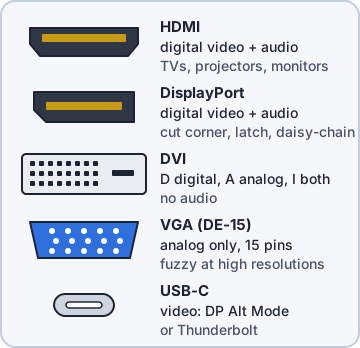
Mr. Barkley: So last time someone used VGA.
You: Or DVI. Either way, no sound came with the picture.
Exam tip Picture and sound on one cable? HDMI or DisplayPort. Old and analog? VGA. Video only? DVI.
Mirroring vs. casting
Mirroring copies your whole screen to another display, so the TV shows exactly what's on the laptop: slides, notes, everything. Casting sends one thing, like a video, a browser tab or a song, for the TV to play by itself. While a video casts, you can keep using the laptop for other work.
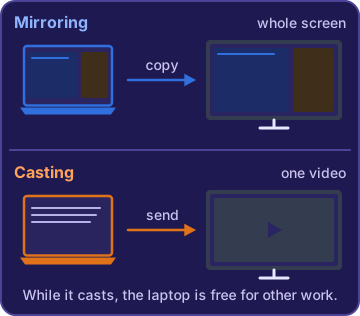
Maya: Mirroring for slides, so they see what you see. Casting for the sales video.
Mr. Barkley: And nobody sees my email this time.
Ranger: barks at his own reflection in the TV
Check yourself 4Theo plugs a USB-C to HDMI adapter into his laptop, but the TV shows nothing. The same adapter and TV work with Maya's laptop. What's the likely cause?
- The adapter is broken
- The TV can't show video from laptops
- The adapter needs a TV driver
- Theo's USB-C port doesn't support video
Show the answer
Answer: D. Theo's USB-C port doesn't support video
USB-C is only the plug shape; whether a port sends video depends on the device. The adapter and TV already work with Maya's laptop.
Go deeper
More on the objectives in this chapter, in the same exam-ready detail.
Objective 2.4 · Devices; Installation types
Setting up peripherals
Everyday peripherals
A peripheral is a device that connects to a computer from outside:
- Printer and scanner: paper or labels out, paper or barcodes in.
- Keyboard and mouse: the main input devices, wired or wireless.
- Web camera: video in, for calls.
- External drive: storage in its own case, often on USB. Good for backups you can unplug.
- Speakers/headset: sound out. A headset adds a microphone.
Exam tip Most of these are plug-and-play on USB. Wireless ones (Bluetooth) need pairing first.
Displays and power
Three kinds of display: a monitor shows a computer's picture on its own screen and has no apps. A smart TV has built-in apps and a network link, so it can stream training videos with no computer attached. A projector shines the picture onto a wall or screen for a very large image. For power, an uninterruptible power supply (UPS) has a battery that keeps devices running through short outages and flickers. A surge protector only blocks spikes; it has no battery.
Exam tip PC restarts every time the lights flicker, even on a surge protector? It needs a UPS.
Plug-and-play, drivers and other steps
Every device needs a driver. With plug-and-play, the operating system notices the device and loads a driver by itself, like a USB keyboard that works seconds after you plug it in. Some devices need the maker's driver installed by hand ('Driver not found'). Other required steps come from the device's guide: install the maker's software before you connect the cable, put a Bluetooth headset in pairing mode, or load paper and labels.
Exam tip Plugged it in first and now it acts up? Unplug it, install the maker's software, then reconnect.
IP-based peripherals and web setup
An IP-based peripheral, like a network printer, joins the network itself, and each PC adds it by its IP address. Printing then doesn't depend on one desk PC being on. It needs a fixed (static or reserved) IP address. If the address keeps changing, the PCs keep looking in the old place. Most have a web-based configuration page: type the device's IP address into a browser on the same network, sign in, and change the settings. Change the default admin password while you're there.
Exam tip Printer 'disappears' every few weeks = its IP address is changing.
Objective 2.5 · Networking
Network connections: wired, wireless and the tools
Wired: RJ45 and SFP
Wired Ethernet cables end in an RJ45 connector, an 8-pin plug. The smaller RJ11 plug looks similar but is for phone and DSL lines. Switches and routers can also have small form-factor pluggable (SFP) slots. These take swappable modules, most often for long fiber runs. RJ45 jacks are fixed copper ports, while SFP slots hold whatever module you plug in.
Wireless: Bluetooth, NFC and 802.11
Three wireless links, sorted by range:
- Near-field communication (NFC): a few centimeters. Tap-to-pay and tapping a badge.
- Bluetooth: across a room. Headsets, keyboards, speakers.
- 802.11 (Wi-Fi): a whole home or building, through an access point.
Exam tip The phone must nearly touch the card reader? That's NFC, not Bluetooth.
Crimpers and cable testers
Dev makes his own network cables for the dock with two tools. A crimper squeezes an RJ45 plug onto the cable end so its pins bite into the wires. A cable tester then checks the finished cable, confirming that each wire lands on the right pin before the cable goes into use. A tester can't attach a plug, and a crimper can't tell you if the cable works.
Exam tip Crimp first, then test.
Objective 2.5 · Peripheral devices; Display ports; Display technology
Peripheral ports vs. display ports
USB: A, B and C
USB is the most common peripheral port. USB-A is the flat rectangle on computers and chargers. USB-B is the squarish plug on printers and some scanners. USB-C is small, oval and reversible, and is now on most phones and laptops. An old printer cable has USB-A at the PC end and USB-B at the printer end.
Thunderbolt, Lightning, Bluetooth and RF
Thunderbolt is a fast connection. Current Thunderbolt ports use the USB-C shape and have a lightning-bolt icon, and they still accept USB-C devices. Lightning is Apple's own small, reversible connector on older iPhones; the iPhone 15 moved to USB-C. Wireless peripherals connect by Bluetooth, pairing straight with the computer, or by radio frequency (RF) to a small USB receiver plugged into the PC.
Exam tip Same oval shape, lightning-bolt icon = Thunderbolt. Apple's older thin plug = Lightning.
Display ports
Video ports, from oldest to newest:
- VGA: blue, 15 pins, analog, no sound.
- DVI: digital picture, no sound.
- HDMI: digital video plus sound on one cable. Standard on TVs.
- DisplayPort: digital video plus sound, common on PCs and monitors.
- USB-C: can carry video, but only if the port supports it (for example DisplayPort Alt Mode).
Exam tip If a USB-C to HDMI adapter works on one laptop and not another, the second laptop's USB-C port likely doesn't do video.
Mirroring vs. casting
Mirroring copies your whole screen to another display, exactly as you see it: slides, notes window and all. Casting sends one thing, like a video, a browser tab or a song, for the TV or speaker to play by itself. With casting you can keep using your laptop for other things while the TV plays.
Exam tip 'Exactly what I see' = mirroring. 'Just play this video' = casting.
Practice questions
Answer in your head, then open the answer. Ranger’s First Byte has 455 questions like these for Tech+, with mock exams.
Question 1Which device has a battery inside that keeps a computer running for a short time when the building's power goes out?
- A surge protector
- An uninterruptible power supply (UPS)
- A power strip
- A docking station
Show the answer
Answer: B. An uninterruptible power supply (UPS)
An uninterruptible power supply (UPS) has an internal battery that keeps connected devices running for a short time when main power is lost. A surge protector only blocks power spikes; it has no battery, so the PC still shuts off in an outage.
Question 2Rosa plugs a new USB keyboard into her PC and it works a few seconds later. What does plug-and-play mean here?
- The keyboard needs no driver of any kind
- Rosa must download a driver from the maker first
- The operating system found and loaded a driver by itself
- The keyboard was set up through a web page
Show the answer
Answer: C. The operating system found and loaded a driver by itself
Plug-and-play means the operating system detects the new device and finds and loads its driver automatically. A driver is still used; the user just does not have to install it by hand.
Question 3Which display device shows its picture by shining light onto a wall or a pull-down screen?
- A monitor
- A smart TV
- A web camera
- A projector
Show the answer
Answer: D. A projector
A projector shines an image onto a wall or screen, which makes very large pictures possible. Monitors and smart TVs show the picture on their own built-in screen, and a web camera is an input device that captures video.
Question 4The warehouse network label printer keeps getting a new IP address, and every few weeks the PCs can no longer find it. What should Dev do?
- Give the printer a fixed (static or reserved) IP address
- Reinstall the printer driver on every PC each time
- Connect the printer to one PC by USB and share it
- Change the printer's default admin password
Show the answer
Answer: A. Give the printer a fixed (static or reserved) IP address
Computers find a network printer by its IP address, so it needs a fixed address that never changes, set as static or reserved. Changing the default password is good practice, but it does nothing about the address changing.
Question 5Maya buys a Bluetooth headset for video calls. When she opens the Bluetooth device list in Windows, the headset does not appear. What should she do first?
- Put the headset in pairing mode so it is discoverable
- Give the headset a fixed IP address
- Open the headset's web configuration page
- Plug the headset's charger into a UPS
Show the answer
Answer: A. Put the headset in pairing mode so it is discoverable
A Bluetooth device shows up in Windows only when it is in pairing mode and discoverable, so Maya should switch that mode on. A fixed IP address is for network devices like printers; a Bluetooth headset pairs directly and has no IP address to set.
CompTIA, Tech+, A+, Network+, Security+ and Linux+ are trademarks of CompTIA, Inc. Ranger Gamez is not affiliated with or endorsed by CompTIA. The practice questions are written to the published exam objectives; they are not real exam questions.