 RANGER
 Microsoft 365 Certified: Endpoint Administrator (MD-102) · chapter 5 of 12
Month 2: Out of the box, into the business
In this chapter Objectives 2.1
Objective 2.1
Autopilot profiles or device preparation
What Windows Autopilot does
Windows Autopilot takes the OEM's preinstalled Windows and makes it business-ready during setup (OOBE): it joins Microsoft Entra ID, enrolls in Intune, applies policies and installs apps. You don't build or maintain images. Kibble gets two flavors: classic Windows Autopilot with deployment profiles, and the newer Windows Autopilot device preparation.
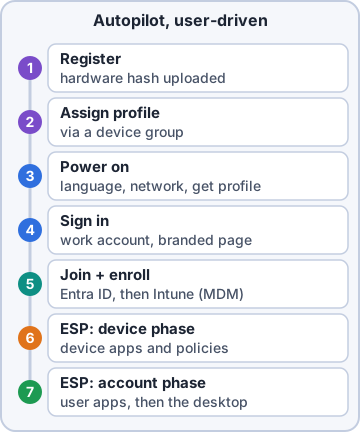
Classic Autopilot: deployment profiles
Devices are registered first: the vendor or reseller uploads the hardware hash, or you import a CSV. A deployment profile assigned to a device group sets the mode, join type (Entra or hybrid), OOBE screens, user account type and device name template. Progress shows on the Enrollment Status Page (ESP). It supports user-driven, pre-provisioning, self-deploying and existing-device scenarios.
Exam tip Registered devices often get grouped by the Autopilot group tag, which you met as [OrderID] in week 1.
Autopilot device preparation
Device preparation needs no hardware hash upload. A policy is assigned to a user group. When a user signs in at OOBE, the device lands in a chosen device security group at enrollment time (enrollment time grouping; the group's owner must be the Intune Provisioning Client). It installs only selected essential apps (up to 25) and scripts (up to 10), shows its own progress screen instead of the ESP, and reports in near real time. Entra join and Windows 11 only.
Exam tip A device registered for classic Autopilot gets the Autopilot profile; it takes precedence. To use device preparation on it, deregister it first.
Choosing between them
Pick classic Autopilot when you need pre-provisioning, self-deploying mode, hybrid join, Autopilot Reset, HoloLens or Teams Rooms devices, or a long app list during setup. Pick device preparation when you want simple setup without registering hashes, need LOB and Win32 apps together reliably, or work in GCC High or DoD.
Need                         Use
Kiosk PC, no user            Autopilot
Hybrid join to the domain    Autopilot
No hash upload, quick setup  Device prep
Win32 + LOB apps in setup    Device prep
Objective 2.1
Deployment modes and device names
Three deployment modes
User-driven: the user signs in at OOBE; the device joins Entra (or hybrid joins) and installs everything for them. Pre-provisioning: a technician or partner presses the Windows key five times at the first OOBE screen and runs the device phase ahead of time; the user later finishes only the user part. Self-deploying: no user credentials at all, for kiosks, shared devices and meeting rooms. Entra join only, and it needs TPM 2.0 attestation.
Exam tip "Device with no user" = self-deploying. "IT preps it, user finishes fast" = pre-provisioning. Both need a TPM 2.0 that supports attestation.
Device name templates
In an Autopilot profile, Apply device name template renames Entra joined devices during setup. Rules: up to 15 characters; letters, numbers and hyphens; not only numbers; no spaces. %SERIAL% adds the serial number, and %RAND:x% adds x random digits. Hybrid joined devices use the computer name prefix in the Domain Join profile instead, which doesn't support these macros.
KC-%SERIAL%  -> KC-5CG4120QXZ
KC-%RAND:6%  -> KC-482915
KCST-%RAND:4%-> KCST-0371
Exam tip Macros are case-sensitive: %serial% fails. Long serials get cut to stay within 15 characters.
Check yourself 1The warehouse needs six kiosk PCs that show one app, have no assigned user and set themselves up when plugged in. Which Autopilot mode fits?
- User-driven mode
- Pre-provisioning with a technician
- Self-deploying mode
- Device preparation in user-driven mode
Show the answer
Answer: C. Self-deploying mode
Self-deploying mode provisions with no user credentials, which suits kiosks and shared devices. It needs TPM 2.0 attestation and Entra join.
Objective 2.1
The Enrollment Status Page (ESP)
What the ESP shows and blocks
The Enrollment Status Page shows setup progress during OOBE in two phases: device setup (device policies, certificates, device apps) and account setup (user policies and apps after first sign-in). With Block device use until all apps and profiles are installed, users can't reach the desktop before the device is ready. The built-in default profile shows no progress, so create your own.
Setting up your device for work
Device preparation   Complete
Device setup         Working...
  Security policies  2 of 3
  Apps               1 of 4
Account setup        Waiting
Key ESP settings
Under Devices > Enrollment > Windows > Enrollment Status Page: Show app and profile configuration progress (Yes turns it on); Show an error when installation takes longer than (default 60 minutes); custom error message; log collection and diagnostics page; Block device use until these required apps are installed: All or Selected (up to 100 apps); and whether users may reset or continue anyway after an error.
Exam tip Profiles have priority. Device-targeted beats user-targeted, and the default profile applies only when nothing else does. Pre-provisioning and self-deploying only see device-targeted profiles.
Keeping the ESP fast and reliable
Block only on essential apps (security agent, VPN, line-of-business core) and let the rest install afterward. During classic Autopilot, don't mix LOB (MSI) apps and Win32 apps: both need the Trusted Installer service and can collide. Package everything as Win32. Turn on log collection so failed devices can export logs.
Exam tip Device preparation installs apps one after another, so mixing LOB and Win32 is fine there. In classic Autopilot with the ESP, it's the classic trap.
Objective 2.1
Windows 11 upgrades, Cloud PCs and Windows Backup
Upgrading to Windows 11 with Intune
Check readiness first: Intune's Windows feature update device readiness report flags devices that miss hardware requirements (TPM 2.0, CPU, Secure Boot) or have known app risks. Then create a feature update policy under Devices > Windows updates and pick the target version, for example Windows 11, version 26H2. Devices move to that version and stay there until you change the policy.
Exam tip Windows 10 reached end of support on October 14, 2025. If a device also has an update ring, set its feature update deferral to 0 so it doesn't delay the feature update policy.
Windows 365 Cloud PCs
A Cloud PC is a Windows desktop hosted by Microsoft. A provisioning policy decides how Cloud PCs are created: join type and network (Entra join with the Microsoft-hosted network is recommended; hybrid join needs an Azure network connection, ANC), image (a gallery image, or a custom image you upload), region, single sign-on, and the user groups to assign. Licensed users in those groups get a Cloud PC automatically.
Exam tip Editing a provisioning policy doesn't change existing Cloud PCs. Only new or reprovisioned ones get the new settings.
Windows Backup for Organizations
Users can back up Windows settings to the cloud and restore them on a new or reset Entra joined PC during OOBE. Two parts: a settings catalog policy with Enable Windows Backup (Sync your settings), and the tenant-wide Windows Backup and Restore option under Devices > Enrollment > Windows, with Show restore page set to On.
Exam tip Restore works at OOBE on Entra joined devices in user-driven setups. Not with self-deploying mode, hybrid join or the pre-provisioning technician flow.
Check yourself 2Two seasonal accountants need Cloud PCs that use only cloud apps, with as little network setup as possible. What should the provisioning policy use?
- Hybrid join with an Azure network connection
- Entra join with the Microsoft-hosted network
- A custom image uploaded with every app installed
- Self-deploying Autopilot for each Cloud PC
Show the answer
Answer: B. Entra join with the Microsoft-hosted network
Microsoft recommends Entra join with the Microsoft-hosted network unless you need hybrid join or direct network access. A gallery image keeps things simplest.
Practice questions
Answer in your head, then open the answer. Ranger's Desktop Duty has 374 questions like these for MD-102, with mock exams.
Question 1Kibble & Co. is opening an office that must use a GCC High tenant. New Windows 11 laptops should be provisioned during OOBE with a user signing in, and Dev doesn't want to import hardware hashes. Which provisioning approach should he use?
- A Windows Autopilot device preparation policy
- A Windows Autopilot self-deploying profile
- Windows Autopilot for existing devices
- A Windows Autopilot user-driven deployment profile
Show the answer
Answer: A. A Windows Autopilot device preparation policy
Windows Autopilot device preparation supports GCC High and DoD, runs the user-driven flow, and doesn't require registering devices first. Classic Autopilot profiles need hardware hash registration.
Question 2Kibble & Co.'s new laptops must be joined to the on-premises domain kibbleco.example during provisioning because of a legacy line-of-business app. Which Windows Autopilot option supports this?
- An Autopilot Reset on each laptop after Entra join
- A Windows Autopilot device preparation policy
- A self-deploying Autopilot profile
- An Autopilot profile set to Entra hybrid joined
Show the answer
Answer: D. An Autopilot profile set to Entra hybrid joined
Only classic Windows Autopilot deployment profiles (user-driven or pre-provisioned) support Microsoft Entra hybrid join. Device preparation and self-deploying mode are Entra join only, although Microsoft recommends Entra join for new devices.
Question 3A Kibble & Co. reseller should install apps and policies on new laptops before they ship, so users only sign in and finish the user part. Which choice supports this?
- An Enrollment Status Page set to show only to OOBE devices
- A Windows Autopilot device preparation policy
- A profile with Allow pre-provisioned deployment set to Yes
- A self-deploying profile for the shipped laptops
Show the answer
Answer: C. A profile with Allow pre-provisioned deployment set to Yes
Pre-provisioning (formerly white glove) splits deployment into a technician flow and a user flow. It needs a classic Autopilot profile with Allow pre-provisioned deployment set to Yes; device preparation doesn't support it.
Question 4Dev creates a Windows Autopilot device preparation policy. Which service principal must he add as owner of the device group named in the policy?
- Microsoft Graph Command Line Tools
- Intune Provisioning Client
- Windows Autopilot Deployment Service
- Microsoft Intune Enrollment
Show the answer
Answer: B. Intune Provisioning Client
Device preparation adds devices to the assigned device security group at enrollment time. That group must have the Intune Provisioning Client service principal (AppId f1346770-5b25-470b-88bd-d5744ab7952c) as an owner; in some tenants it appears as Intune Autopilot ConfidentialClient.
Question 5Which statements about a Windows Autopilot device preparation policy are correct? Choose two.
- It can install up to 25 apps during OOBE
- It supports Windows 10 and Windows 11
- It's assigned to a user group
- It requires hardware hashes uploaded to Intune first
- It supports pre-provisioned and self-deploying modes
Show the answer
Answers: A. It can install up to 25 apps during OOBE, C. It's assigned to a user group
Device preparation policies target user groups; when the user signs in during OOBE, the device joins the policy's device group. Up to 25 essential apps and 10 PowerShell scripts can be delivered during OOBE, on Windows 11 only.
Microsoft, Azure, Intune and Windows are trademarks of the Microsoft group of companies. Ranger Gamez is not affiliated with or endorsed by Microsoft. The practice questions are written to the published exam objectives; they are not real exam questions.