 RANGER
 CompTIA A+ Core 2 (220-1202) · chapter 3 of 17
Week 3: Under the hood
In this chapter Objectives 1.4, 1.5
Objective 1.4
Task Manager
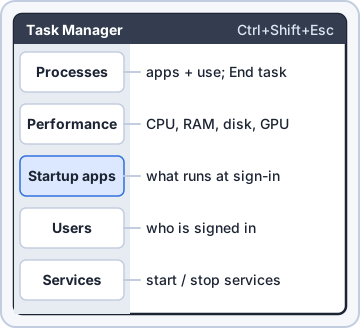
Task Manager tabs
Open it with Ctrl+Shift+Esc (or Ctrl+Alt+Del). It's your first stop for 'the PC is slow' or 'an app froze'.
- Processes: every app and background process with CPU, memory, disk and network use; End task kills a frozen one
- Performance: live graphs for CPU, memory, disk, network and GPU; link to Resource Monitor
- Startup (Startup apps): what launches at sign-in, with a Startup impact rating; disable the heavy ones
- Users: who is signed in and what each uses; sign a user out
- Services: start, stop or restart Windows services, plus a link to the full Services console
Exam tip Slow sign-in? Check the Startup tab first. Disabling a startup app doesn't uninstall it.
Reading the Startup tab
Rosa's PC launches nine apps at sign-in. Four are rated High.
Name                 Publisher     Impact
KibblePOS Helper     Kibble & Co.  Low
CloudSync            (vendor)      High
PrinterTray Monitor  (vendor)      High
MusicBox Updater     (vendor)      High
Coupon Toolbar       Unknown       High
(+4 more, all Low; all Enabled)
Exam tip An 'Unknown' publisher toolbar with High impact is a PUP suspect. Disable it here, then investigate (2.4).
Objective 1.4
The Microsoft Management Console (MMC)
What MMC is
MMC (mmc.exe) is a frame that holds snap-ins, the admin tools. You can open each snap-in alone with its .msc name, or build a custom console with several snap-ins and save it.
Exam tip Many snap-ins also point at a remote computer, so you can manage a PC across the network.
Snap-ins, part 1
Know each tool, its file name and its job.
- Event Viewer (eventvwr.msc): logs. Windows Logs: Application, Security, Setup, System. Levels: Information, Warning, Error, Critical
- Disk Management (diskmgmt.msc): initialize disks, create, extend, shrink or format volumes, change drive letters
- Task Scheduler (taskschd.msc): run programs or scripts on a schedule or on an event (at logon, at startup)
- Device Manager (devmgmt.msc): hardware and drivers; update, roll back, disable or uninstall drivers
Snap-ins, part 2
More consoles you'll use weekly:
- Certificate Manager (certmgr.msc): the current user's digital certificates
- Local Users and Groups (lusrmgr.msc): local accounts and group membership (not in Home)
- Performance Monitor (perfmon.msc): counters over time, data collector sets, reports for baselines
- Group Policy Editor (gpedit.msc): local policy settings (Pro and up, not Home)
Exam tip Device Manager yellow triangle = driver problem; down arrow = device disabled.
Reading an Event Viewer entry
Event Viewer tells you what failed and when. Filter by level and source.
Log Name:  System
Source:    Service Control Manager
Event ID:  7000
Level:     Error
Computer:  RECP-03.kibble.local
Description:
The Print Spooler service failed to
start due to the following error:
The system cannot find the file
specified.
Exam tip Service won't start? System log, source Service Control Manager. Failed logons are in the Security log.
Check yourself 1Rosa wants her USB backup drive to always show up as drive R: instead of E:. Which tool should you open?
- diskmgmt.msc
- devmgmt.msc
- taskschd.msc
- lusrmgr.msc
Show the answer
Answer: A. diskmgmt.msc
Disk Management (diskmgmt.msc) creates, extends, shrinks and formats volumes, and it changes drive letters.
Objective 1.4
Additional Windows tools
The .exe tools
These aren't MMC snap-ins, but the exam lists them with their file names.
- System Information (msinfo32.exe): full hardware and software inventory: BIOS version, RAM, drivers
- Resource Monitor (resmon.exe): per-process detail on CPU, memory, disk and network; which file a process is hammering
- System Configuration (msconfig.exe): boot options (Safe boot), selective startup, services (hide Microsoft services)
- Disk Cleanup (cleanmgr.exe): delete temp files, Recycle Bin and old update files
- Disk Defragment (dfrgui.exe): Optimize Drives; defragments HDDs, sends TRIM to SSDs
- Registry Editor (regedit.exe): edit the registry database of settings (HKLM, HKCU)
Exam tip Before any registry edit, export the key as a backup. A bad edit can stop Windows from booting.
Which tool, when?
Match the symptom to the tool. msconfig: use the Boot tab. devmgmt: Roll Back Driver. eventvwr: look in the System log.
Symptom                      Tool
BIOS version and RAM total   msinfo32
Which process hits the disk  resmon
Safe Mode on next boot       msconfig
C: is almost full            cleanmgr
Old HDD feels fragmented     dfrgui
Run a backup script nightly  taskschd.msc
Driver update broke the NIC  devmgmt.msc
Why did it reboot at 3 AM?   eventvwr.msc
Exam tip Never defragment an SSD by hand. Optimize Drives knows it's an SSD and sends TRIM instead.
Check yourself 2Rosa says her PC rebooted overnight and she wants to know why. Which tool should you open first?
- perfmon.msc
- eventvwr.msc
- msinfo32.exe
- taskschd.msc
Show the answer
Answer: B. eventvwr.msc
Event Viewer's System log records shutdowns, restarts and their cause, such as Windows Update or a crash. Performance Monitor tracks counters, not reboot reasons.
Objective 1.5
Command line: navigation and help
Getting around
Open Command Prompt (cmd). Some commands need Run as administrator (an elevated prompt).
C:\Users\rosa> cd Documents
  (go into a folder)
C:\Users\rosa\Documents> cd ..
  (up one level)
C:\Users\rosa> cd \
  (to the drive root)
C:\> dir           list files
C:\> dir /a        include hidden
C:\> dir /s *.pst  search subfolders
C:\> ipconfig /?   help for a command
Exam tip [command name] /? shows the help and switches for any command. It's on the exam objectives by name.
Informational commands
Quick facts about the PC and the user.
- hostname: the computer's name
- whoami: the signed-in account (domain\user); whoami /groups shows group membership
- winver: opens a window with the Windows version and build
- net user: list local accounts; net user rosa shows one account; net user rosa /domain checks a domain account
Exam tip net user also creates accounts (/add) and resets passwords. Know it's an account tool, not a network tool.
Objective 1.5
Command line: network tools
ipconfig and ping
ipconfig shows IP settings. ipconfig /all adds MAC, DNS servers and DHCP info. /release and /renew get a new DHCP lease. /flushdns clears the DNS cache. ping tests reachability with ICMP echo; ping -t runs until you press Ctrl+C.
C:\> ipconfig
Ethernet adapter Ethernet:
   IPv4 Address. . . . : 169.254.37.112
   Subnet Mask . . . . : 255.255.0.0
   Default Gateway . . :
Exam tip 169.254.x.x is APIPA: the PC never heard from a DHCP server. Check the cable/port, then ipconfig /renew.
netstat, nslookup, tracert, pathping
The rest of the network kit:
- netstat: active connections and listening ports; -a all, -n numeric, -b shows the program (needs admin)
- nslookup: queries DNS; 'nslookup fs01.kibble.local' shows which IP DNS returns
- tracert: lists each router hop to a destination
- pathping: tracert plus ping statistics per hop (packet loss at each router); slower, about 25 seconds per hop
- net use: map a share: net use S: \\fs01\shared /persistent:yes; remove with net use S: /delete
Exam tip Need loss per hop? pathping. Need only the path? tracert. Name resolves wrong? nslookup.
Check yourself 3Calls to a cloud app keep dropping. You need to see the packet loss at each router hop between the PC and the server. Which command should you run?
- tracert
- nslookup
- netstat -a
- pathping
Show the answer
Answer: D. pathping
pathping combines tracert and ping: it lists each hop, then measures packet loss at every router on the path. It is slow, about 25 seconds per hop.
Objective 1.5
Command line: disks, files and OS management
Disk management commands
Three tools for disks and volumes:
- chkdsk: checks a volume. /f fixes filesystem errors; /r also finds bad sectors and recovers readable data (includes /f). On C: it runs at the next reboot
- format: writes a new filesystem: format E: /fs:ntfs /q (quick)
- diskpart: scriptable partitioning: list disk, select disk 1, clean, convert gpt, create partition primary, format fs=ntfs quick, assign
Exam tip diskpart 'clean' wipes the partition table of the SELECTED disk. Always 'list disk' and double-check first.
File management commands
Create, remove and copy folders:
- md (mkdir): make a directory
- rmdir (rd): remove a directory; /s removes everything inside it, /q skips the prompt
- robocopy: Robust File Copy for big jobs. /e copies subfolders, /mir mirrors (also deletes extras in the target), /z restartable mode, /mt multithreaded
C:\> robocopy D:\Ship \\fs01\ship /e /z
       Total  Copied  Skipped  FAILED
Dirs:     48      48        0       0
Files:  1213    1209        4       0
Exam tip Trap: /mir deletes files in the destination that aren't in the source. Use /e if you only want to add.
OS management commands
Group Policy and system file tools:
- gpupdate: apply Group Policy now instead of waiting; gpupdate /force reapplies every setting
- gpresult: shows which policies actually applied (Resultant Set of Policy); gpresult /r for a summary, /h report.html for a report
- sfc /scannow: System File Checker; scans protected Windows files and replaces corrupted ones (needs an elevated prompt)
Exam tip 'Policy should have mapped my drive but didn't' = gpresult /r to see what applied, then gpupdate /force.
Check yourself 4A user's mapped drive should come from Group Policy, but it's missing. Which command shows which policies were applied to the user?
- gpresult /r
- gpupdate /force
- net use
- whoami /groups
Show the answer
Answer: A. gpresult /r
gpresult shows the Resultant Set of Policy: which GPOs applied to the computer and user. gpupdate only re-applies policy without reporting which GPOs took effect.
Practice questions
Answer in your head, then open the answer. Ranger's Help Desk has 444 questions like these for A+ Core 2, with mock exams.
Question 1Users say a new laptop takes a long time to become usable after sign-in because many apps launch automatically. Where can the technician quickly stop these apps from launching at sign-in?
- Task Manager's Startup tab
- Task Manager's Services tab
- Device Manager
- Disk Management
Show the answer
Answer: A. Task Manager's Startup tab
Task Manager's Startup (Startup apps) tab lists apps that launch at sign-in, with their startup impact, and lets you disable them. Services are managed separately.
Question 2A technician needs to know how many memory slots are in use on a remote user's laptop without opening the case. Where can this be checked quickly?
- Resource Monitor > Memory tab
- Task Manager > Performance > Memory
- System Configuration > Boot > Advanced options
- Device Manager > System devices
Show the answer
Answer: B. Task Manager > Performance > Memory
The Memory view on Task Manager's Performance tab shows speed, form factor and 'Slots used'. Resource Monitor focuses on per-process usage.
Question 3A shared Windows PC has two employees signed in through fast user switching. One employee's idle session holds an app that uses most of the memory. Which Task Manager tab groups resource use by signed-in account and lets the technician sign out that session?
- Services
- Details
- Users
- Processes
Show the answer
Answer: C. Users
The Users tab groups resource use by signed-in account and offers Disconnect and Sign out. The Processes tab shows apps but is not organized by user session.
Question 4Which Event Viewer category under Windows Logs records events such as a driver failing to load or a service failing to start?
- Application
- System
- Setup
- Security
Show the answer
Answer: B. System
Windows components such as drivers and services write to the System log. The Application log holds events from applications.
Question 5Nightly backups stopped after the password changed on the account that the backup software's service uses. Based on the Event Viewer entry in the exhibit, what should the technician do?
- Run sfc /scannow to repair the service files
- Reinstall the backup software
- Update the password on the service's Log On settings
- Set the service startup type to Automatic (Delayed Start)
Show the answer
Answer: C. Update the password on the service's Log On settings
Event 7000 with 'logon failure' means the service account's stored password is stale. Updating the credentials on the service's Log On tab lets it start.
CompTIA, A+, Network+, Security+ and Linux+ are trademarks of CompTIA, Inc. Ranger Gamez is not affiliated with or endorsed by CompTIA. The practice questions are written to the published exam objectives; they are not real exam questions.