 RANGER
 CompTIA A+ Core 2 (220-1202) · chapter 4 of 17
Week 4: Settings, Control Panel and the network
In this chapter Objectives 1.6, 1.7
Objective 1.6
Control Panel
Control Panel applets, part 1
Control Panel is the classic settings home. Open it by typing 'control'. Many applets still only live here.
- Internet Options: security zones, cookies, proxy (LAN settings), reset browser settings
- Devices and Printers: set the default printer, printer properties, add devices
- Programs and Features: uninstall or repair apps; 'Turn Windows features on or off' (Hyper-V, IIS)
- Network and Sharing Center: network profile, change adapter settings, advanced sharing settings
- System: computer name, edition, activation; advanced settings for virtual memory and Remote Desktop
- Windows Defender Firewall: on/off per profile, allowed apps, advanced rules
Control Panel applets, part 2
More applets you should recognize:
- Mail: Outlook profiles and email accounts (appears when classic Outlook is installed)
- Sound: playback and recording devices, default speaker/mic
- User Accounts: change account type, manage credentials (Credential Manager)
- Device Manager: drivers and hardware (same as devmgmt.msc)
- Indexing Options: which locations Windows Search indexes; rebuild a broken index
- Administrative Tools: shortcuts to the MMC tools (called Windows Tools in Windows 11)
- Ease of Access: accessibility (Narrator, Magnifier, high contrast, on-screen keyboard)
Exam tip Search can't find files that exist? Indexing Options: add the location or rebuild the index.
File Explorer Options
Controls how Explorer looks and behaves. General options: open each folder in the same or a new window, single- vs. double-click, privacy (recent files). View options: Show hidden files, folders and drives, and uncheck Hide extensions for known file types.
Exam tip Turn OFF 'Hide extensions' on tech PCs. 'invoice.pdf.exe' shows up as 'invoice.pdf' when extensions are hidden, a classic malware trick.
Power Options
Power plans and what the buttons do.
- Power plans: Balanced, Power saver, High performance, or custom
- Sleep/suspend (also called standby): RAM stays powered; fast wake, small battery drain
- Hibernate: RAM is saved to disk (hiberfil.sys), then power off; no battery drain, slower wake
- Choose what closing the lid does: do nothing, sleep, hibernate or shut down
- Turn on fast startup: a partial hibernate at shutdown for quicker boot; can block dual-boot and some updates
- USB selective suspend: powers down idle USB ports to save battery; can make USB devices drop out
Exam tip Laptop hot and drained in a bag = lid set to 'Do nothing'. Set it to Sleep or Hibernate.
Objective 1.6
The Settings app
Windows Settings categories
Open with Win+I. The exam uses these category names:
- Time and Language: time zone, auto clock sync, region, language packs
- Update and Security: Windows Update, Windows Security, backup, recovery, activation (Windows 11: Windows Update and Privacy & security)
- Personalization: background, colors, themes, lock screen, Start, taskbar
- Apps: installed apps, default apps, optional features, startup apps
- Privacy: app access to camera, microphone and location; diagnostic data
- System: display, sound, notifications, power and battery, storage, About
More Settings categories
And the rest:
- Devices: Bluetooth, printers and scanners, mouse, touchpad (Windows 11: Bluetooth & devices)
- Network and Internet: Wi-Fi, Ethernet, VPN, proxy, mobile hotspot, metered connection, network profile
- Gaming: Game Mode, Xbox Game Bar, captures
- Accounts: your info, email accounts, sign-in options (PIN, Windows Hello), access work or school, family and other users
Exam tip Webcam works in Camera app but not in Teams? Privacy settings: allow desktop apps to access the camera.
Check yourself 1A sales rep says the clock on her laptop is an hour off after a trip. Where should you look first?
- Control Panel > Indexing Options
- Settings > Personalization
- Control Panel > Internet Options
- Settings > Time and Language
Show the answer
Answer: D. Settings > Time and Language
Time and Language holds the time zone and automatic time sync. A wrong time zone after travel is the classic cause.
Objective 1.7
Windows networking on the client
Domain joined vs. workgroup
In a workgroup, every PC keeps its own accounts; it's fine for a few PCs. In a domain, Active Directory holds central accounts and policy. Domains make shared resources easy: printers and file servers are published centrally, and mapped drives arrive by Group Policy or logon script.
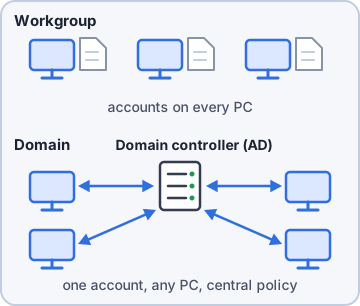
Exam tip A workgroup user needs a local account on every PC they use. A domain user signs in anywhere with one account.
Local OS firewall settings
Windows Defender Firewall has three profiles: Domain, Private and Public. Configuration: turn it on or off per profile and set inbound rules. Application restrictions and exceptions: allow an app through (an exception) or block it. Advanced Security lets you open a specific port.
Exam tip New app can't receive connections? Add a firewall exception for the app. Don't turn the firewall off.
Client network configuration
Every client needs four values:
- IP addressing scheme: the plan for which addresses go where (e.g. 10.20.4.0/24 for the warehouse)
- Static vs. dynamic: static is typed in by hand (servers, printers); dynamic comes from DHCP (most clients)
- DNS settings: wrong DNS means names fail while IPs work
IP address   10.20.4.57     who am I
Subnet mask  255.255.255.0  local range
Gateway      10.20.4.1      other networks
DNS server   10.20.1.10     names to IPs
Exam tip Can ping 10.20.1.15 but not fs01.kibble.local? It's DNS.
Establish network connections
Settings > Network and Internet sets up each connection type:
- Wired: plug in Ethernet; DHCP usually does the rest
- Wireless: pick the SSID, enter the key or enterprise credentials
- VPN: add a VPN connection (server, protocol, sign-in) to reach the office securely from outside
- WWAN/cellular: a built-in cellular modem or SIM/eSIM, or tether to a phone hotspot
Proxy, network profiles and paths
A proxy server makes web requests on the user's behalf for filtering and caching. Set it in Settings > Network and Internet > Proxy (or Internet Options > LAN settings). A wrong proxy breaks web browsing while other traffic works.
- Public network: network discovery and file sharing off; use for coffee shops and hotels
- Private network: discovery on; use for trusted home or office networks
- File Explorer network paths: type a UNC path like \\fs01\shipping in the address bar, or browse Network
Exam tip Can't see a home printer or other PCs? The network is probably set to Public.
Metered connections and limitations
Mark a cellular hotspot or capped plan as a metered connection. Windows then limits background data: most updates wait, apps may pause downloads, and cloud sync can pause. It saves data, but devices fall behind on patches if left metered for weeks.
Exam tip 'Updates never download on my laptop' = check whether the Wi-Fi or Ethernet connection is set as metered.
Check yourself 2A user can reach 10.20.1.15 by IP but gets 'not found' for \\fs01\shipping. Which setting is MOST likely wrong?
- Subnet mask
- Default gateway
- DNS server
- Proxy server
Show the answer
Answer: C. DNS server
Reaching the IP but failing on the name means name resolution is broken, so check the DNS server setting. A bad mask or gateway would block the IP too.
Practice questions
Answer in your head, then open the answer. Ranger's Help Desk has 444 questions like these for A+ Core 2, with mock exams.
Question 1A technician must enter a proxy server address and adjust security zone settings for a user from Control Panel. Which applet should be opened?
- Internet Options
- Windows Defender Firewall
- Network and Sharing Center
- System
Show the answer
Answer: A. Internet Options
Internet Options holds the Connections (LAN settings/proxy), Security zones, Privacy and browsing history settings.
Question 2A technician needs to enable the optional Windows feature 'Telnet Client.' Which Control Panel applet provides the link for adding optional Windows components?
- Programs and Features
- System
- Devices and Printers
- Administrative Tools
Show the answer
Answer: A. Programs and Features
Programs and Features is where programs are uninstalled or repaired, and its side link 'Turn Windows features on or off' adds optional components.
Question 3A technician wants to turn on restore points for drive C: and create a manual restore point. Which Control Panel applet leads to the tab where restore points are configured?
- Administrative Tools
- Indexing Options
- System
- User Accounts
Show the answer
Answer: C. System
System > Advanced system settings (System Properties) contains the System Protection tab for enabling restore points and creating one manually.
Question 4Outlook crashes at launch for one user, and the technician wants to create a new Outlook profile without opening Outlook. Which Control Panel applet should be used?
- Internet Options
- User Accounts
- Programs and Features
Show the answer
Answer: C. Mail
The Mail applet (appears when Outlook is installed) manages Outlook profiles and data files without starting Outlook.
Question 5Windows search finds files in Documents instantly, but searches of D:\Projects are slow and miss files by name. The technician wants that folder searched quickly. Which applet should be used?
- Indexing Options
- Administrative Tools
- File Explorer Options
- System
Show the answer
Answer: A. Indexing Options
Indexing Options lets you add locations such as D:\Projects to the search index so searches are fast and complete.
CompTIA, A+, Network+, Security+ and Linux+ are trademarks of CompTIA, Inc. Ranger Gamez is not affiliated with or endorsed by CompTIA. The practice questions are written to the published exam objectives; they are not real exam questions.