 RANGER
 CompTIA A+ Core 2 (220-1202) · chapter 9 of 17
Security Week, Wednesday: Outbreak
In this chapter Objectives 2.4, 2.6
Objective 2.4
Malware types
Malware that hides or tricks
Know each type by how it gets in and what it does:
- Trojan: pretends to be useful software (a free PDF tool) but carries malware
- Virus: attaches to files or programs and spreads when they run
- Boot sector virus: infects the boot sector so it loads before the OS; Secure Boot helps block it
- Rootkit: hides deep in the OS or firmware with high privileges, concealing itself and other malware
- Fileless: runs in memory using built-in tools like PowerShell; little or nothing written to disk
Exam tip Rootkit suspected? Normal scans may miss it. Scan from outside the OS (boot media) or reimage.
Malware that spies, steals or extorts
The goal often names the malware:
- Spyware: watches activity and sends data out
- Keylogger: records keystrokes to steal passwords
- Stalkerware: hidden monitoring app, often on phones, installed by someone the victim knows
- Ransomware: encrypts files and demands payment
- Cryptominer: uses the CPU/GPU to mine cryptocurrency; high CPU, heat and loud fans
- Adware / PUP (potentially unwanted program): ads, toolbars and bundled junk the user 'agreed' to
Exam tip Fan roaring and CPU at 100% with nothing open = cryptominer. Files renamed .locked with a ransom note = ransomware.
Objective 2.4
Tools and methods
Detection and response tools
Layers of defense:
- Antivirus / anti-malware: signature and behavior scanning on each PC (anti-malware covers the wider range: spyware, PUPs, rootkits)
- EDR (endpoint detection and response): an agent records endpoint behavior, detects attacks and can isolate the PC
- MDR (managed detection and response): an outside team watches your EDR alerts 24/7 and responds
- XDR (extended detection and response): correlates endpoint, email, network and cloud data
- Email security gateway: filters phishing, malicious links and attachments before they reach inboxes
- Software firewalls: block unwanted traffic on each host
Recovery and prevention methods
When cleanup gets hard:
- Recovery console: the Windows Recovery Environment (WinRE) command prompt; repair boot files, run offline tools
- OS reinstallation: when the infection is deep (rootkit) or the PC can't be trusted, wipe and reinstall or reimage
- User education regarding common threats: teach people to spot fake updates and bad links
- Antiphishing training: simulated phishing emails and short lessons
Exam tip The ONLY way to be sure a rootkit is gone is to wipe and reinstall or reimage.
Check yourself 1A warehouse PC runs slow; Task Manager shows an unknown process using 98% CPU even when idle, and the fan is loud. Which malware type is MOST likely?
- Cryptominer
- Keylogger
- Ransomware
- Stalkerware
Show the answer
Answer: A. Cryptominer
Cryptominers burn CPU or GPU cycles mining coins, causing constant high CPU, heat and fan noise. Keyloggers and stalkerware try to stay quiet.
Objective 2.6
CompTIA's malware removal procedure
The steps, in order
CompTIA tests the ORDER. Learn it cold.
1. Investigate and verify malware
   symptoms
2. Quarantine infected system
3. Disable System Restore (Windows Home)
4. Remediate infected systems
   a. Update anti-malware software
   b. Scan and removal techniques
      (safe mode, preinstallation
      environment)
   c. Reimage/reinstall (if needed)
5. Schedule scans and run updates
6. Enable System Restore and create a
   restore point (Windows Home)
7. Educate the end user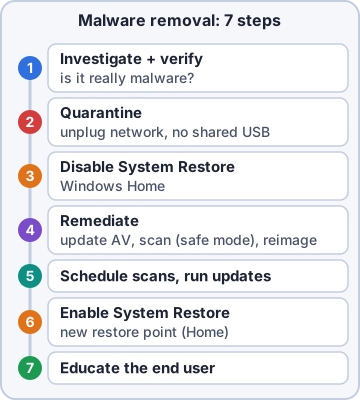
Exam tip 'What should you do NEXT?' questions: find the step they describe, then pick the one after it.
Why each step is where it is
The order makes sense:
- Investigate and verify first: pop-ups could be a bad browser extension, not malware
- Quarantine before cleaning: disconnect from the network (pull the cable, turn off Wi-Fi) so it can't spread; don't plug in shared USB drives
- Disable System Restore so infected restore points are deleted and can't bring the malware back
- Update anti-malware before scanning, so it knows the newest threats
- Scan in safe mode or from a preinstallation environment (WinPE boot media) so the malware isn't running
- Reimage/reinstall when it can't be cleaned
Finishing the job
After the PC is clean:
- Schedule scans and run updates: OS patches, app updates and regular automatic scans
- Enable System Restore and create a restore point: a clean, known-good point to roll back to
- Educate the end user: how it got in (that 'free' plugin, that link) and how to avoid it next time
Exam tip Trap: re-enable System Restore at step 6, AFTER cleaning, never before. Restoring an old point could restore the infection.
Check yourself 2You've confirmed malware on a Windows Home PC and disconnected it from the network. What should you do NEXT?
- Update the anti-malware software
- Educate the end user
- Disable System Restore
- Create a new restore point
Show the answer
Answer: C. Disable System Restore
After investigating and quarantining comes disabling System Restore, so infected restore points are removed before remediation.
Practice questions
Answer in your head, then open the answer. Ranger's Help Desk has 444 questions like these for A+ Core 2, with mock exams.
Question 1A user installed a free game from an unofficial site. The game works, but it also quietly opened a backdoor for remote access. Which type of malware is this?
- Keylogger
- Virus
- Trojan
- Rootkit
Show the answer
Answer: C. Trojan
A Trojan pretends to be useful software while delivering a hidden payload, such as a backdoor.
Question 2Antivirus scans in Windows find nothing, but a scanner booted from external media finds files and processes the OS was hiding. The malware had modified core OS components. Which type of malware is this?
- Spyware
- Keylogger
- Adware
- Rootkit
Show the answer
Answer: D. Rootkit
Rootkits change the kernel or system components to hide from the running OS, so scanning from outside it (boot media) is often needed.
Question 3Shortly after a user typed online banking credentials, the bank account was accessed from another country. Scans find malware that records every keystroke and sends it out. Which type of malware is this?
- Rootkit
- Potentially unwanted program
- Ransomware
- Keylogger
Show the answer
Answer: D. Keylogger
Keyloggers capture keystrokes to steal passwords and other data.
Question 4Malware on a PC loads before Windows starts. Reinstalling applications does not help, and antivirus running inside Windows cannot remove it. Which type of malware is most likely?
- Potentially unwanted program
- Fileless malware
- Boot sector virus
- Trojan
Show the answer
Answer: C. Boot sector virus
A boot sector virus infects the MBR or boot code, so it runs before the OS and its security tools. Removal often requires boot media.
Question 5A PC's fans run loudly and the CPU stays near 100% even when idle. Task Manager shows an unknown process using all CPU time and connecting to a remote pool server. Which malware is most likely?
- Cryptominer
- Ransomware
- Stalkerware
- Keylogger
Show the answer
Answer: A. Cryptominer
Cryptominers secretly use system resources to mine cryptocurrency, causing constant high CPU or GPU use and heat.
CompTIA, A+, Network+, Security+ and Linux+ are trademarks of CompTIA, Inc. Ranger Gamez is not affiliated with or endorsed by CompTIA. The practice questions are written to the published exam objectives; they are not real exam questions.